AI Assistant lets you control selected vehicle functions through the Strutt app, including creating maps, saving locations as waypoints, and navigating to a saved waypoint.
You can speak to the assistant, type messages, or create shortcuts for frequently used requests. You can also have simple conversations, such as asking it to tell a joke.
This guide explains how to send messages, create and use shortcuts, and adjust the assistant’s voice.
¶ Before You Start
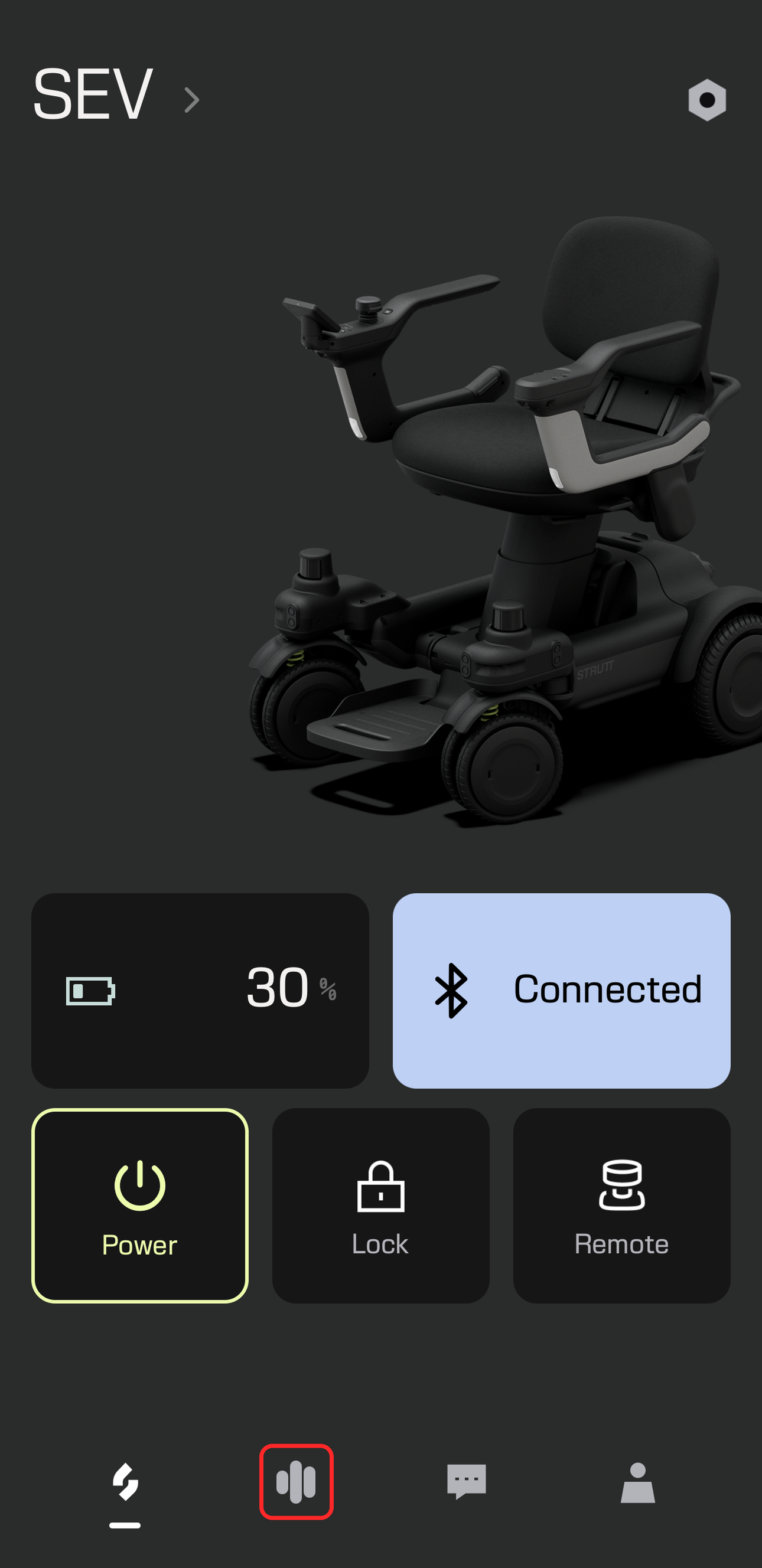
- Bind the Strutt app to the vehicle and ensure that the vehicle is connected to your Strutt App via Bluetooth.
- Connect to stable Wi-Fi. AI Assistant requires Wi-Fi whether you use it in the Strutt app or on the vehicle itself.
- Use your selected system language. Speaking in the same language selected in your system settings improves voice recognition.
- Choose a quiet area with little background noise.
- Use Waypoints only at home or in private indoor spaces. Do not use it in public areas or near cliffs.
- Stay alert and be ready to take over at any time.
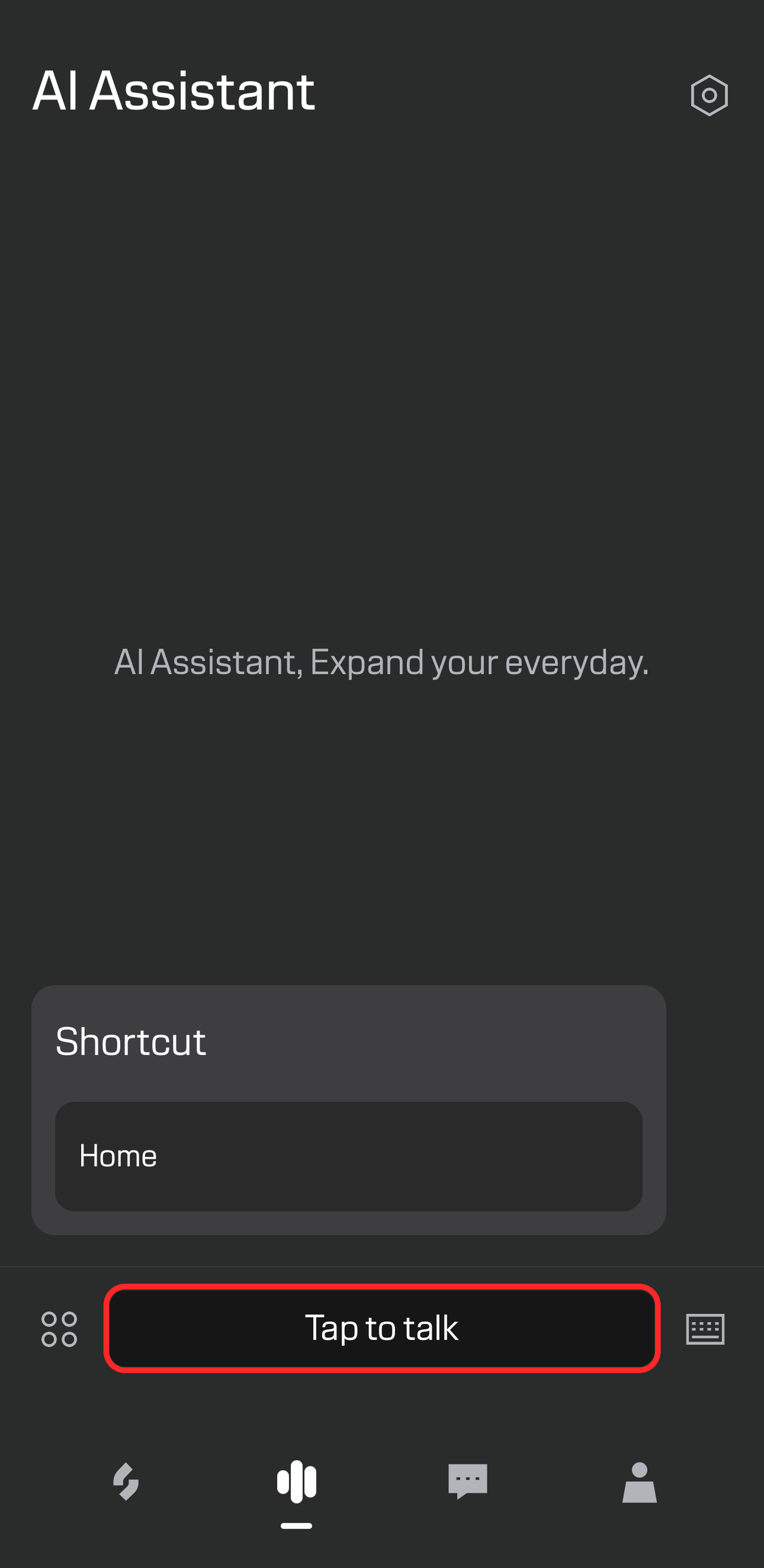
¶ Talk to AI Assistant
- Tap Tap to talk.
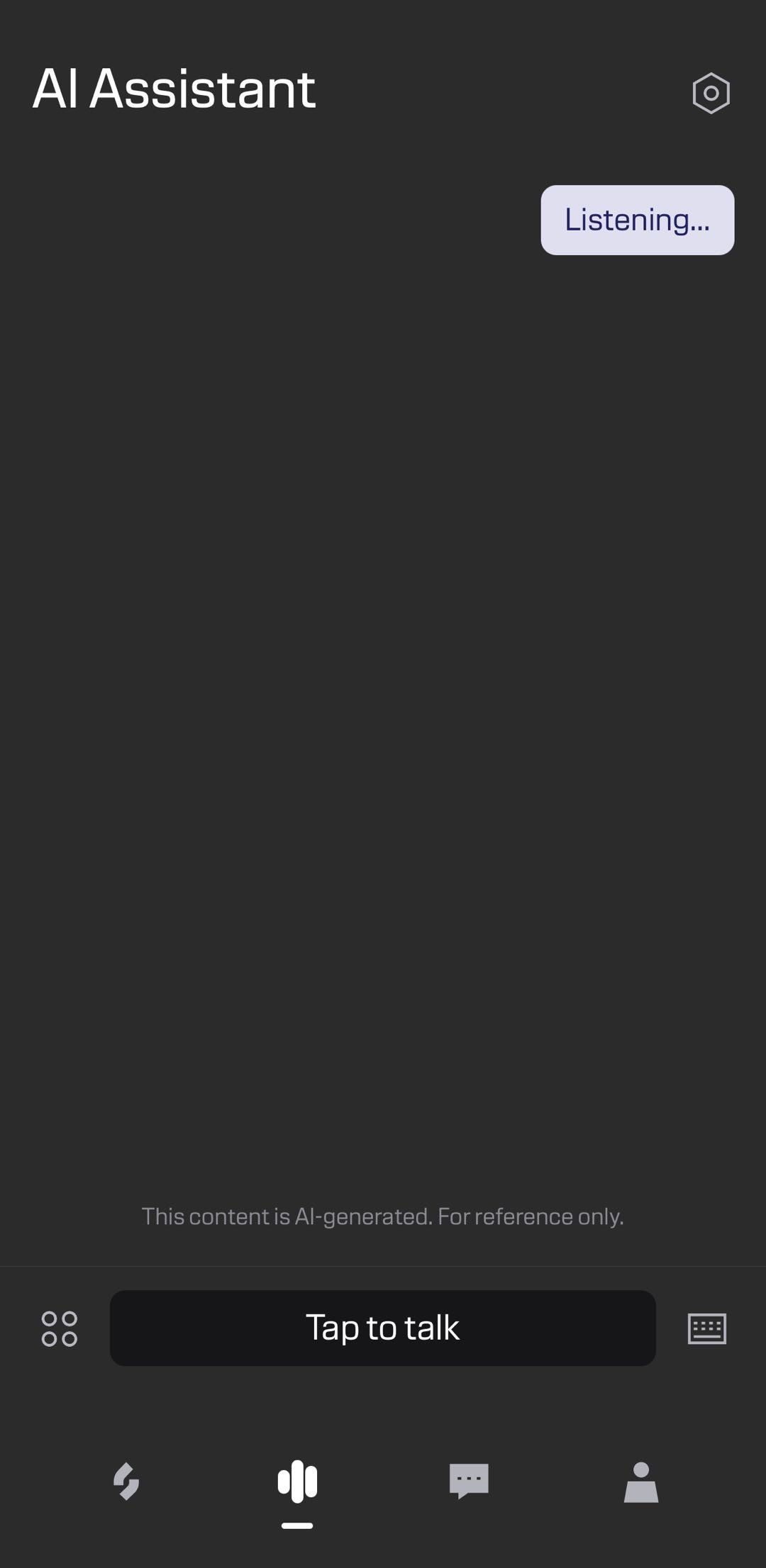
- Wait for the assistant to show Listening.
- Speak your request.
- Your speech will be transcribed and sent into the chat.
¶ Type a Message
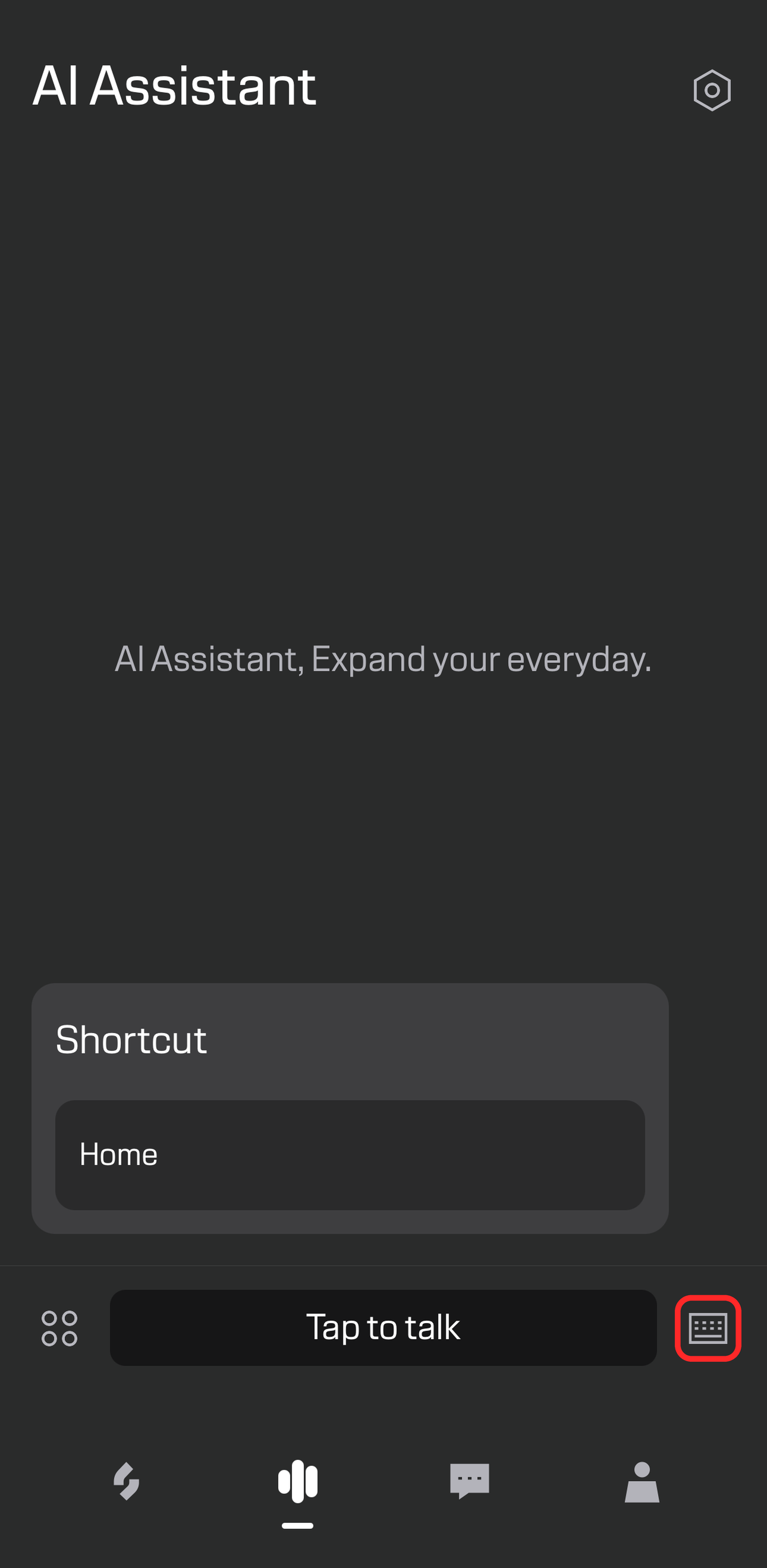
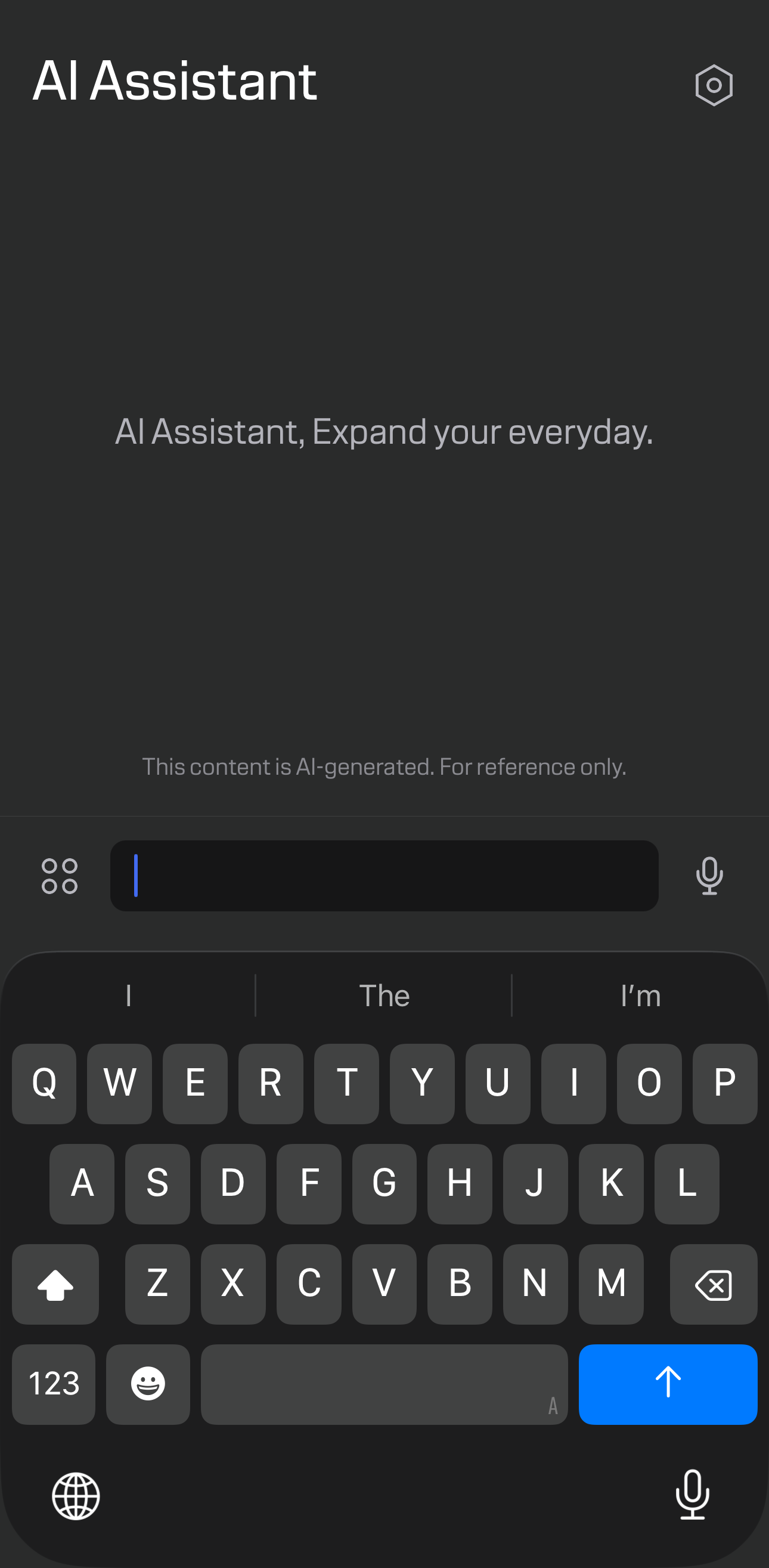
- Tap the keyboard icon on the right.
- Type your message.
- Send the message from your keyboard.
¶ Manage Maps and Waypoints
AI Assistant supports the following functions:
| Function | What you can do |
|---|---|
| Maps | Create or delete a map. |
| Waypoints | Create or delete a saved waypoint. |
| Navigation | Navigate to a saved waypoint. |
Refer to the corresponding instructions for the AI assistant prompts in the linked Guide: Waypoints Mode:
- Create Map with AI Assistant
- Delete Map with AI Assistant
- Create Waypoints with AI Assistant
- Delete Waypoints with AI Assistant
- Navigating to Waypoints with AI Assistant
¶ Create Shortcuts
Shortcuts let you send a saved message to AI Assistant without typing or speaking it each time.
For example, a “Get me to home” shortcut sends that message into the chat and requests navigation to the saved home waypoint.
A navigation shortcut can cause the vehicle to move. Stay alert and be ready to take over.
To create a shortcut in the Strutt app:
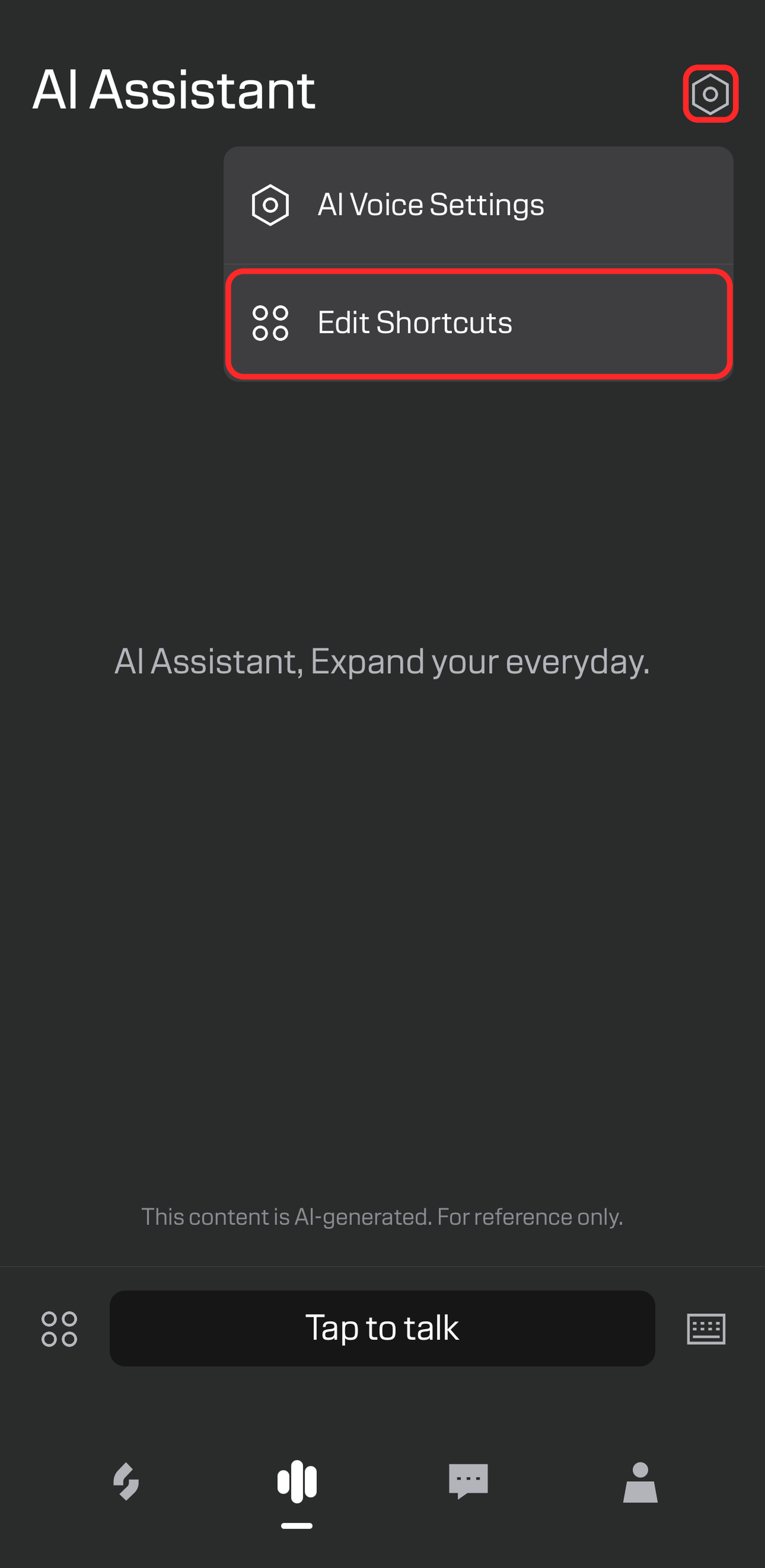
- Open AI Assistant.
- Tap the settings icon in the top-right corner.
- Select Edit Shortcuts.
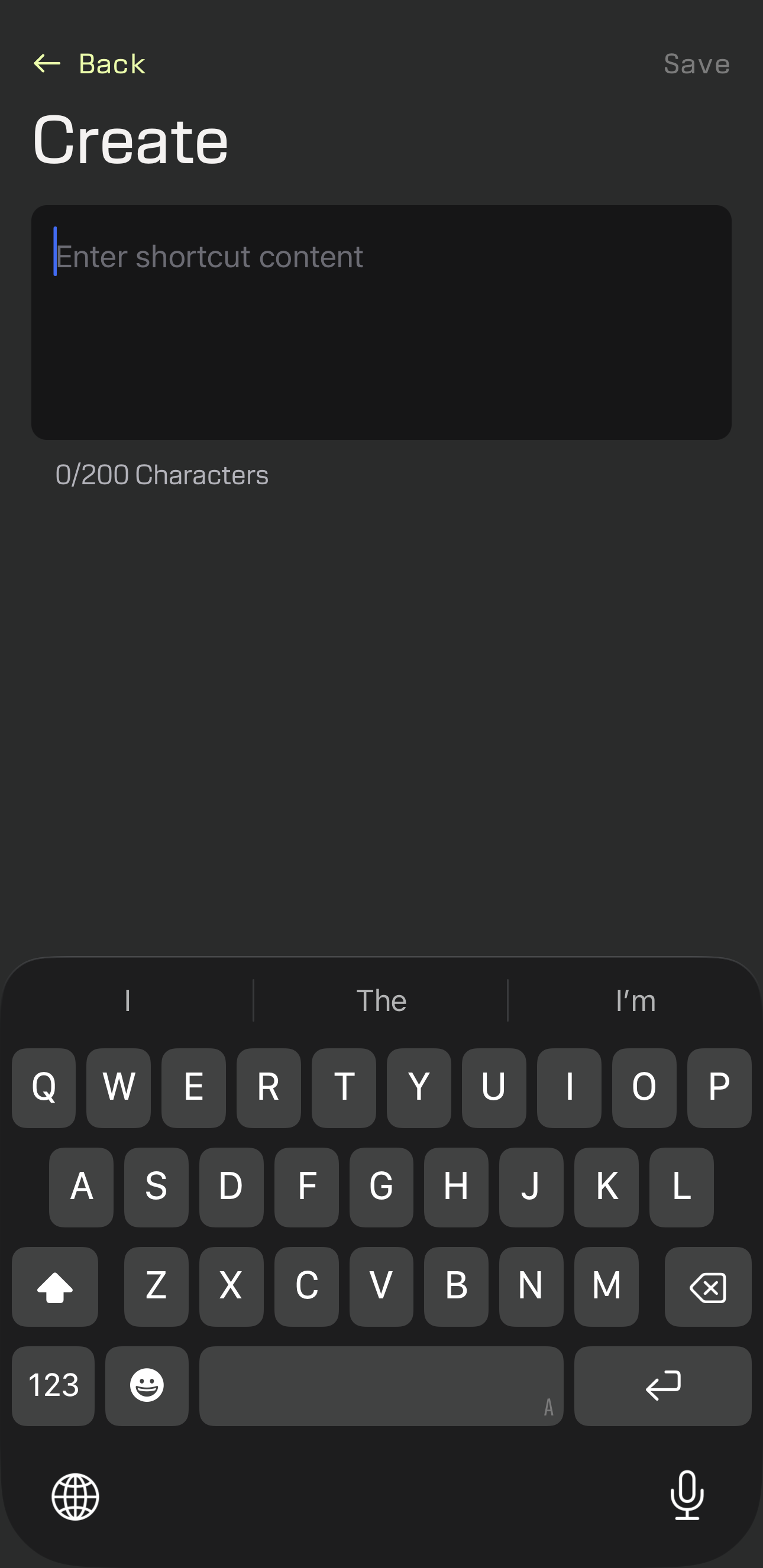
- Tap Create shortcuts.
- Enter the shortcut description.

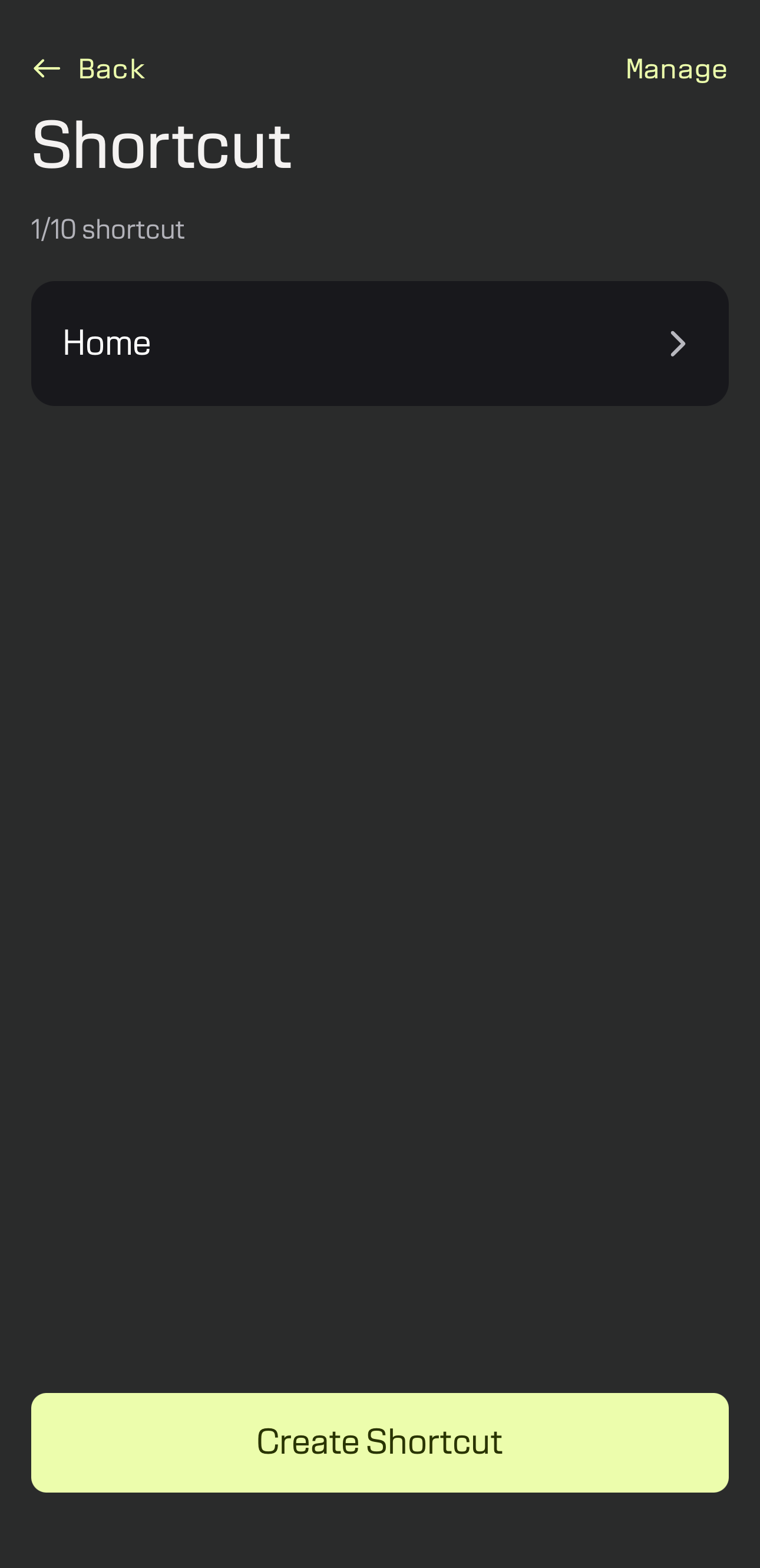

To reorder shortcuts, open Manage and drag them into your preferred order.
¶ Use a Shortcut
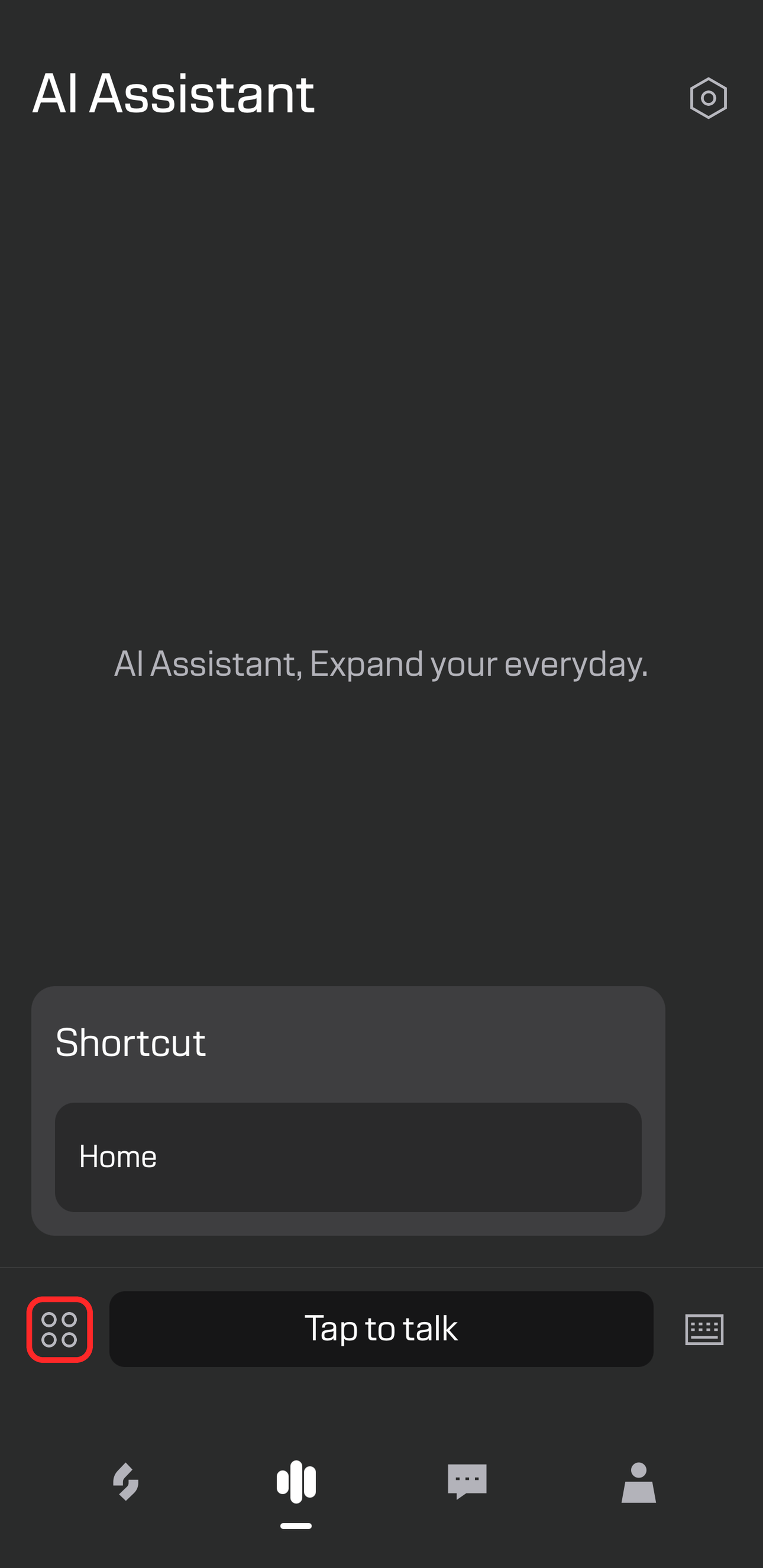
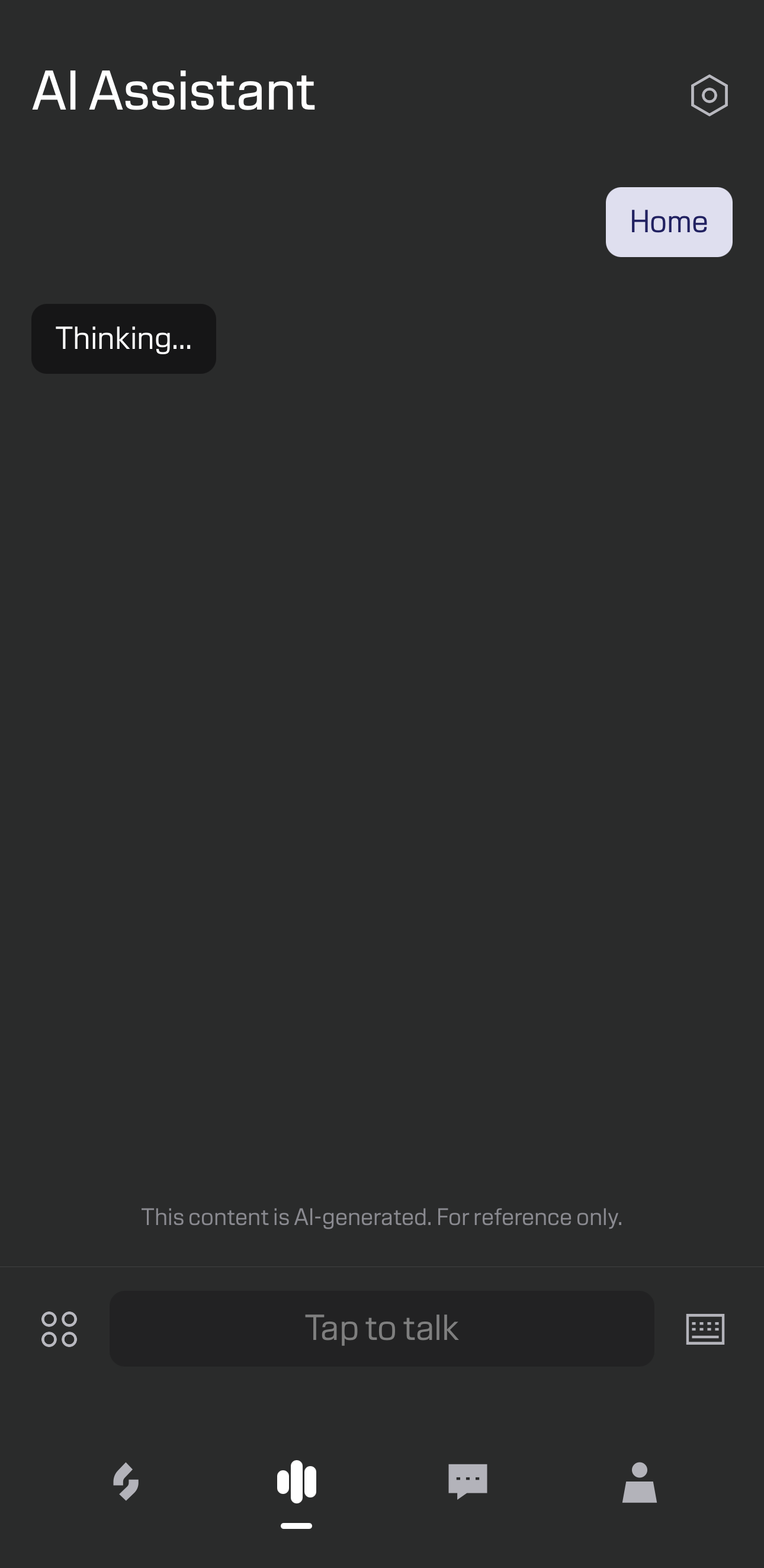
- Tap the shortcut icon.
- Tap the shortcut name you want to use.
The saved message is sent directly to the AI Assistant chat.
¶ Adjust AI Assistant’s Voice
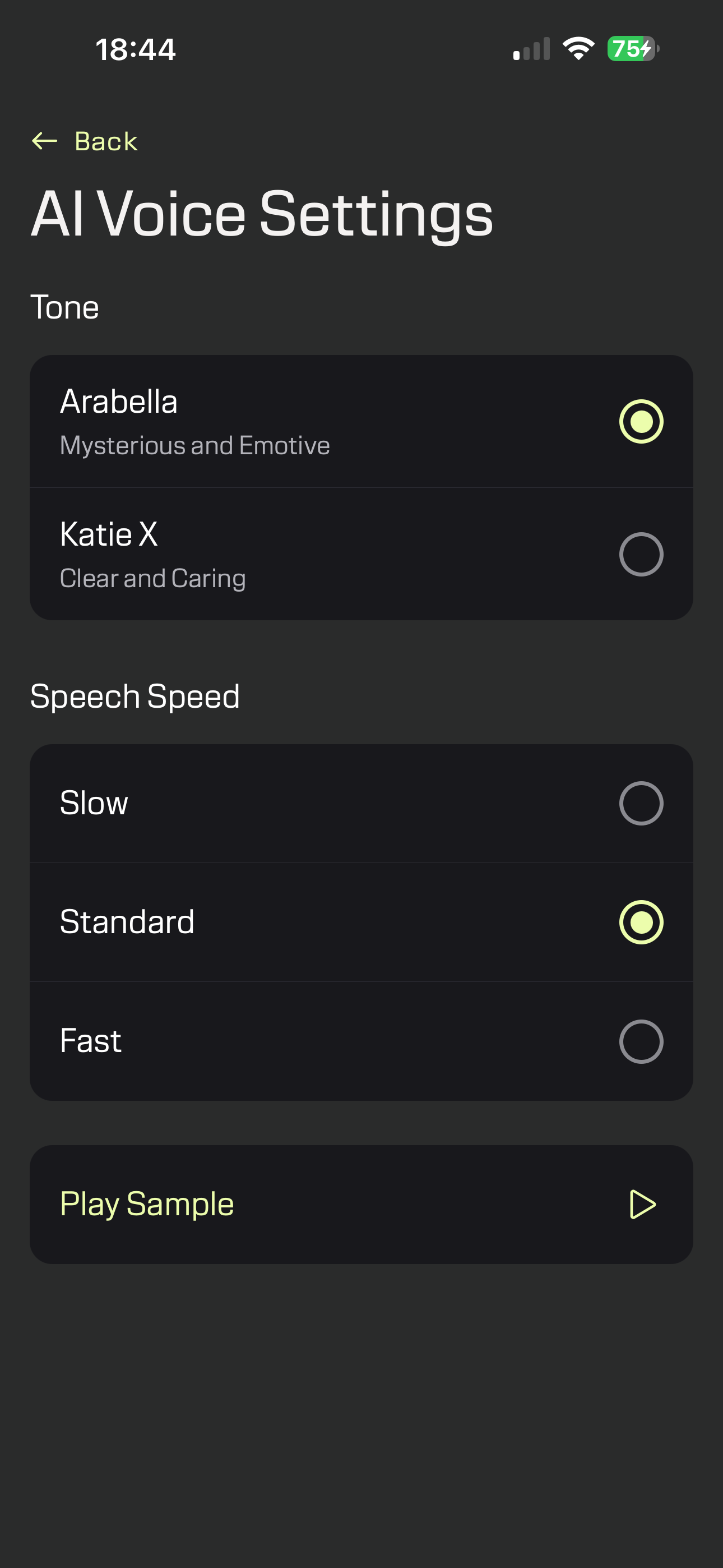
In AI Voice Settings, you can choose:
- Tone
- Speech speed
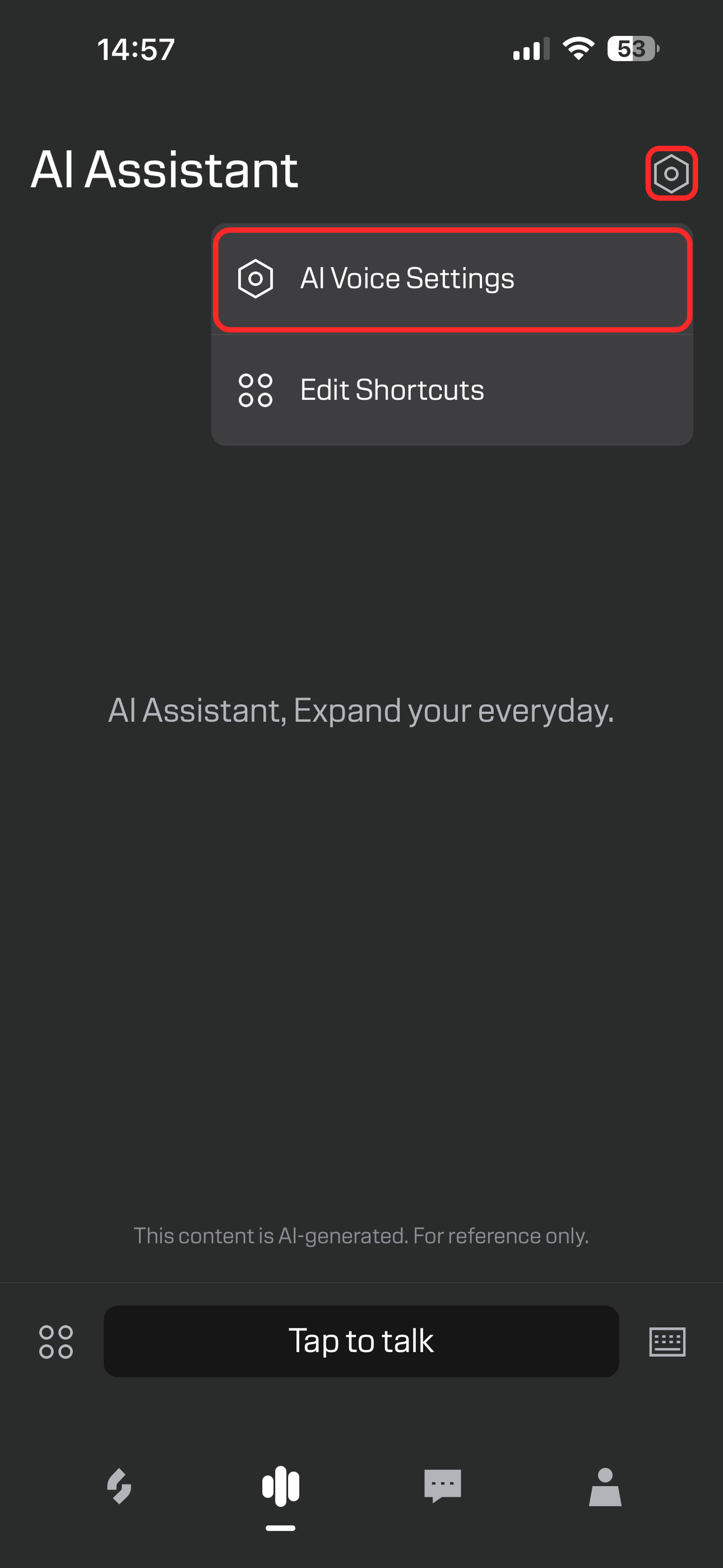
- Open AI Assistant.
- Tap the settings icon in the top-right corner.
- Select AI Voice Settings.
- Choose the assistant’s tone and speech speed.
- Tap Play Sample to preview how it will sound.
Tap Play Sample to hear how the assistant will sound.
¶ Safety Information
- Use Waypoints only at home or in private indoor spaces.
- Do not use Waypoints in public areas or near cliffs.
- A shortcut that requests navigation can cause the vehicle to move.
- Stay alert and be ready to take over at any time.
¶ Frequently Asked Questions
¶ Does AI Assistant require Wi-Fi?
Yes. AI Assistant requires a stable Wi-Fi connection both in the Strutt app and on the vehicle itself.
¶ Can I type instead of speaking?
Yes. Tap the keyboard icon, type your message, and tap the send icon.
¶ How can I improve voice recognition?
Speak in the same language selected in your system settings and use the assistant in a quiet area with little background noise.
¶ Does Waypoints require Wi-Fi when used through the app?
AI Assistant requires a stable Wi-Fi connection to use Waypoints through the Strutt app.
¶ What can AI Assistant do with maps and waypoints?
It can create and delete maps, create and delete waypoints, and navigate to a saved waypoint. Follow the corresponding feature guides for detailed instructions.
¶ What happens when I tap a shortcut?
Its saved message is sent directly to AI Assistant. A navigation request, such as “Bring me to home”, requests travel to the corresponding saved waypoint.
¶ Can I change the order of my shortcuts?
Yes. Open Manage and drag the shortcuts into your preferred order.
¶ Can I change the assistant’s voice?
Yes. In AI Voice Settings, choose the tone and speech speed. Tap Play Sample to preview the voice.