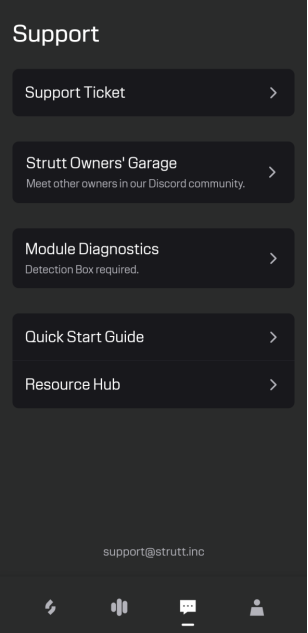
The Support tab brings together tools and resources to help you look after your vehicle.
You can submit a support ticket, join the owner community, access module diagnostics, read the Quick Start Guide, and visit the Resource Hub.
¶ Before You Start
- Registered and signed in to the Strutt app.
- On the Home screen’s bottom bar, tap Support, identified by the speech-bubble icon.
Before submitting a report, check that it is for the correct vehicle.
¶ Find the Support Option You Need
| Option | What it provides |
|---|---|
| Support Ticket | Create issue reports and view submitted tickets. |
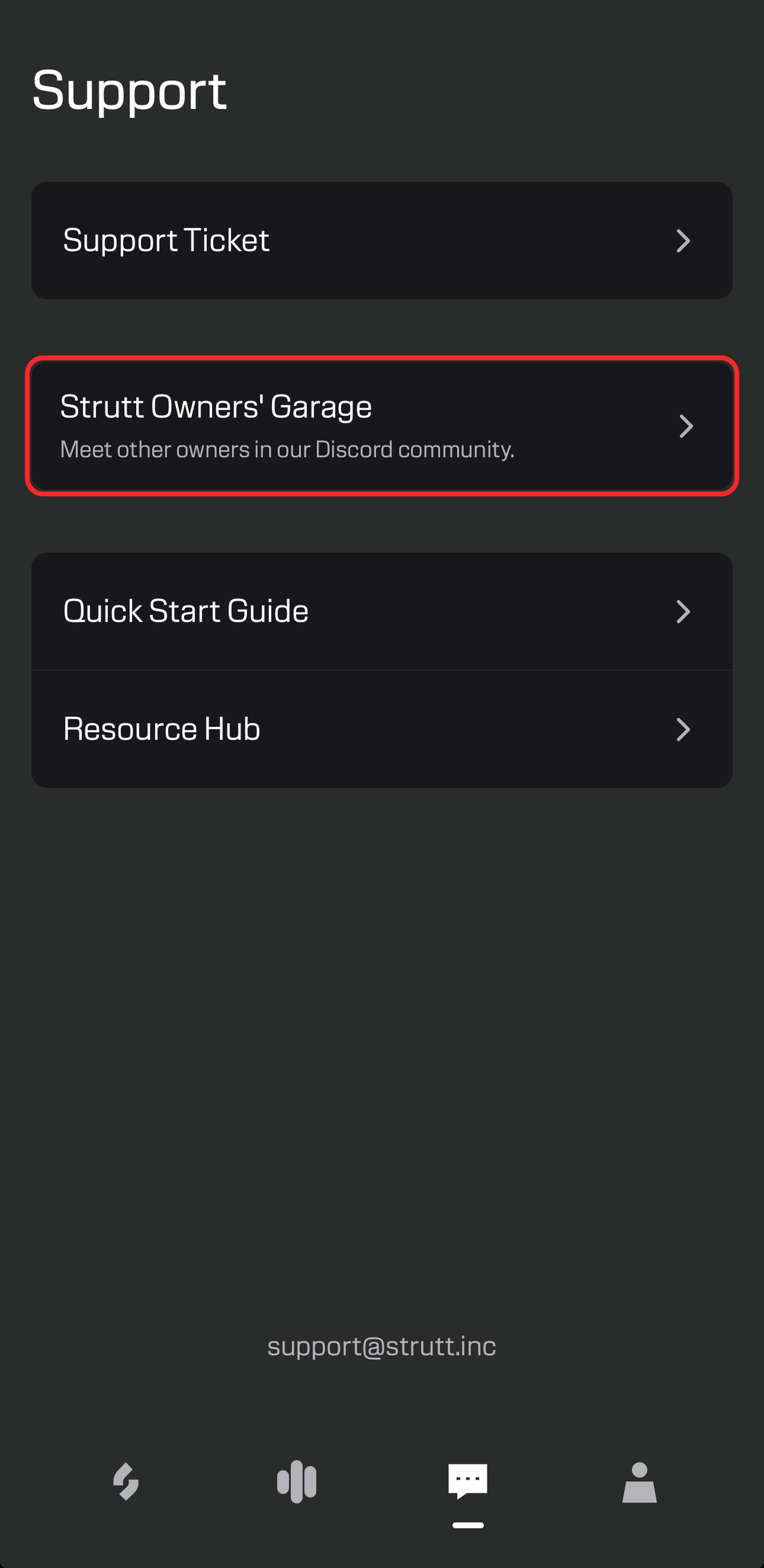
| Strutt Owners' Garage | “Meet other owners in our Discord community.” Opens outside the app. |
| Module Diagnostics | Vehicle module diagnostics. Detection Box required. |
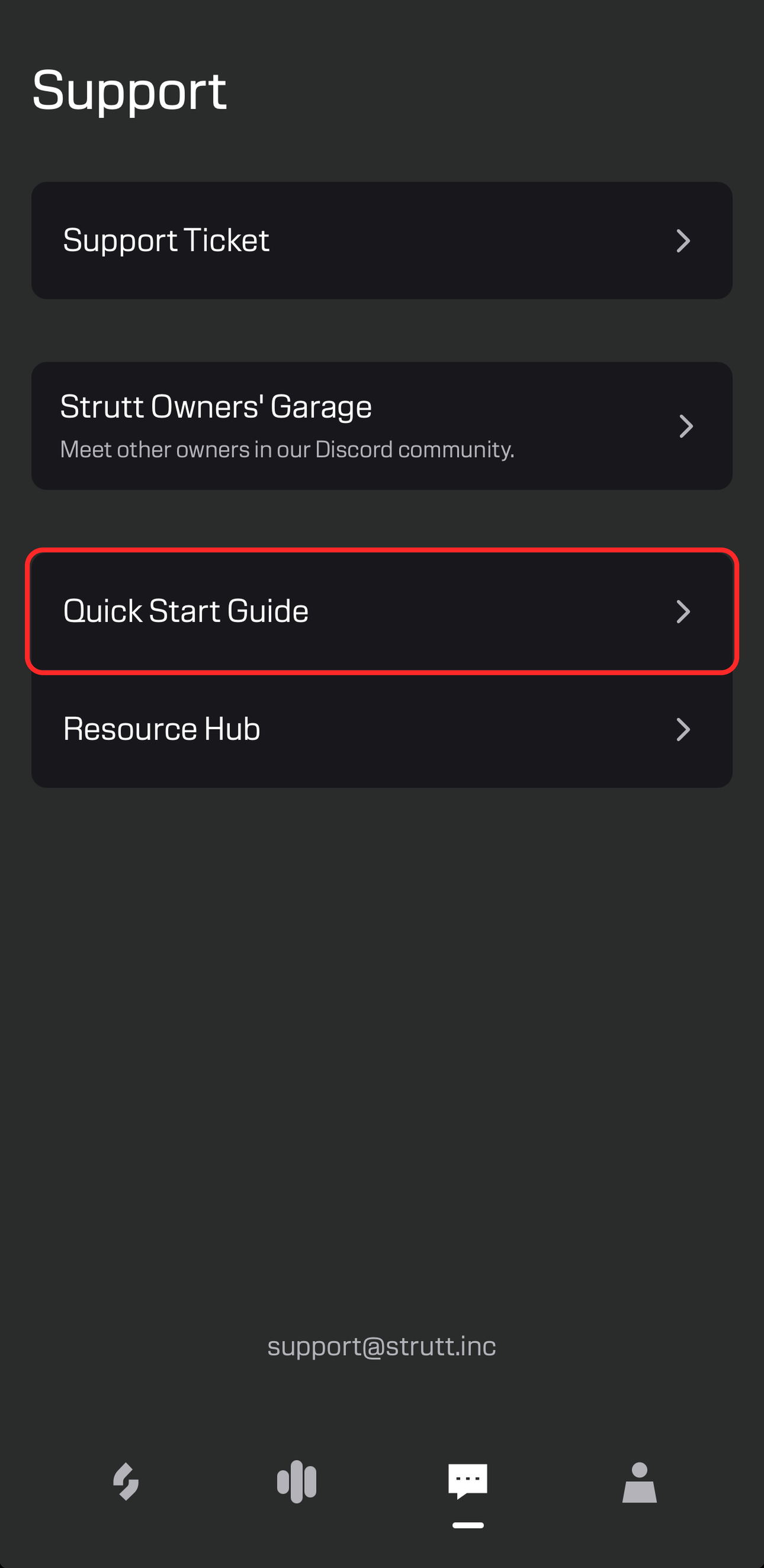
| Quick Start Guide | The in-app ev¹ System Quickstart Guide. |
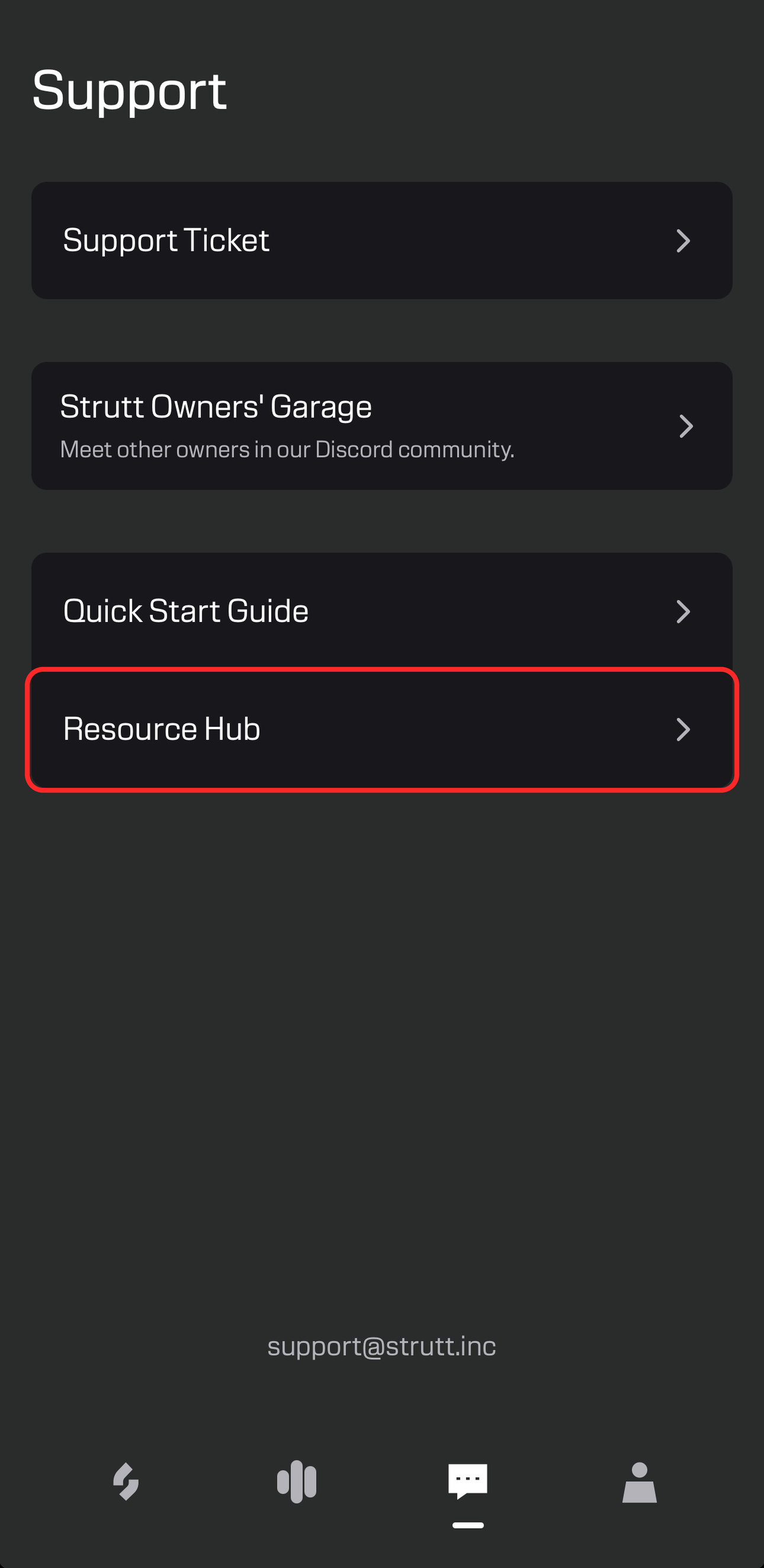
| Resource Hub | Online support resources and tutorials. Opens outside the app. |
The Support page footer also shows support@strutt.inc.
¶ Create a Support Ticket
Note:
Please submit a Support Ticket within 3 days of the issue.
¶ Step 1: Open the Report Form
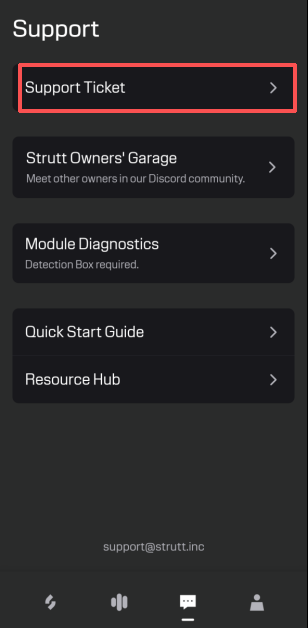
- Open Support, indicated by the speech-bubble icon on the bottom.
- Tap Support Ticket.
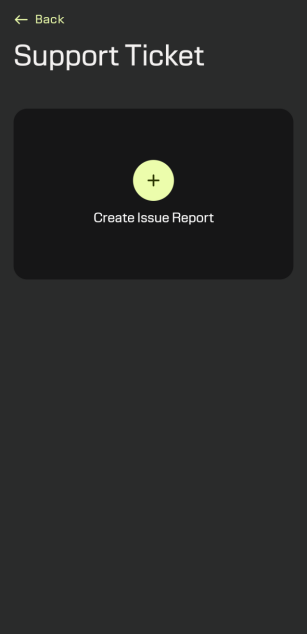
- Tap Create Issue Report.
If you have not submitted a report before, the page shows Create Issue Report. If tickets already exist, this option remains at the bottom of the list.
¶ Step 2: Check the Vehicle and Log Options
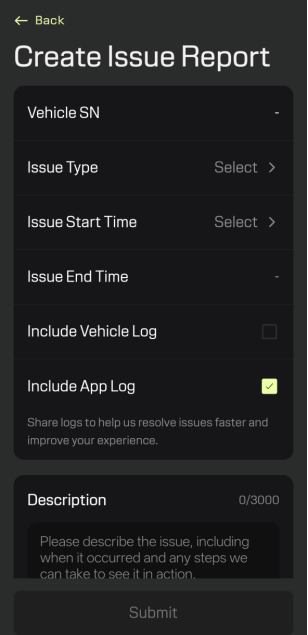
The form contains:
- Vehicle SN
- Issue Type
- Issue Start Time
- Issue End Time
Check that Vehicle SN identifies the vehicle you are reporting.
Include App Log is checked by default. Include Vehicle Log can be selected only when a vehicle is bound to your account. Please ensure that this box is checked.
If no vehicle is bound, Vehicle SN shows “−”, and the vehicle-log option is unavailable. Please bind your vehicle using the following Guide: Bind Your Vehicle to the Strutt App.
¶ Step 3: Choose an Issue Type
- Tap Issue Type.
- Select one category.
- Tap Save.
The categories include:
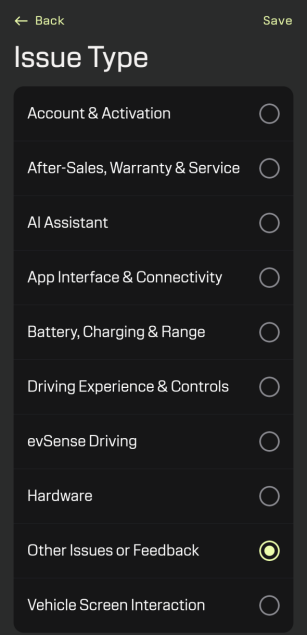
Tap Back instead of Save to leave the selection unchanged.
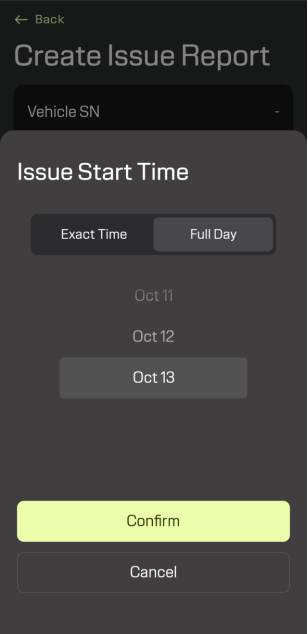
¶ Step 4: Set the Issue Time
Tap Issue Start Time, then choose Exact Time or Full Day.
| Option | When to select this option | How it works |
|---|---|---|
| Exact Time | Select this option when the issue occured only happened at a specific timing. | Set a start and end time. The end must be no more than 30 minutes after the start, and neither time can be in the future. |
| Full Day | Select this option when the issue occured over a prolonged period of time. | Select a date. The form fills the start time as 00:00 and the end time as 23:59 on that day. You cannot select a future date. |
Tap Confirm to keep the time selection, or Cancel to leave it unchanged.
The form then displays the selected issue type and time range. Submit remains inactive until both are set.
¶ Step 5: Add Details and Optional Attachments
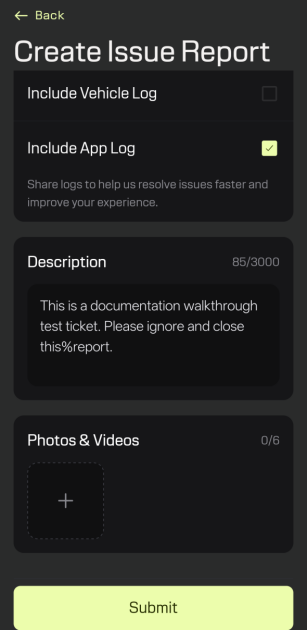
Scroll down to review Include Vehicle Log and Include App Log, make sure that both boxes are checked.
The form explains:
“Share logs to help us resolve issues faster and improve your experience.”
You can add:
| Field | Requirements |
|---|---|
| Description | Optional; up to 3,000 characters. |
| Photos & Videos | Optional; up to 6 files, each smaller than 500 MB. |
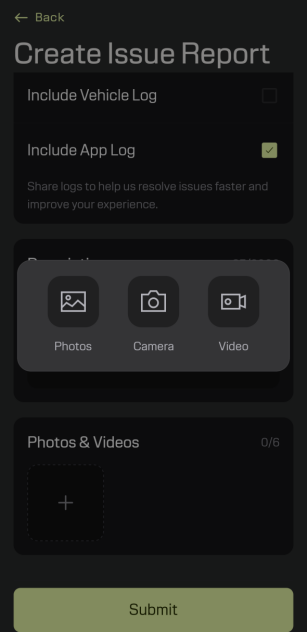
To attach media, tap + and choose Photos, Camera, or Video.
¶ Step 6: Submit the Report
- Check the vehicle, issue type, time range, and any details or attachments.
- When the required fields are valid, Submit turns green.
- Tap Submit.
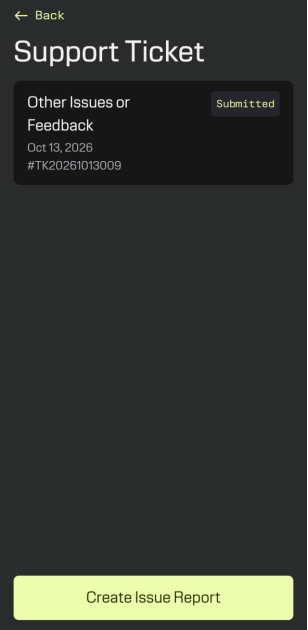
The app returns to Support Ticket, where the new report appears with status Submitted.
¶ View a Submitted Ticket
Each row on Support Ticket shows:
- Issue type
- Date
- Ticket number
- Status
Tap a row to open its details.
The ticket detail page shows:
| Ticket information | Report information |
|---|---|
| Progress | Issue Type |
| Submit Date | Issue Start Time |
| Ticket Number | Issue End Time |
| Vehicle SN | Include Vehicle Log |
| App Log Attached | Description |
Tap Back to return.
¶ Join Strutt Owners' Garage
- Open Support.
- Tap Strutt Owners' Garage.
The app opens the browser at: STRUTT Garage Discord community
¶ Read the Quick Start Guide
- Open Support.
- Tap Quick Start Guide.
¶ Visit the Resource Hub
- Open Support.
- Tap Resource Hub.
The browser opens to support.strutt.inc.
¶ Frequently Asked Questions
¶ Where do I report a problem on the Strutt App?
Go to Support → Support Ticket → Create Issue Report. Select an issue type and valid time range, then tap Submit.
You can also include logs, a description, and photos or videos.
¶ Where can I find my report after submitting it?
It appears as a new row on Support Ticket. Tap it to view the report details and progress.
¶ Why is Submit button greyed out when I am creating a Support Ticket?
An Issue Type or a valid time range is still missing.
A description and media attachments are optional.
¶ Why can’t I include a vehicle log?
Include Vehicle Log is available only when a vehicle is bound to your account. If the form shows “−” for Vehicle SN, no bound vehicle is identified. Please exit, and bind your vehicle to your Strutt app first using this Guide: Bind Your Vehicle to the Strutt App.
¶ How many photos or videos can I attach?
Up to 6 files, each smaller than 500 MB.
¶ Where is the owner community?
Tap Support → Strutt Owners' Garage to open the Discord invitation.
¶ Where can I find tutorials?
Tap Support → Resource Hub for online resources. For the in-app driving guide, select Quick Start Guide.