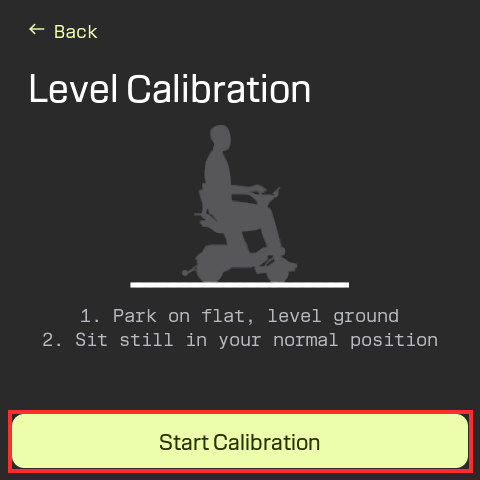
Perform Level Calibration with your vehicle parked on flat, level ground while you remain seated in your normal riding position.
This guide explains how to prepare, start calibration, recognise the on-screen indicators, and retry if calibration fails.
¶ Before You Start
- Park on flat, level ground.
- Sit still in your normal riding position.
Keep both yourself and the vehicle still throughout calibration.
¶ Open Level Calibration
On the vehicle:
- Open Settings.
- Go to Quad Drive → Level Calibration.
¶ Start Calibration
- Check that the vehicle is stationary on flat, level ground.
- Make sure you are seated in your normal riding position.
- Tap the green Start Calibration button at the bottom of the screen.
- Stay still and do not move the vehicle until calibration is complete.
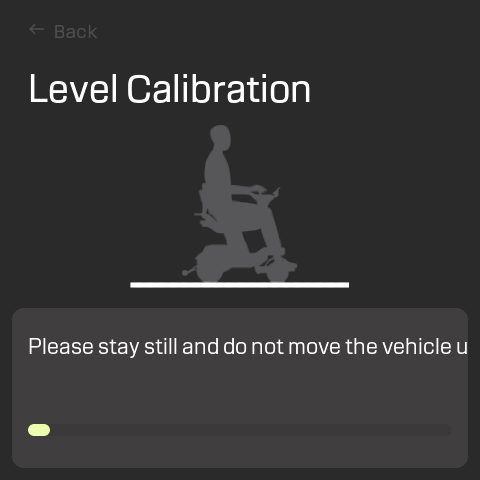
During calibration, a progress indicator appears and Back turns grey. You cannot exit the page while the calibration is running.
¶ Retry a Failed Calibration
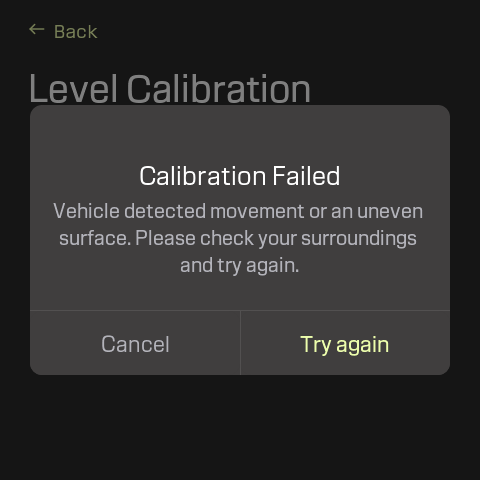
If calibration fails:
- Check that the ground is flat and level.
- Check your seating position.
- Make sure both you and the vehicle remain still.
- Tap Try again to restart calibration.
Alternatively, tap Cancel to leave and return to the Quad Drive page.
¶ Leave Level Calibration
| Calibration status | How to leave |
|---|---|
| Before calibration starts | Tap Back to return to Quad Drive. |
| During calibration | Back is unavailable. Stay still and do not move the vehicle until calibration is complete. |
| After calibration fails | Tap Cancel to return to Quad Drive. |
¶ Understand the Display and Messages
| Screen element or status | What you will see |
|---|---|
| Page title | Level Calibration |
| Preparation instructions | “1. Park on flat, level ground” and “2. Sit still in your normal position” |
| Reminder | “Please stay still and do not move the vehicle until calibration is complete.” |
| Start button | A green Start Calibration button at the bottom |
| Calibration in progress | A progress indicator appears and Back turns grey |
| Calibration failure | “Calibration Failed” — “Vehicle detected movement or an uneven surface. Please check your surroundings and try again.” |
| Failure dialog options | Cancel and Try again |
¶ Safety Information
- Perform calibration on flat, level ground.
- Remain seated in your normal riding position.
- Keep both yourself and the vehicle still throughout calibration.
- If calibration fails, check the ground and your position before trying again.
¶ Frequently Asked Questions
¶ Where can I find Level Calibration?
Go to Vehicle Settings → Quad Drive → Level Calibration.
¶ Why did calibration fail?
The vehicle may have detected movement or an uneven surface.
Check that the ground is flat and level, check your seating position, and keep both yourself and the vehicle still. Then tap Try again.
¶ Can I go back while calibration is running?
No. Back is unavailable during calibration. Stay still and do not move the vehicle until calibration is complete.
¶ How do I leave after a failed calibration?
Tap Cancel to return to the Quad Drive page.
¶ Will Level Calibration change my Drive Controls or Drive Settings?
No. Level Calibration does not change those settings.