Use this guide to view your vehicle and battery details, access software updates, report an issue, and check log upload progress.
¶ Before you begin
- Power on your vehicle.
- Connect the vehicle to a stable Wi-Fi network before updating software or submitting an issue report. Keep it connected until the update or upload is complete.
- To include a voice description in an issue report, microphone access must be available. You can still submit a report without a voice recording if Privacy Mode has disabled the microphone.
¶ View vehicle and battery information
- Press the centre button to open Menu.
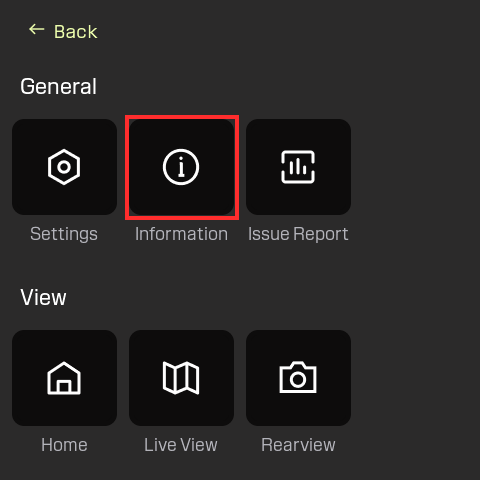
- Under General, tap Information.
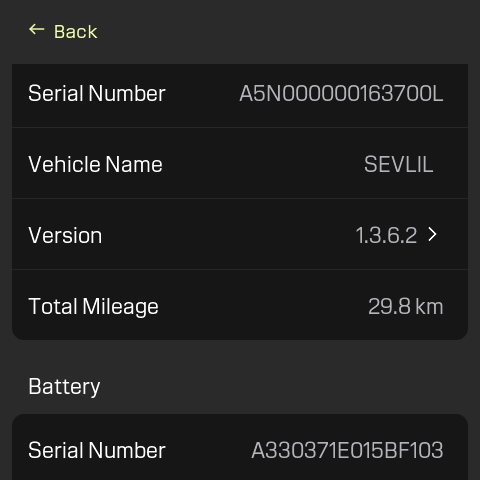
- Review the details on the Information page. Scroll down to see the remaining information.
Navigation: Menu → General → Information
| Section | Information available |
|---|---|
| General | Vehicle model, vehicle serial number, vehicle name, software version, and total mileage |
| Battery | Battery serial number and cycle count |
The vehicle serial number identifies your vehicle. The battery serial number identifies the battery.
¶ Access software updates
- Open Menu → General → Information.
- Tap Version to open the Select Version page.
- Review the available software versions and their details.
- Follow the on-screen instructions to update the vehicle software.
Keep the vehicle connected to the internet throughout the update.
¶ Report an issue
See the full visual guide to Report Issue via the Vehicle
- Press the centre button to open Menu.
- Under General, tap Issue Report.
- If microphone access is available, describe the issue during the 30-second recording period.
- Follow the on-screen instructions to submit the report.
- Keep the vehicle connected to the internet while the report uploads.
- Check Vehicle Log to confirm that the log upload is complete, as described below.
If voice recording is unavailable: When Privacy Mode disables microphone access, the screen indicates that recording is unavailable. You can continue to upload the report without a voice recording.
¶ Check log upload progress and history
- Open Menu → General → Information.
- Scroll to the bottom of the page and tap Vehicle Log.
- On the Vehicle Logs page, check each log file's upload progress or status.
- Scroll down to view older upload records.
Navigation: Menu → General → Information → Vehicle Log
A completed log upload shows Uploaded. Check this status to confirm that the upload has finished.
¶ Frequently asked questions
¶ Can I report an issue when the microphone is unavailable?
Yes. If Privacy Mode has disabled microphone access, you can continue to upload the report without a voice recording.
¶ Where can I check log upload progress and history?
Open Menu → General → Information, scroll to the bottom, and tap Vehicle Log. The Vehicle Logs page shows upload progress, status, and previous upload records.