The Strutt app’s vehicle settings let you view Vehicle Info, reveal your Vehicle PIN, access the Open Beta Program and Safety Waivers, and remove a vehicle from your account.
This guide explains where to find each option.
¶ Before You Start
- Log in to the Strutt app.
- Make sure the vehicle is binded to your account.
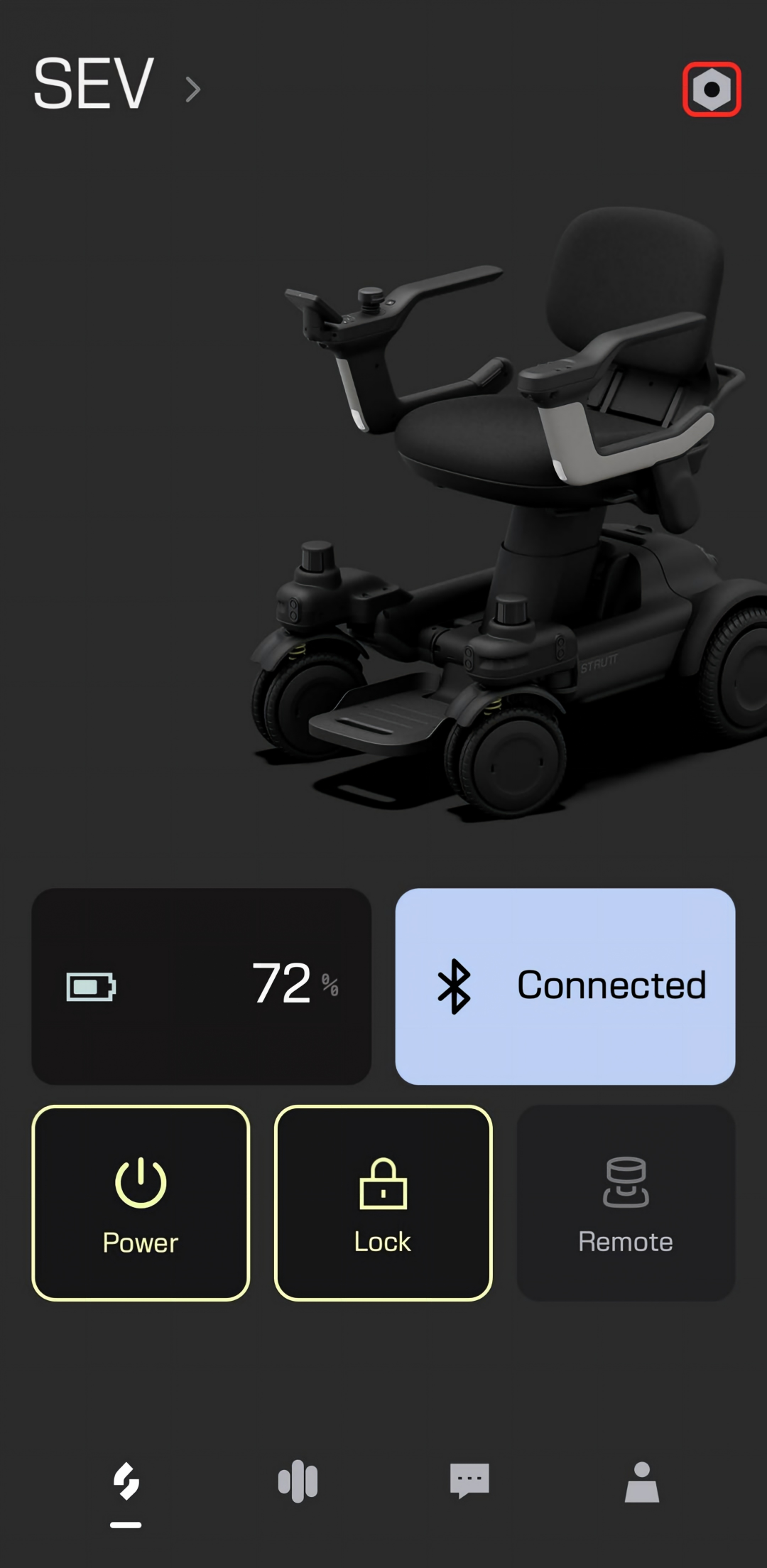
¶ Open Vehicle Settings
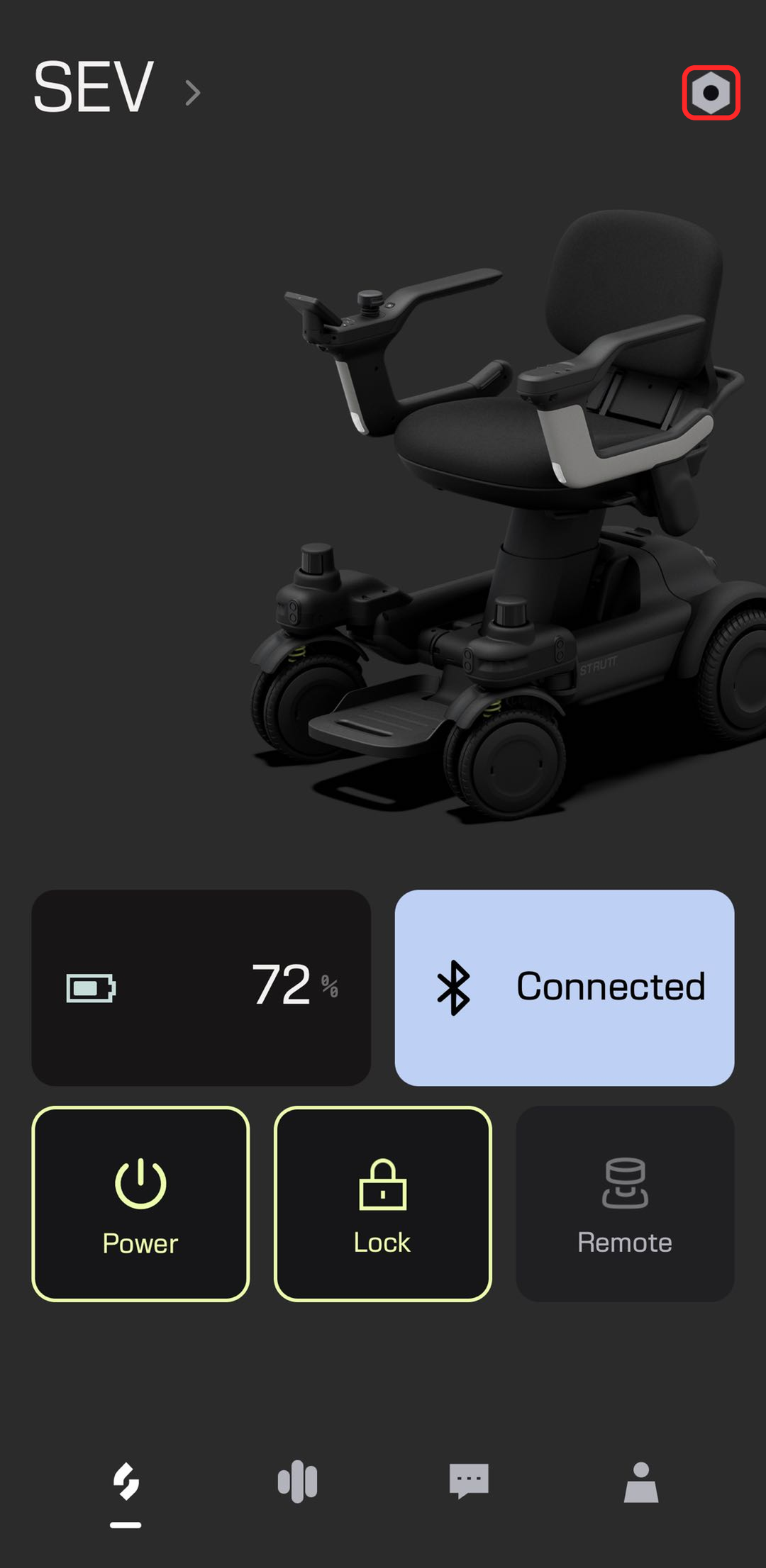
- Open the Strutt app and go to the Home screen.
- Tap the settings icon in the top-right corner.
From here, select the option you want to use.
¶ View Vehicle Information
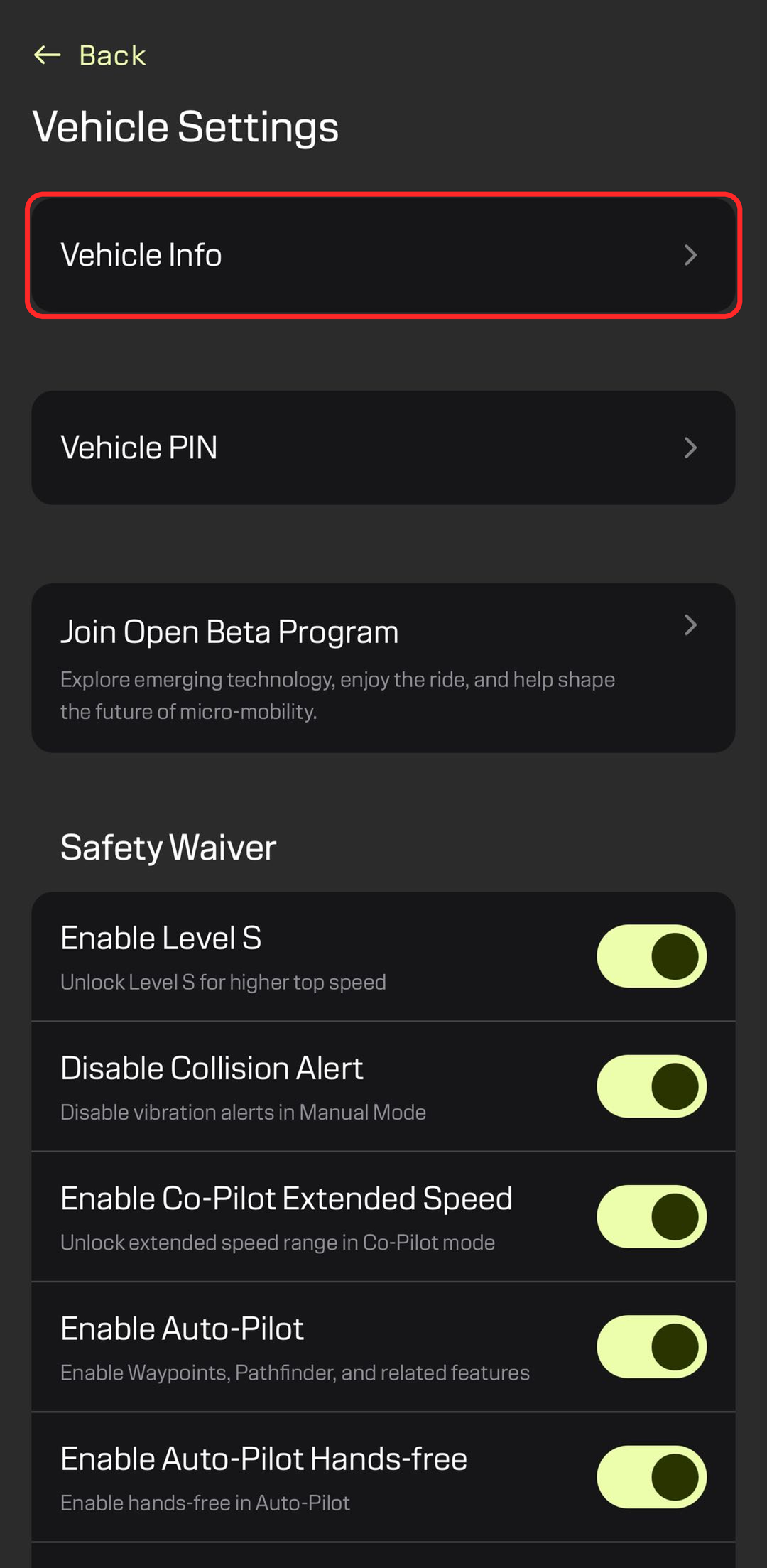
- On the app Home screen, tap the top-right settings icon.
- Select Vehicle Info.
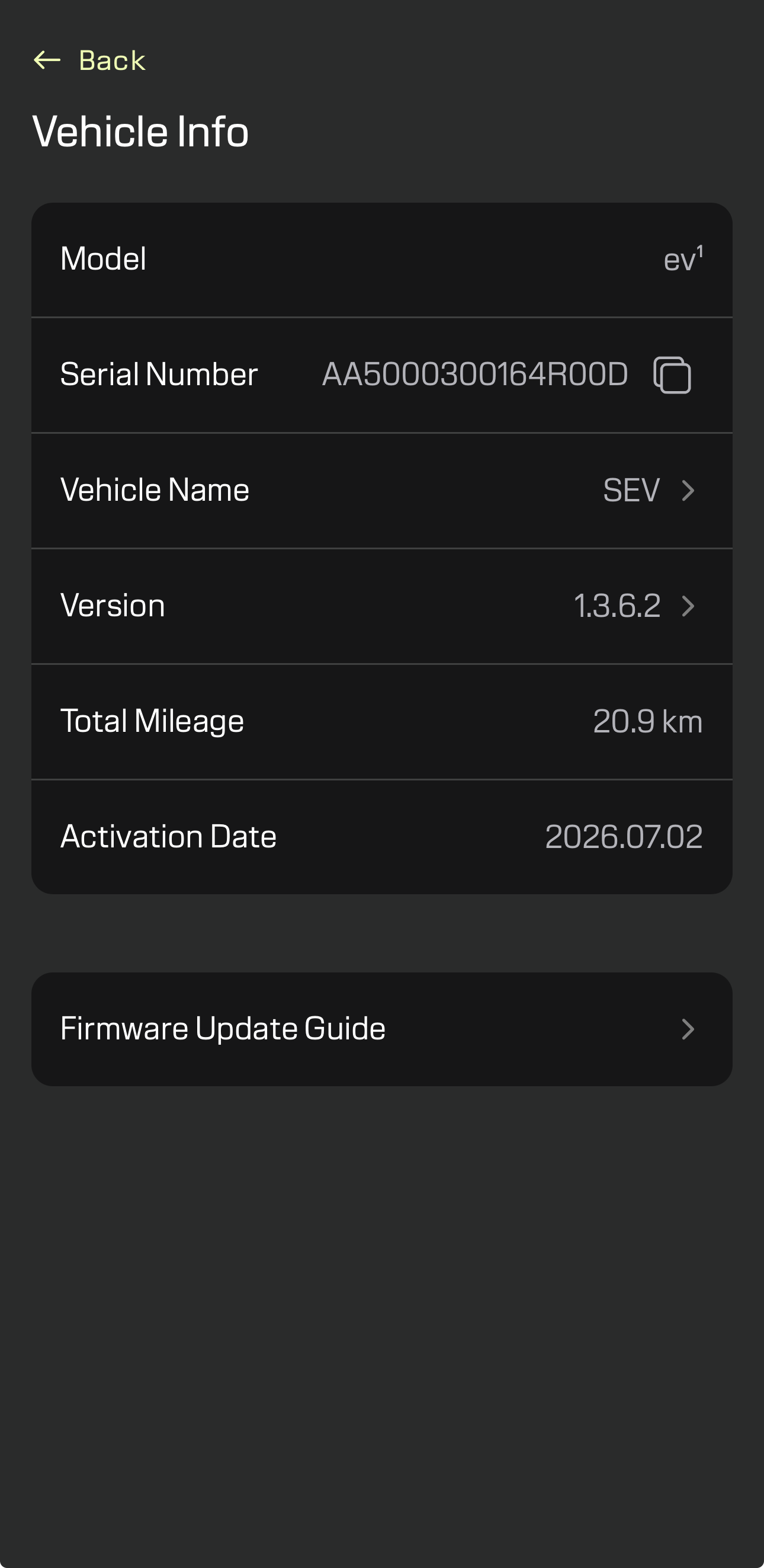
You can check:
| Information | Details |
|---|---|
| Model | ev¹, ev¹c, or ev¹e |
| Serial Number | The vehicle’s serial number |
| Vehicle Name | The vehicle’s name |
| Vehicle Version | The displayed vehicle version |
| Total Mileage | The vehicle’s total recorded mileage |
| Activation Date | The vehicle’s activation date |
| Firmware Update Guide | Guidance for updating the vehicle’s firmware |
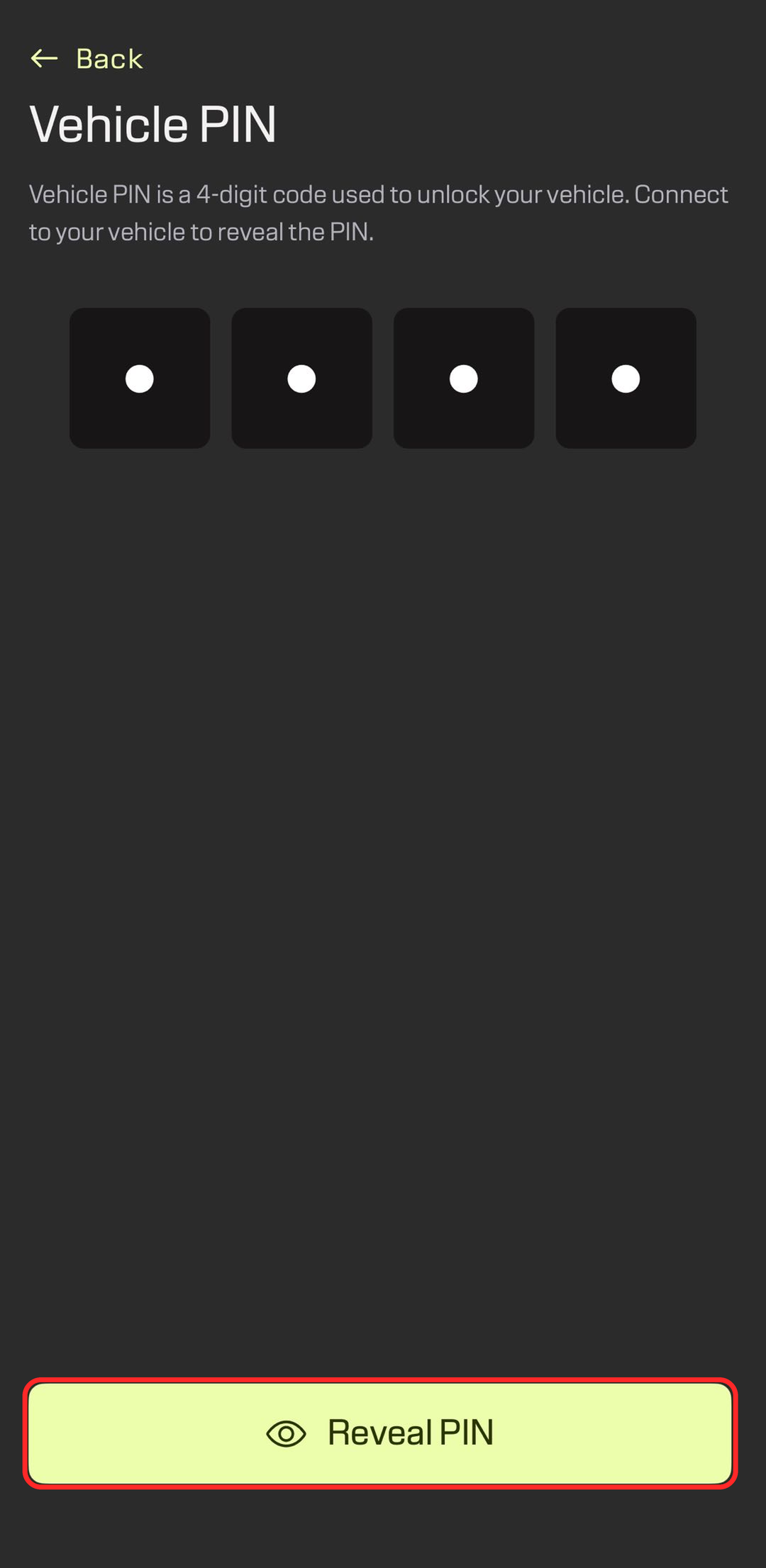
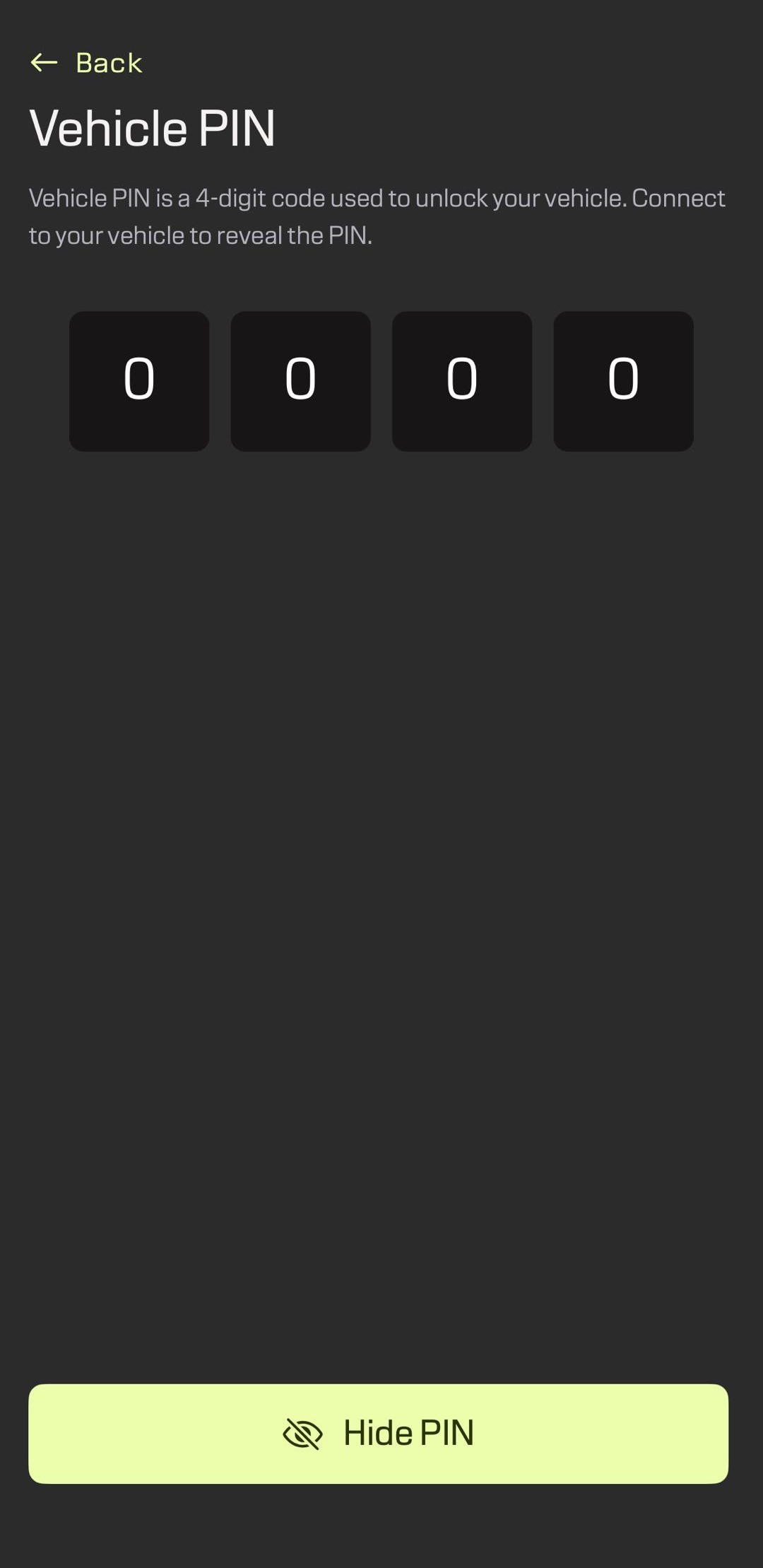
¶ Reveal the Vehicle PIN
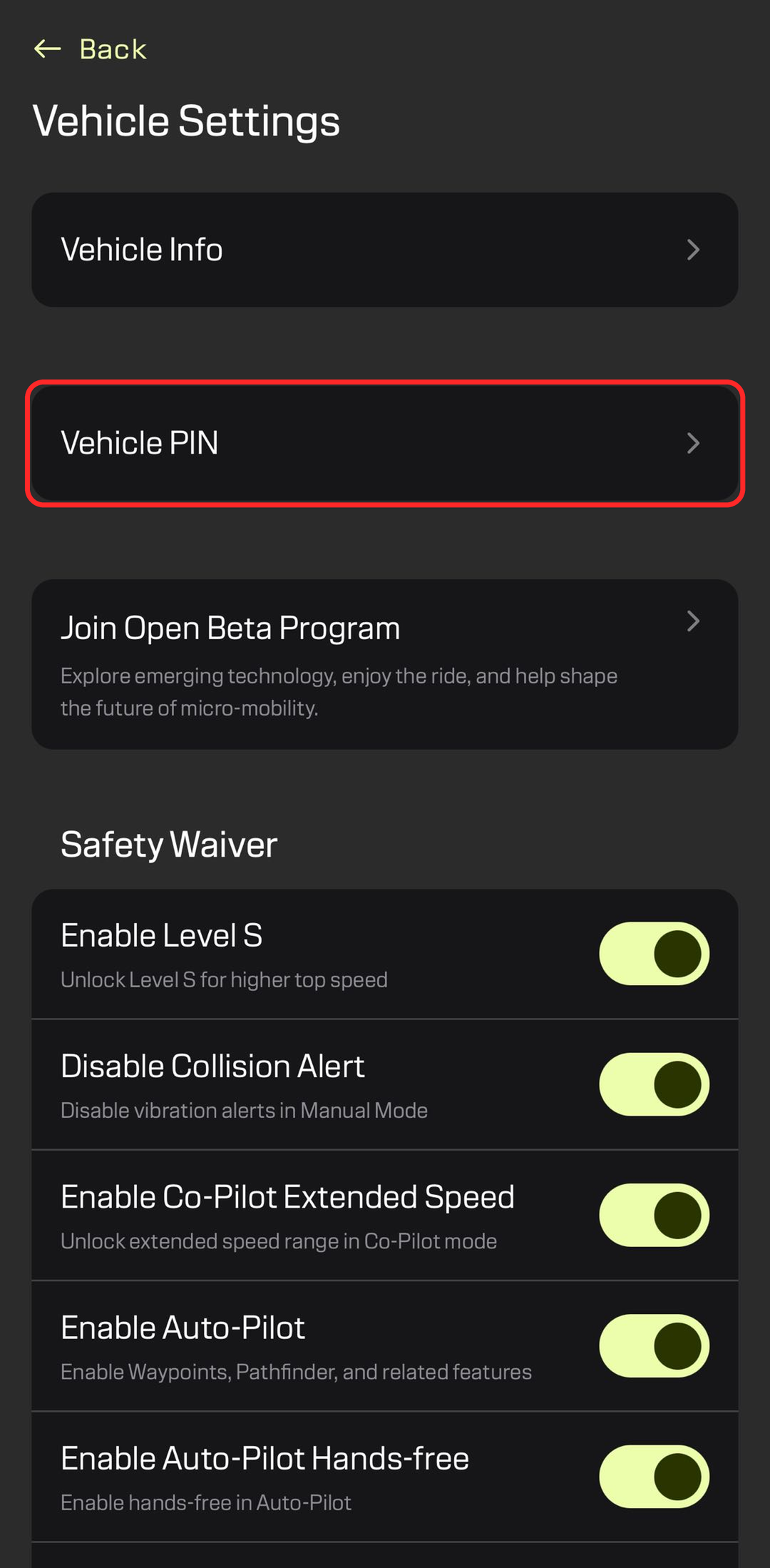
- On the app Home screen, tap the top-right settings icon.
- Select Vehicle PIN.
- Tap Reveal PIN to display the PIN.
¶ Access the Open Beta Program
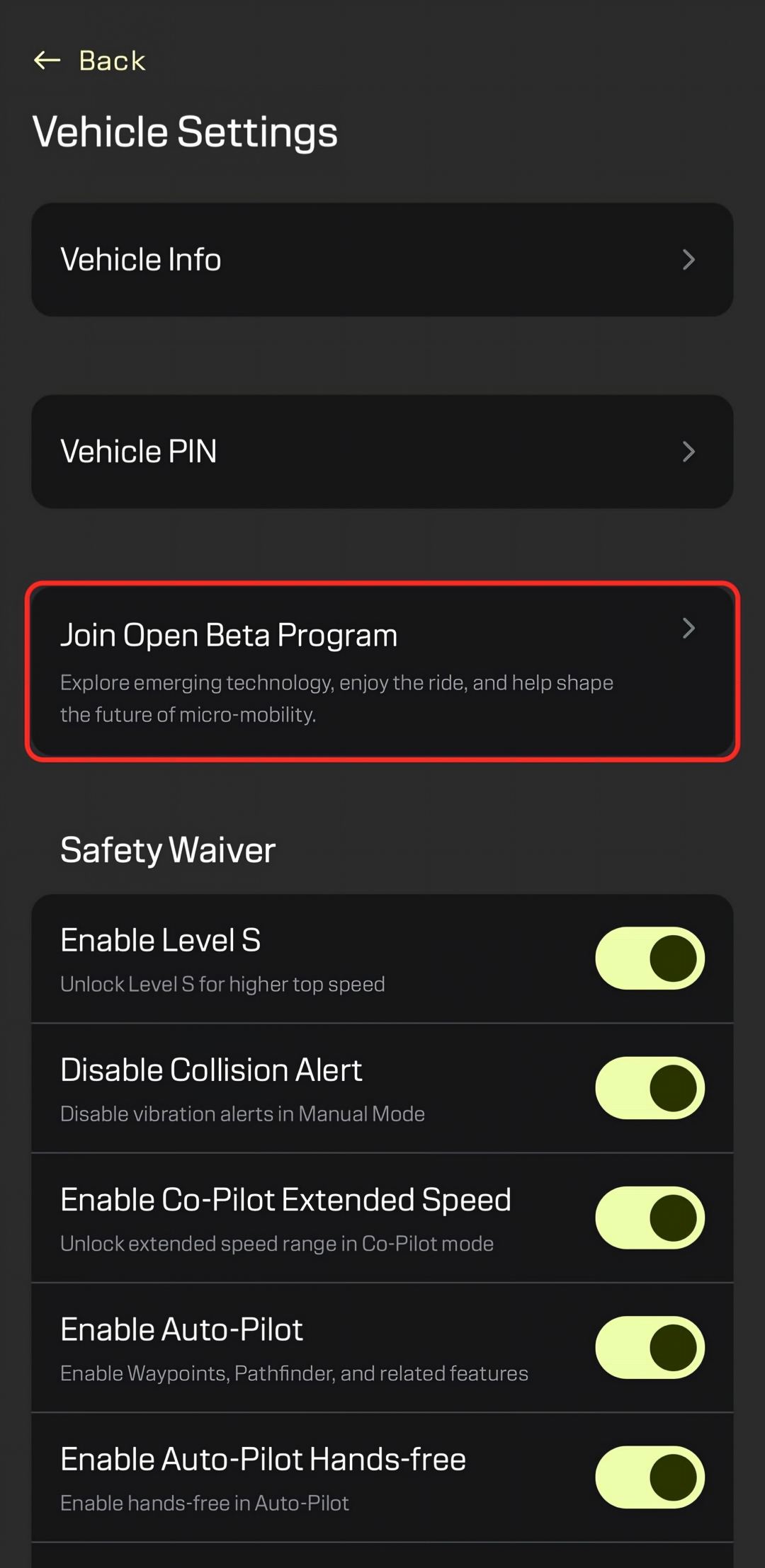
- On the app Home screen, tap the top-right settings icon.
- Select Join Open Beta Program.
For details about the Open Beta Program waiver, see Safety Waivers.
¶ Review Safety Waivers
For more details about the available safety waivers, also see Safety Waivers.
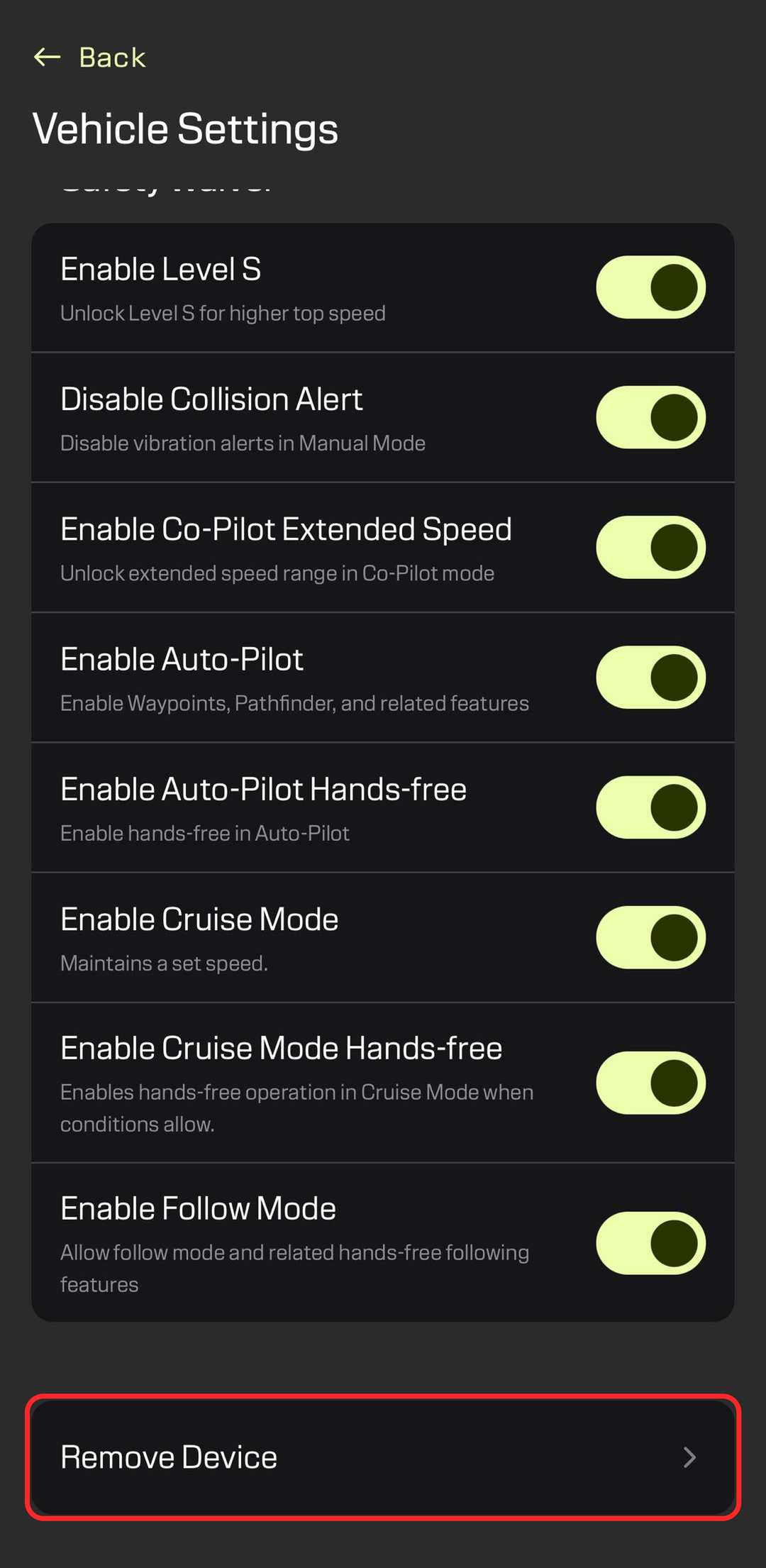
¶ Remove a Vehicle From Your Account
Remove Vehicle unbinds the vehicle from your account.
- On the app Home screen, tap the top-right settings icon.
- Select Remove Vehicle.
¶ Frequently Asked Questions
¶ Where can I find vehicle settings in the app?
On the Strutt app Home screen, tap the settings icon in the top-right corner.
¶ Where can I find my vehicle’s serial number?
Open Settings → Vehicle Info from the app Home screen.
¶ How do I view my Vehicle PIN?
Go to Settings → Vehicle PIN → Reveal PIN from the app Home screen.
¶ Where can I access the Open Beta Program?
Go to Settings → Join Open Beta Program from the app Home screen. See the Safety Waivers guide for waiver details.
¶ What does Remove Vehicle mean?
It means unbinding the vehicle from your account. Access it through Settings → Remove Vehicle from the app Home screen.
¶ Can I connect to more than one vehicle from my Strutt app?
Yes you are able to connect to more than one vehicle using one Strutt app account. On the home page, simply tap on the Strutt name on the top left, a pop-up would appear and then tap on the Add Vehicle to scan the QR code and bind to a seperate vehicle. To access the QR code on the vehicle, head to Settings → General → Connections → Strutt App.