Follow Mode allows the vehicle to follow a person as they walk by tracking the movement of their feet.
This guide explains how to enable Follow Mode, start following, recognise the screens, and exit the mode.
¶ Before You Start
- Enable Follow Mode in the Strutt app. Read and sign the Enable Follow Mode waiver. See the Guide: Safety Agreement Waivers.
- Turn off Privacy Mode. Follow Mode does not work while Privacy Mode is enabled.
- Check the front cameras. Remove any physical camera covers blocking the front cameras.
- Choose a suitable area. Do not use Follow Mode in crowded areas or anywhere you cannot clearly see the vehicle and its path.
¶ Enable Follow Mode
- On the vehicle, press the Strutt button on the armrest to open the Strutt menu.
- Go to Beta Features → Follow Mode.
- Tap on the Follow Mode icon to enable it.
- Stand still within 0.5 metres in front of the vehicle for 2 seconds.
- Tap Start Following on the vehicle display.
¶ Recognise the Follow Mode Screens
| Situation | What you will see |
|---|---|
| Enter Follow Mode | The Follow Mode screen shows instructions to stand still within 0.5 metres in front of the vehicle for 2 seconds, with a Start Following button. 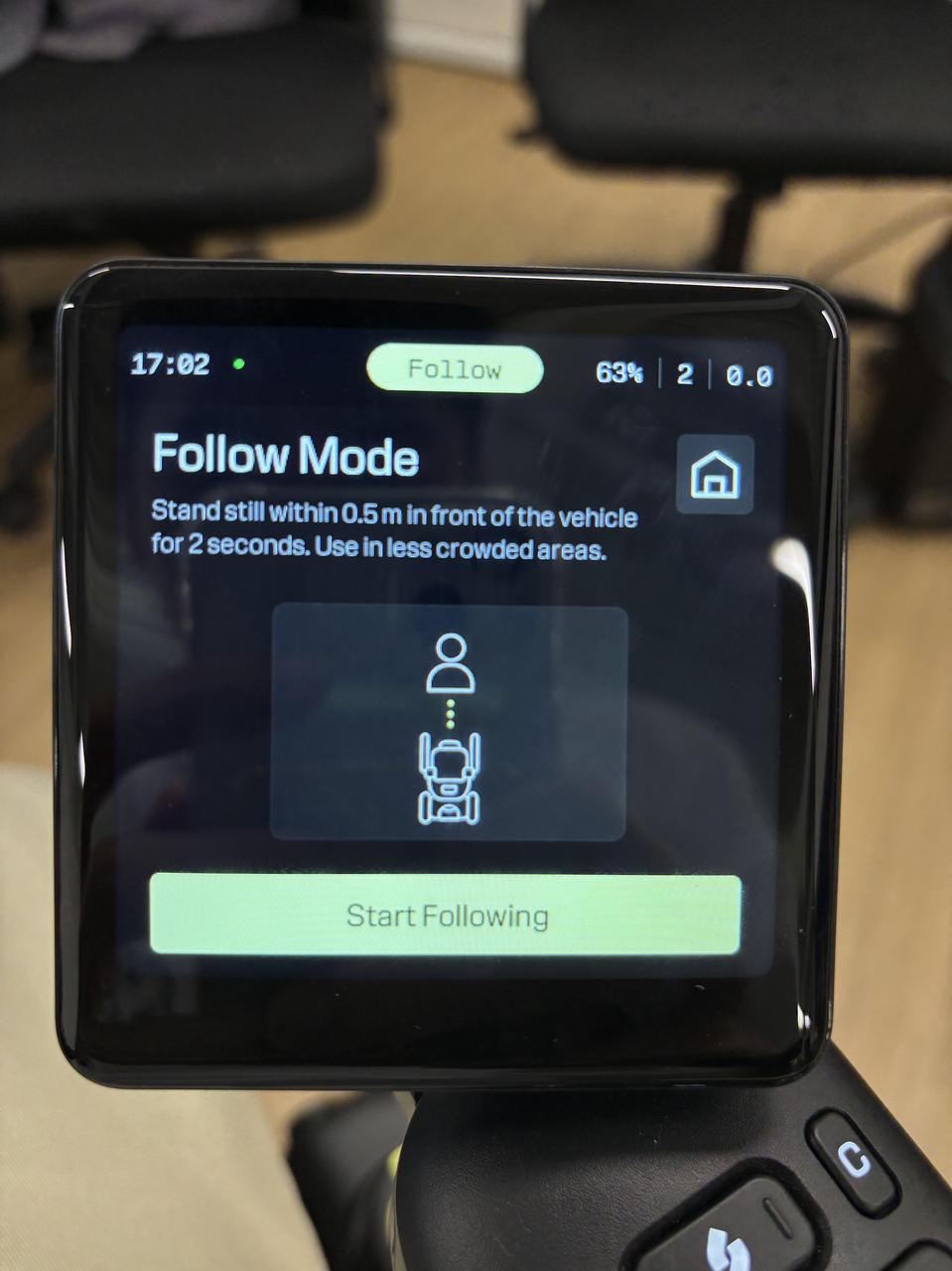 |
| Searching for a person | The screen shows Looking for someone… and a Cancel button. 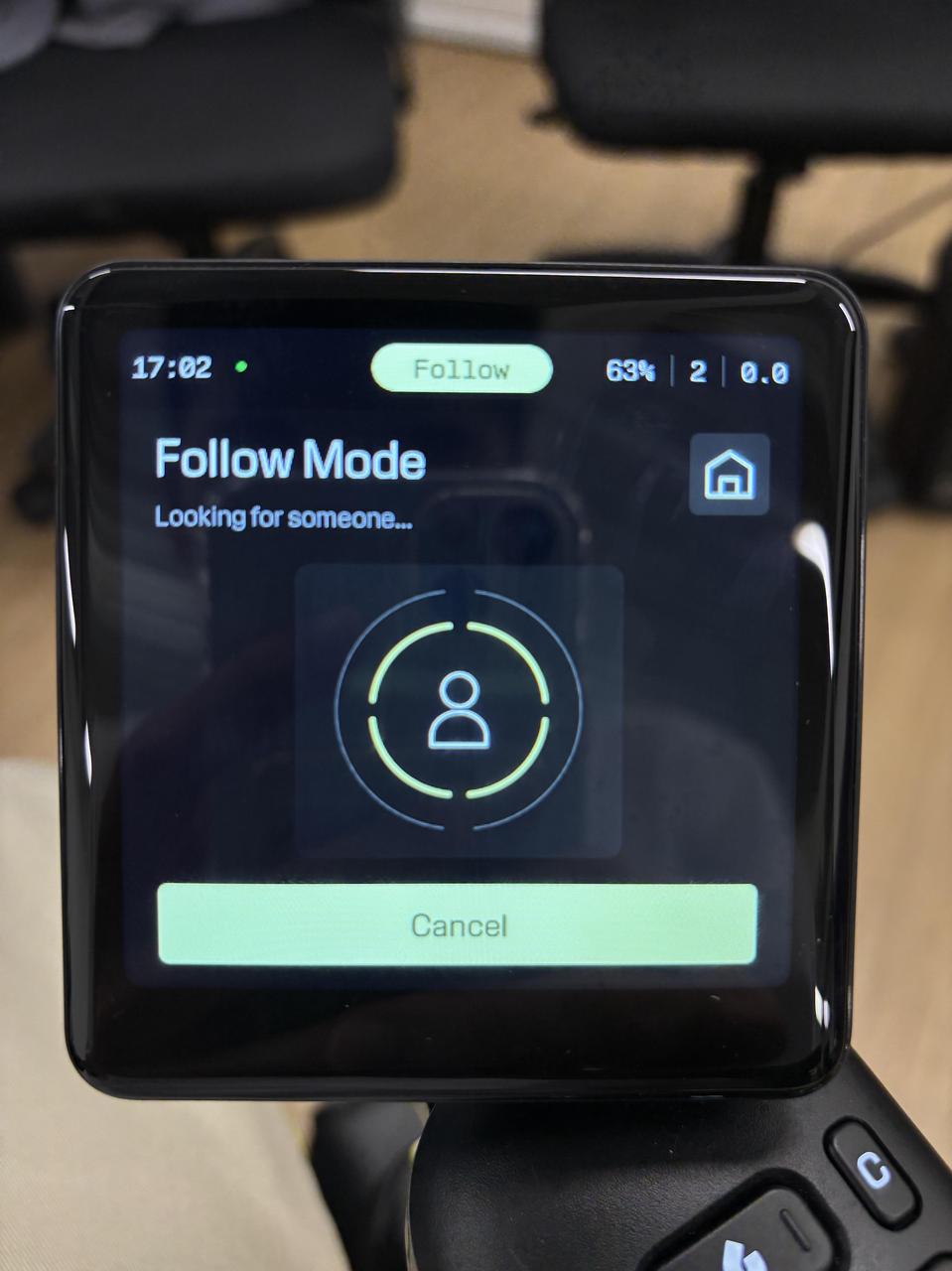 |
| No person detected | The screen shows No one found. Try again. and a Try again button. 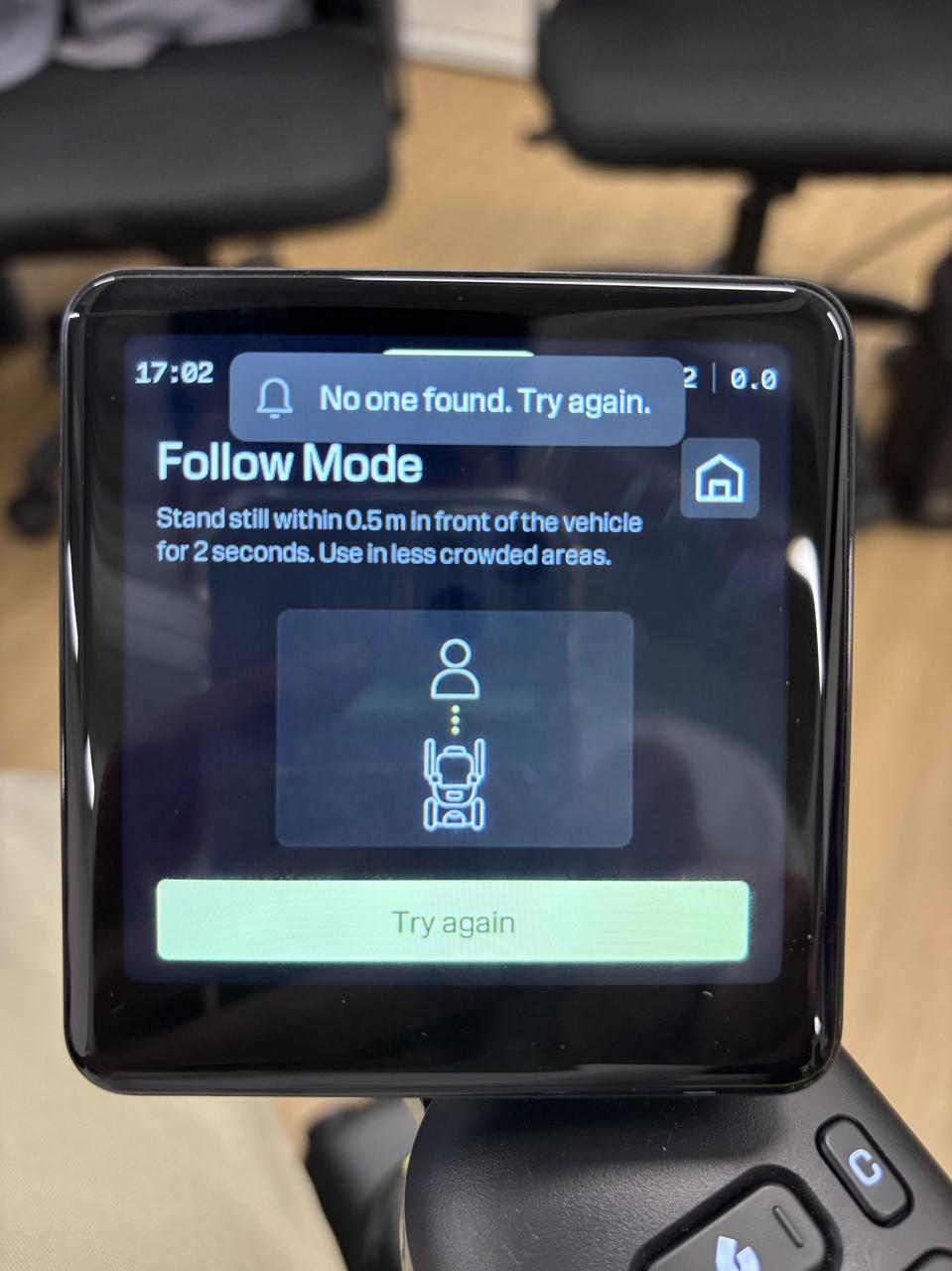 |
| Exit using the Home icon | A notification confirms that Follow Mode ended. 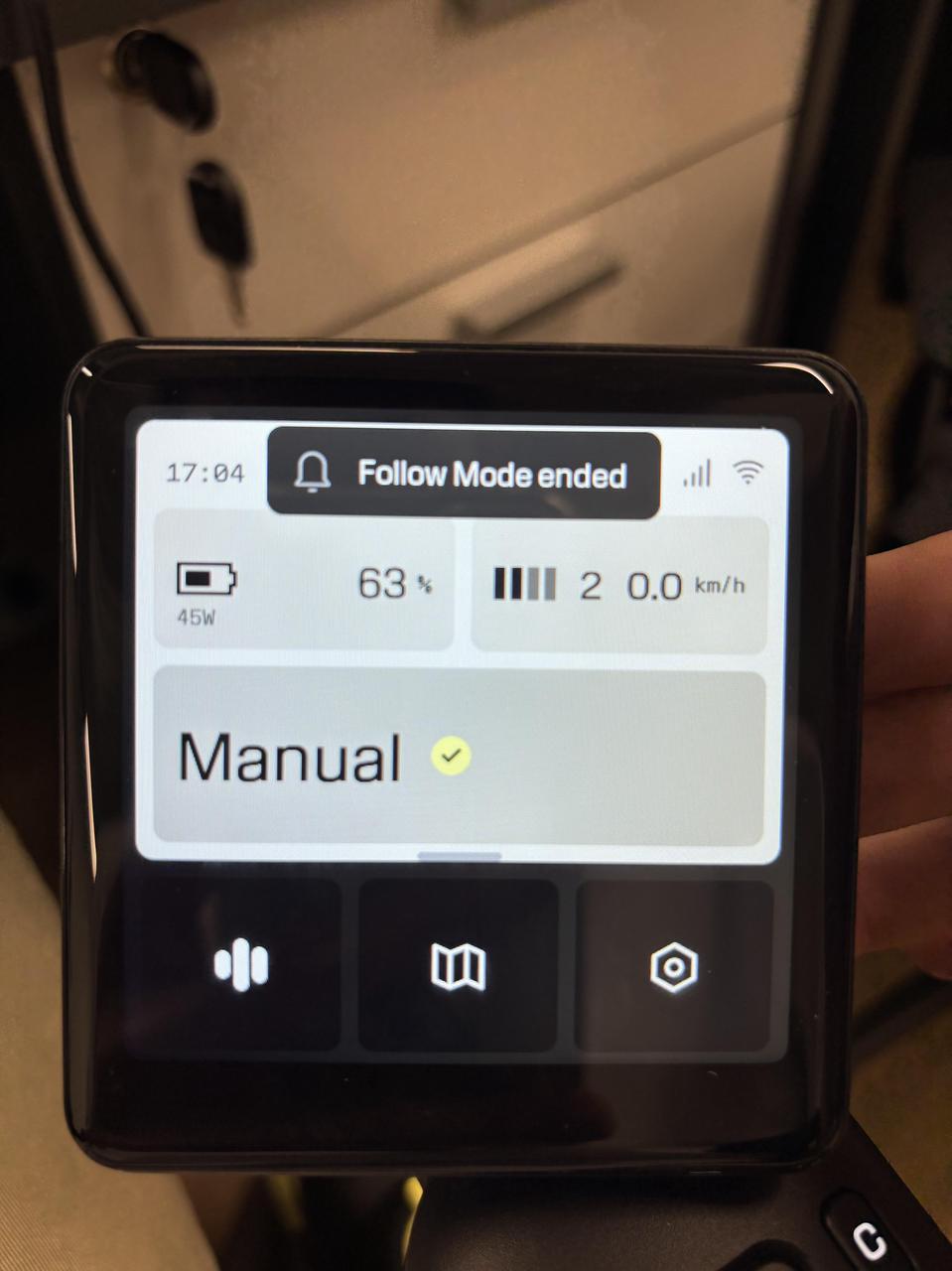 |
| Exit by changing the driving mode | A notification confirms that changing the driving mode ended Follow Mode. 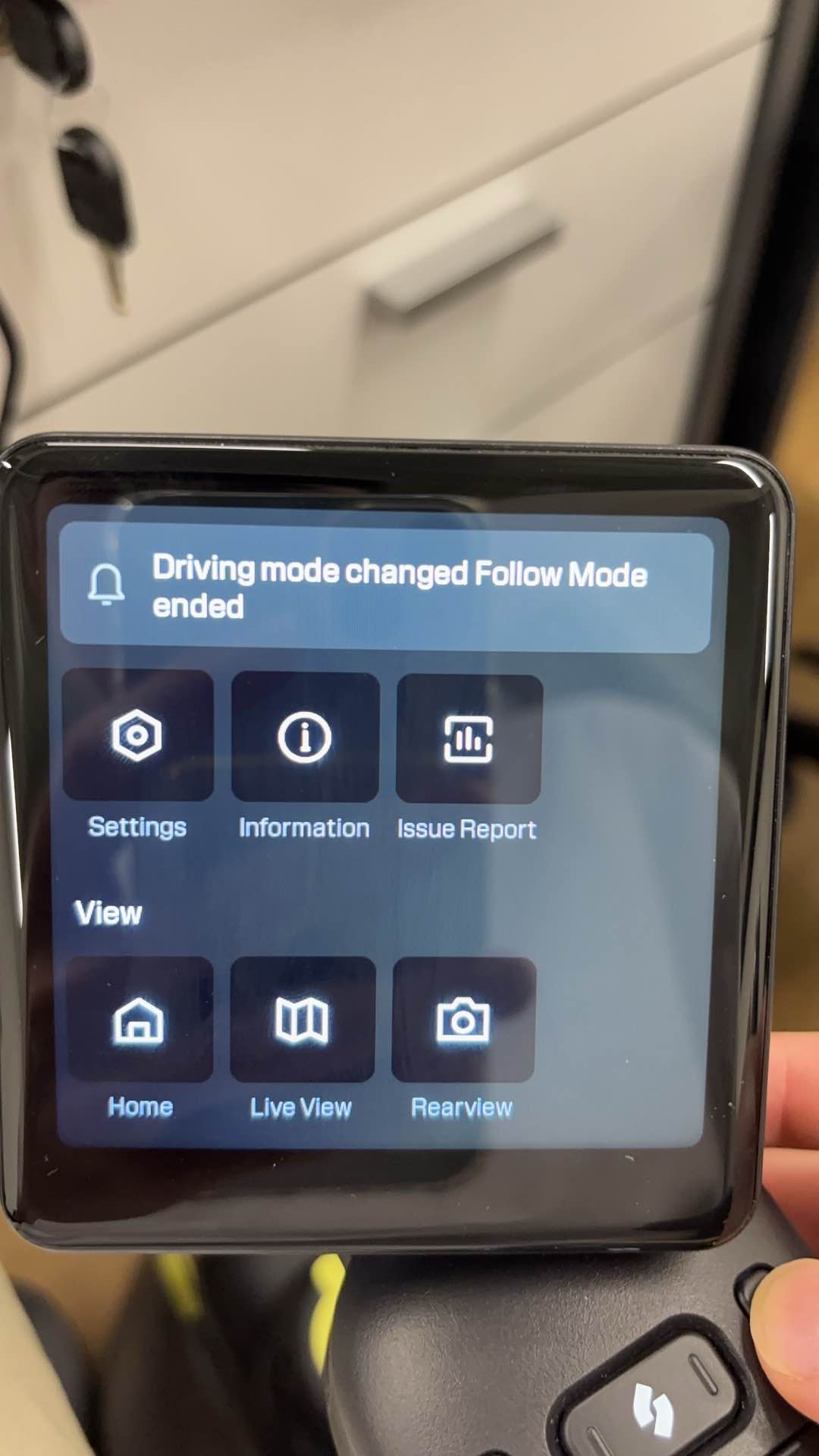 |
¶ While the Vehicle Is Following You
- Keep the vehicle and its surroundings in sight, and be ready to take over control at any time.
- Keep a short following distance. Despite the maximum working distance of 5–6 metres (17–19 ft), it is still recommended to stay close to the vehicle.
- Watch the vehicle’s path. Do not use Follow Mode in crowded areas or where you cannot clearly see the vehicle and its path.
- Take extra care around elevated or protruding handrails, especially thin metal rails. These may be outside the sensors’ detection range.
- Follow Mode’s top speed is 2.8 mph (approximately 4.5 km/h).
¶ Exit Follow Mode
Use any one of these methods:
- Push the joystick.
- Press the Power button.
- Change the vehicle’s driving mode.
- Press the physical Strutt button.
- Tap Stop following on the vehicle display.
- Tap the Home icon on the vehicle display.
Follow Mode also exits automatically if you walk more than 5 metres away from the vehicle.
¶ Configure the Follow Mode Sound
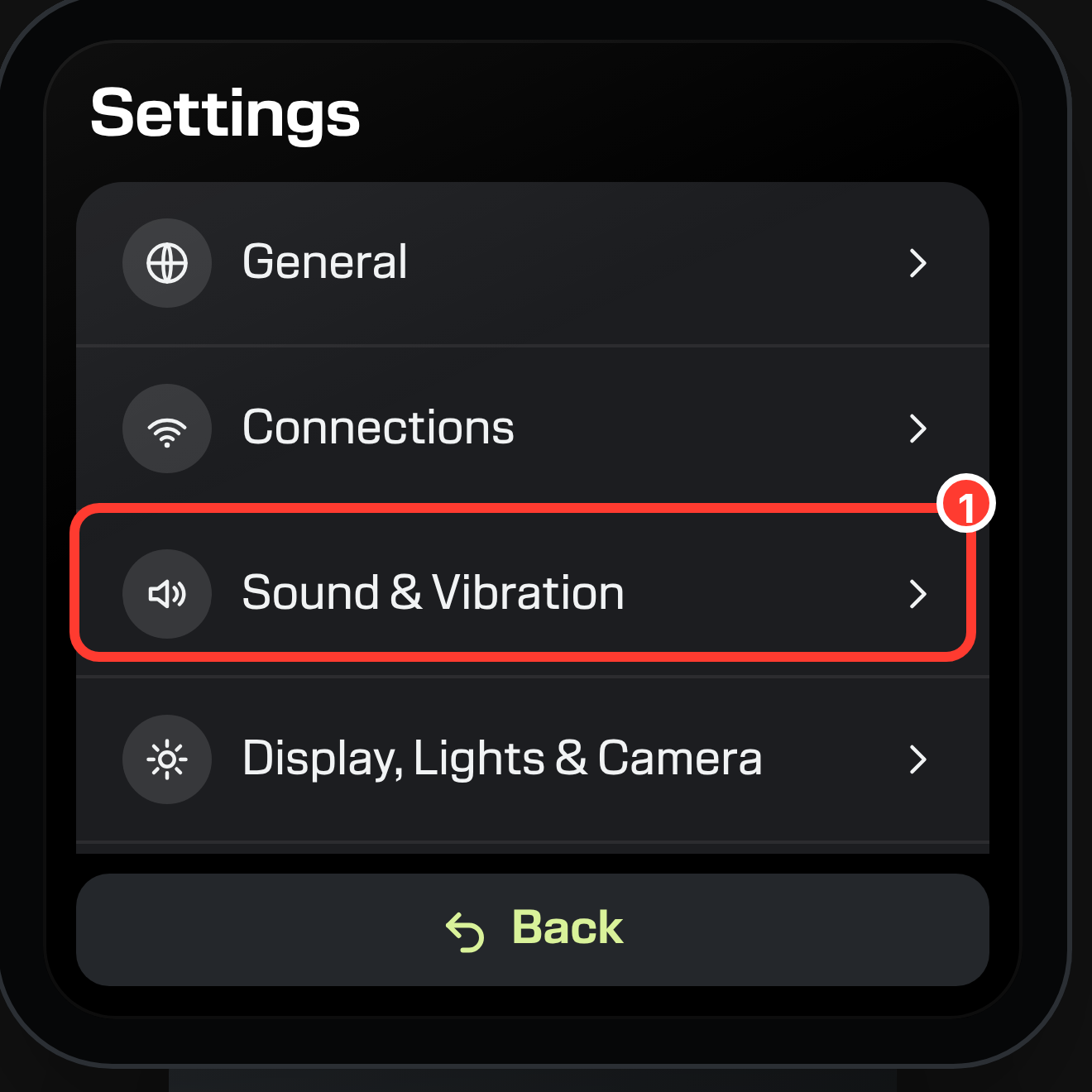
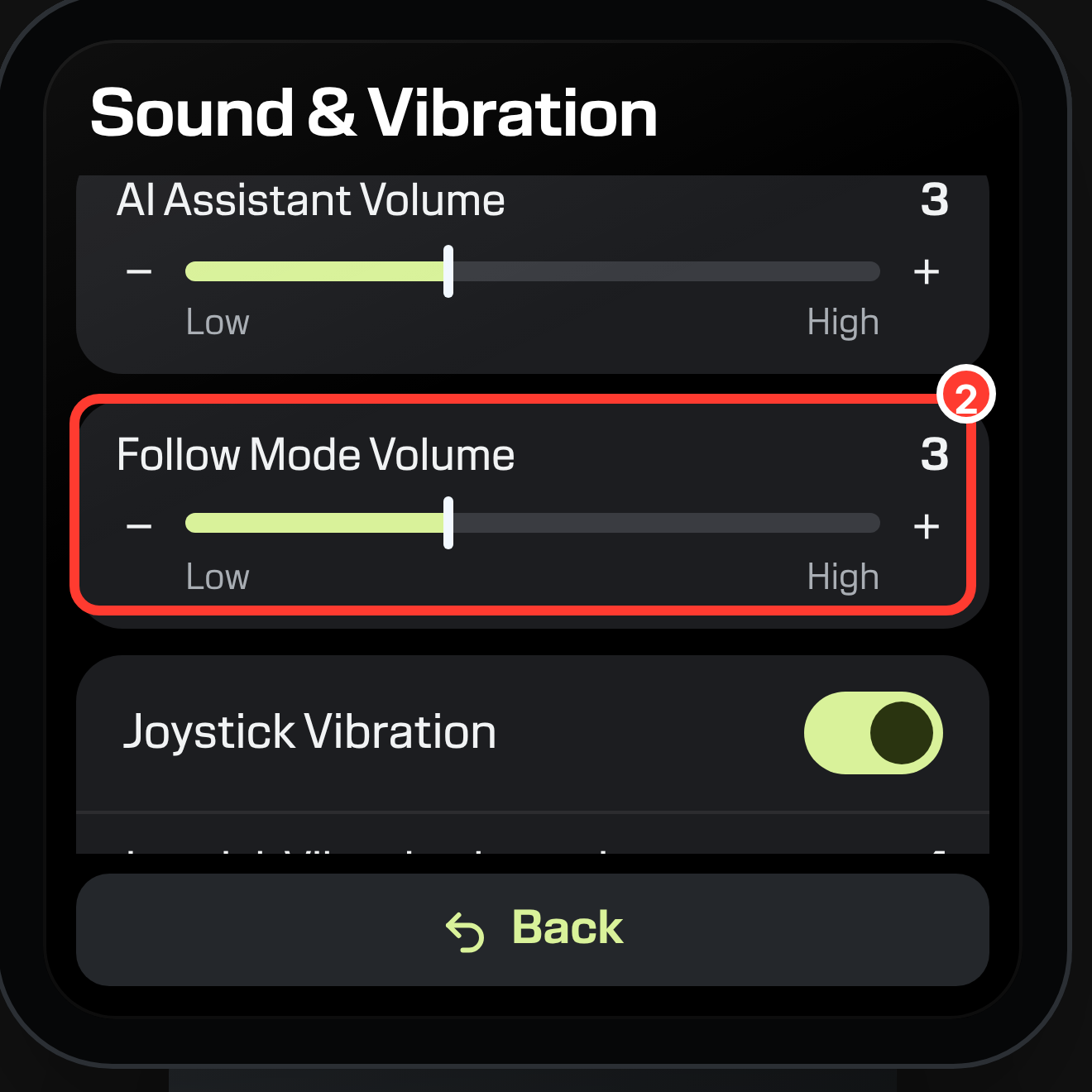
- On the vehicle, go to Settings → Sound & Vibration → Follow Mode Volume.
- The Follow Mode sound is turned on by default. Tap on the toggle icon to turn it off.
¶ Compatibility with Other Functions
| Function | Compatible with Follow Mode? |
|---|---|
| Manual Mode | No |
| Co-Pilot Mode | No |
| Co-Pilot+ Mode | No |
| Waypoints, Pathfinder & Maps (Auto-Pilot) | No |
| Essential Mode | No |
| Range Mode | No |
| Privacy Mode | No |
| Smart Push Handle | No |
| AI Assistant | No |
| Cruise Mode | No |
| Follow Mode | Not applicable |
¶ Frequently Asked Questions
¶ What is the maximum working distance for Follow Mode?
The Follow Mode has a maximum following distance of 5–6 metres (17–19 ft) and recommends keeping a shorter distance. However, its exit instructions say Follow Mode ends when you move more than 5 metres away. This difference needs confirmation. Keep the vehicle and its path clearly in sight and stay ready to take over control.
¶ I have signed the waiver and selected Follow Mode. Why is it still not working?
- Check whether Privacy Mode is enabled. If it is, turn it off.
- Check whether physical camera covers are blocking the front cameras. Remove them and try again.
¶ What should I do if the screen says “No one found”?
Stand still within 0.5 metres in front of the vehicle for 2 seconds, then tap Try again.
¶ Can I turn Follow Mode Sound off?
Yes. Turn Follow Mode Sound on or off in the Sound & Vibration → Follow Mode settings.
¶ How fast can the vehicle travel in Follow Mode?
Follow Mode’s top speed is 2.8 mph (approximately 4.5 km/h).