Co-Pilot+ Mode detects obstacles and automatically slows down and steers away from them. It uses LiDAR sensors, time-of-flight (ToF) sensors, ultrasonic sensors, and cameras to detect its surroundings.
This guide explains how to select Co-Pilot+ Mode, recognise it on the display, use it as your default drive mode, and switch to another mode.
¶ Before You Start
- Wait for evSense to be ready. After powering on the vehicle, allow evSense to finish loading before driving in Co-Pilot+ Mode.
- Check your speed level. Co-Pilot+ supports levels 1–3 only. Levels 4 and S are unavailable.
¶ Turn On Co-Pilot+ Mode
Choose one of the following methods.
¶ Option 1: Use the C Button on the Vehicle
- Press and hold the C button to select Co-Pilot+ Mode.
- Check that Co-Pilot+ appears on the vehicle display.
- Wait for evSense to be ready before driving.
¶ Option 2: Use the Strutt Menu on the Vehicle
- Press the Strutt button to open the menu.
- Scroll down to Drive Mode.
- Select the Co-Pilot+ icon.
- Wait for evSense to be ready before driving.
¶ Option 3: Use the Strutt App
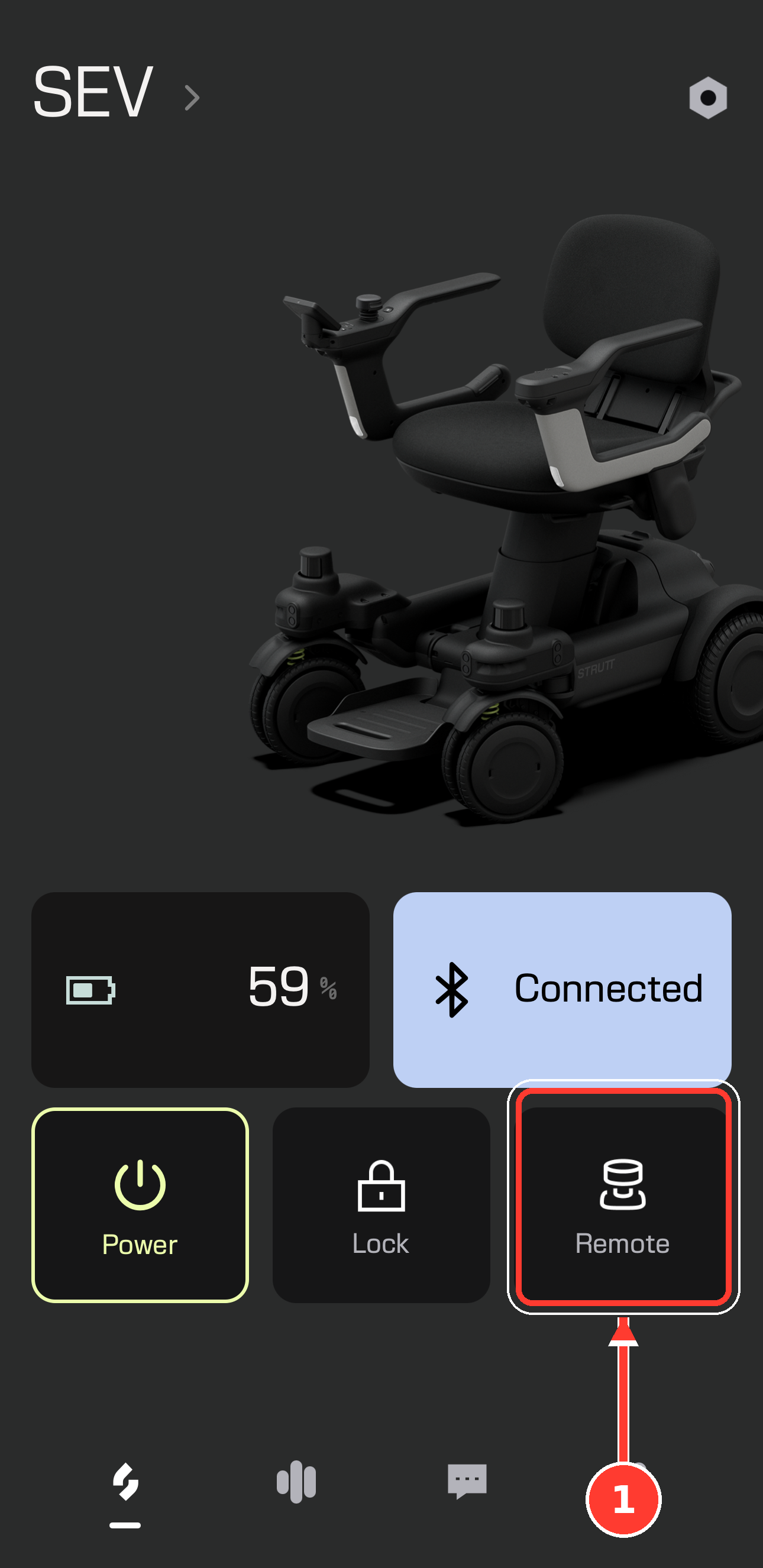
- Open the Strutt app and go to the Home screen.
- Tap Remote.
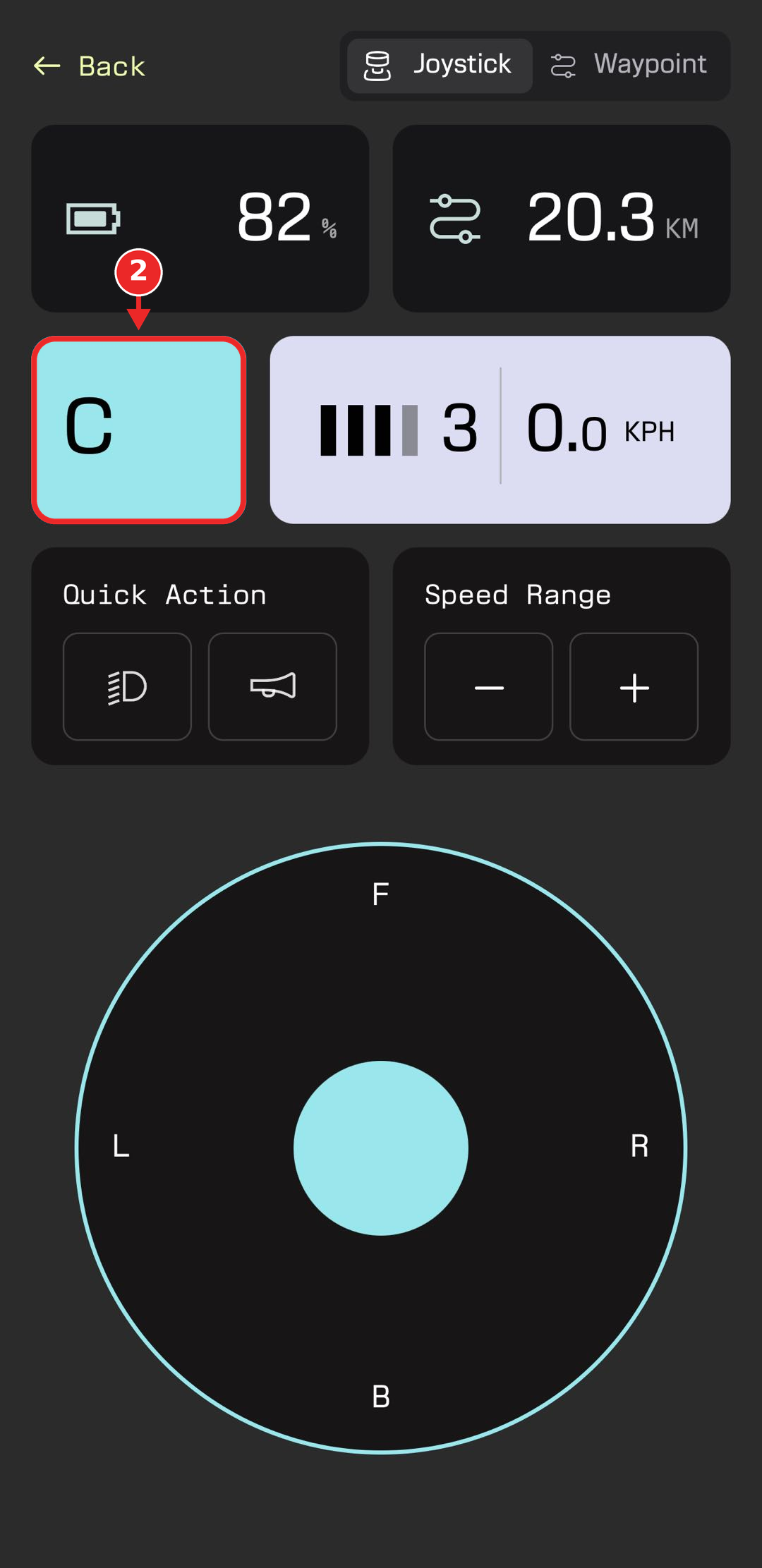
- Tap the Driving Mode button below the battery indicator.
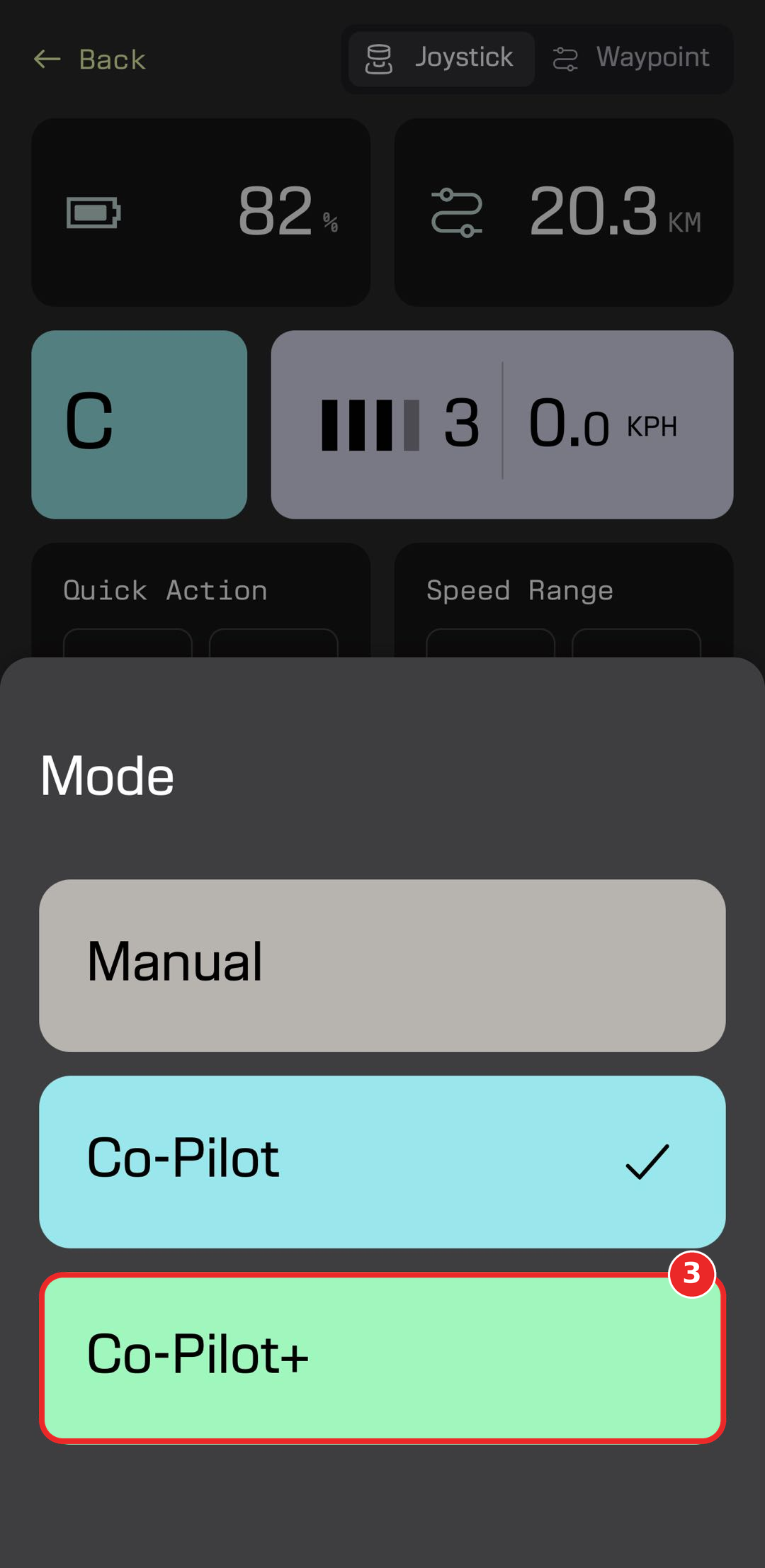
- Select Co-Pilot+.
- Wait for evSense to be ready before driving.
¶ Check That Co-Pilot+ Mode Is Active
Co-Pilot+ Mode uses a green colour theme.
| Screen | What to look for | What it looks like |
|---|---|---|
| Vehicle Home Page | Co-Pilot+ appears on a green panel. | 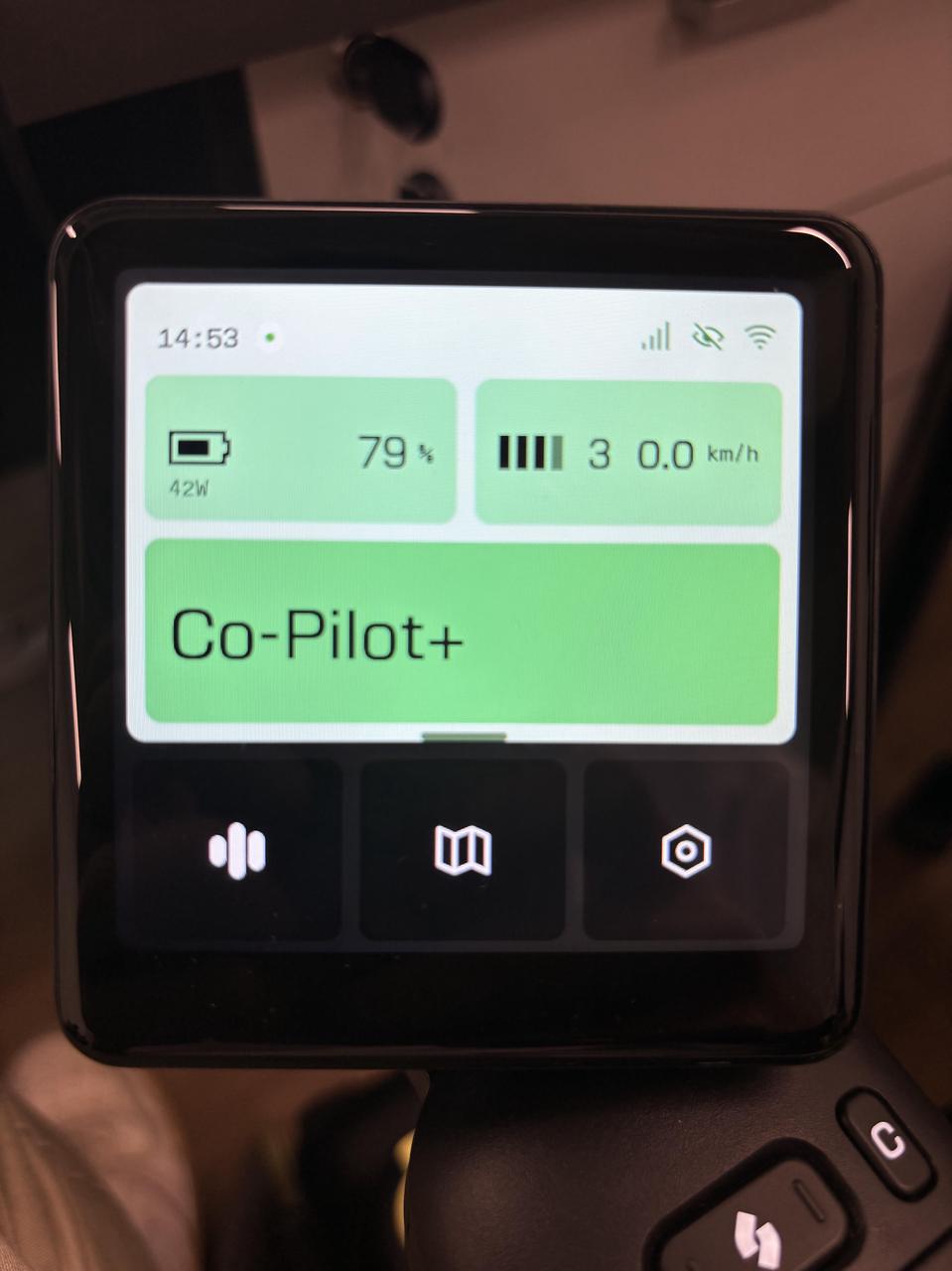 |
| Strutt App Remote screen | The driving mode button displays C+ on a green background. | 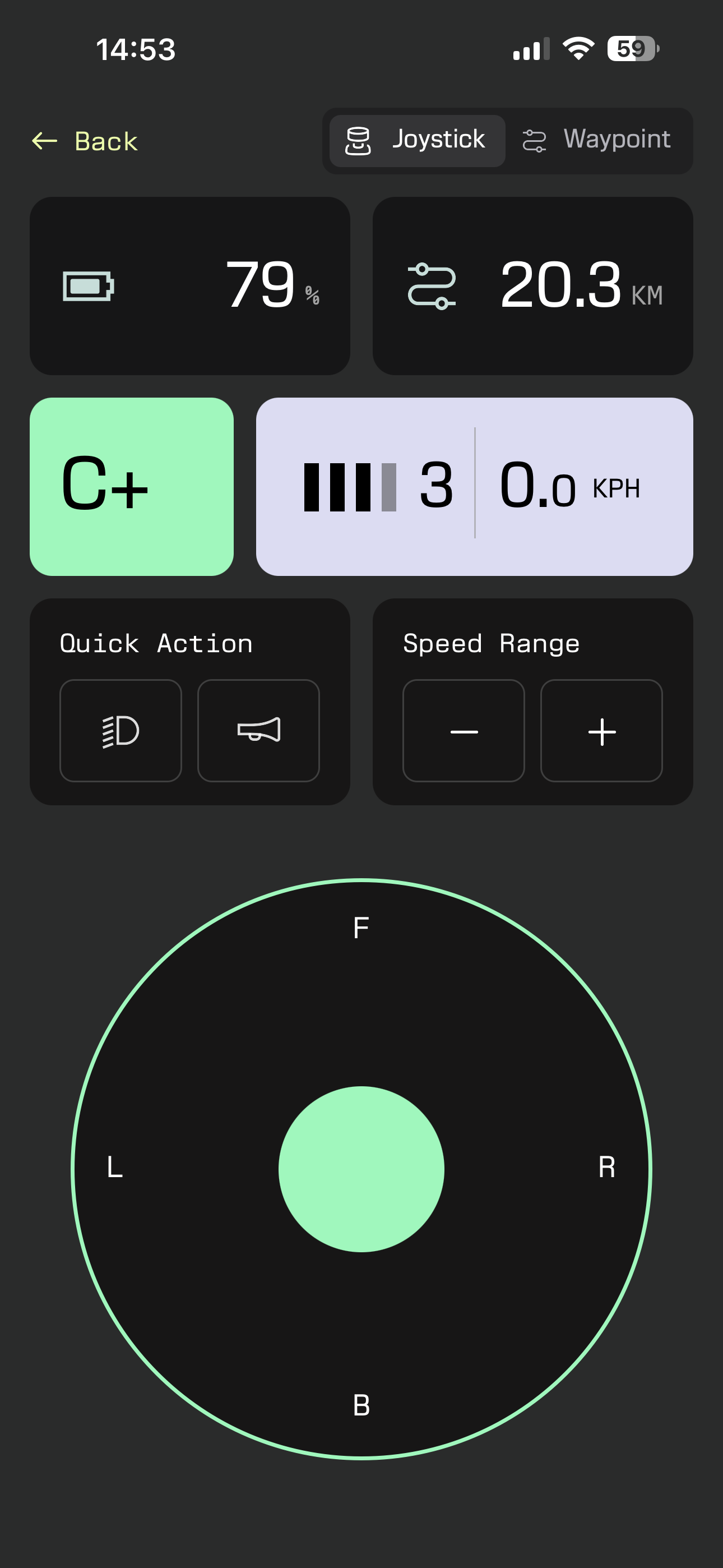 |
¶ Using Co-Pilot+ Mode
Once Co-Pilot+ is selected and evSense is ready, the vehicle uses its sensors and cameras to detect its surroundings. When it detects obstacles, it automatically slows down and steers away from them.
The source demonstration shows Co-Pilot+ active while the joystick is pushed fully forward. In that demonstration, the vehicle steers away from the obstacle without the user steering around it.
¶ Exit Co-Pilot+ Mode
Change the vehicle’s drive mode to either:
¶ Set Co-Pilot+ as the Default Drive Mode
By default, the vehicle starts in Manual Mode. To start in Co-pilot+ Mode, change the default driving mode in the settings.
When starting in either of these modes, allow evSense to finish loading before driving.
To make Co-Pilot+ your default drive mode:
- On the vehicle, open Settings.
- Go to Advanced Settings → Default Drive Mode.
- Select Co-Pilot+.
When you next power on the vehicle:
- Check that Co-Pilot+ appears on the display.
- Wait for evSense to finish loading before driving.
¶ Safety Restrictions
- Co-Pilot+ supports speed Levels 1 to 3
- Level 4 and Level S are not available in Co-Pilot+
¶ Frequently Asked Questions
¶ Why can’t I use co-Pilot+ immediately after powering on?
evSense needs to finish loading before you can drive in Co-Pilot+ Mode.
¶ Which speed levels can I use in Co-pilot+ Mode?
Co-Pilot+ supports levels 1–3. Levels 4 and S are unavailable.
¶ How do I recognise Co-Pilot+ Mode?
Look for the green colour theme and Co-Pilot+ on the vehicle display. In the Strutt app Remote screen, the driving mode button shows a green C+.
¶ How do I leave Co-Pilot+ Mode?
Change the vehicle’s drive mode to Manual or Co-Pilot.
¶ Can the vehicle start up in Co-Pilot+ Mode?
Yes. On the vehicle, go to Settings → Advanced Settings → Default Drive Mode → Co-Pilot+. After powering on, check the mode on the display and wait for evSense to finish loading before driving.