Manual Mode gives you full control of your vehicle. evSense remains active, but its only assistance in this mode is haptic feedback: the joystick vibrates when the vehicle detects nearby obstacles.
Safety Notice:
Manual Mode does not provide collision avoidance. Stay alert, watch your surroundings, and drive carefully. Joystick vibration is an alert; it does not avoid obstacles for you.
¶ Before you begin
- Speed levels 1–4 are available by default.
- To use Level S, you must first sign the required waiver and follow the Guide: Enable Speed Level S.
¶ Turn on Manual Mode
Choose one of the following methods.
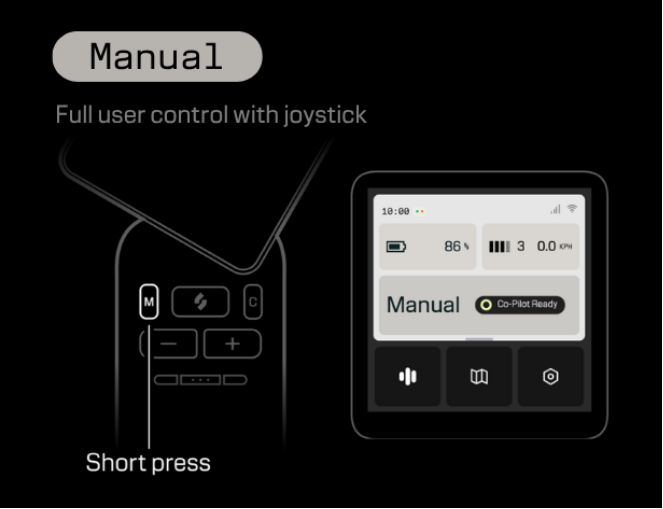
¶ Option 1: Use the M button on the vehicle
Briefly press the M button on the vehicle.
¶ Option 2: Use the Strutt Menu in the vehicle
- Tap the Strutt button on armrest to open the Strutt Menu.
- Scroll down to Drive Mode in the Strutt Menu.
- Tap the Manual icon.
¶ Option 3: Use the Strutt app
- From the app's home page, tap Remote.
- Tap the Driving Mode icon below the battery indicator.
- Select Manual.
¶ Check That Manual Mode Is Active
Manual Mode uses a grey colour theme. The source illustrations show:
| Screen | What to look for | What it looks like |
|---|---|---|
| Vehicle Home Page | Manual is shown with a tick beside it. | 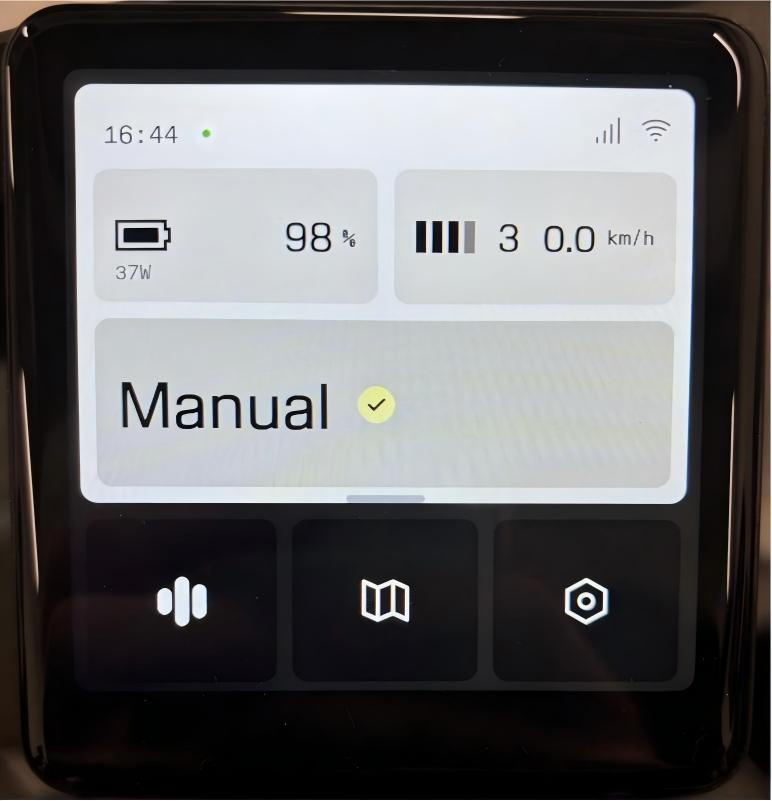 |
| Strutt App Remote screen | The driving mode button shows M. | 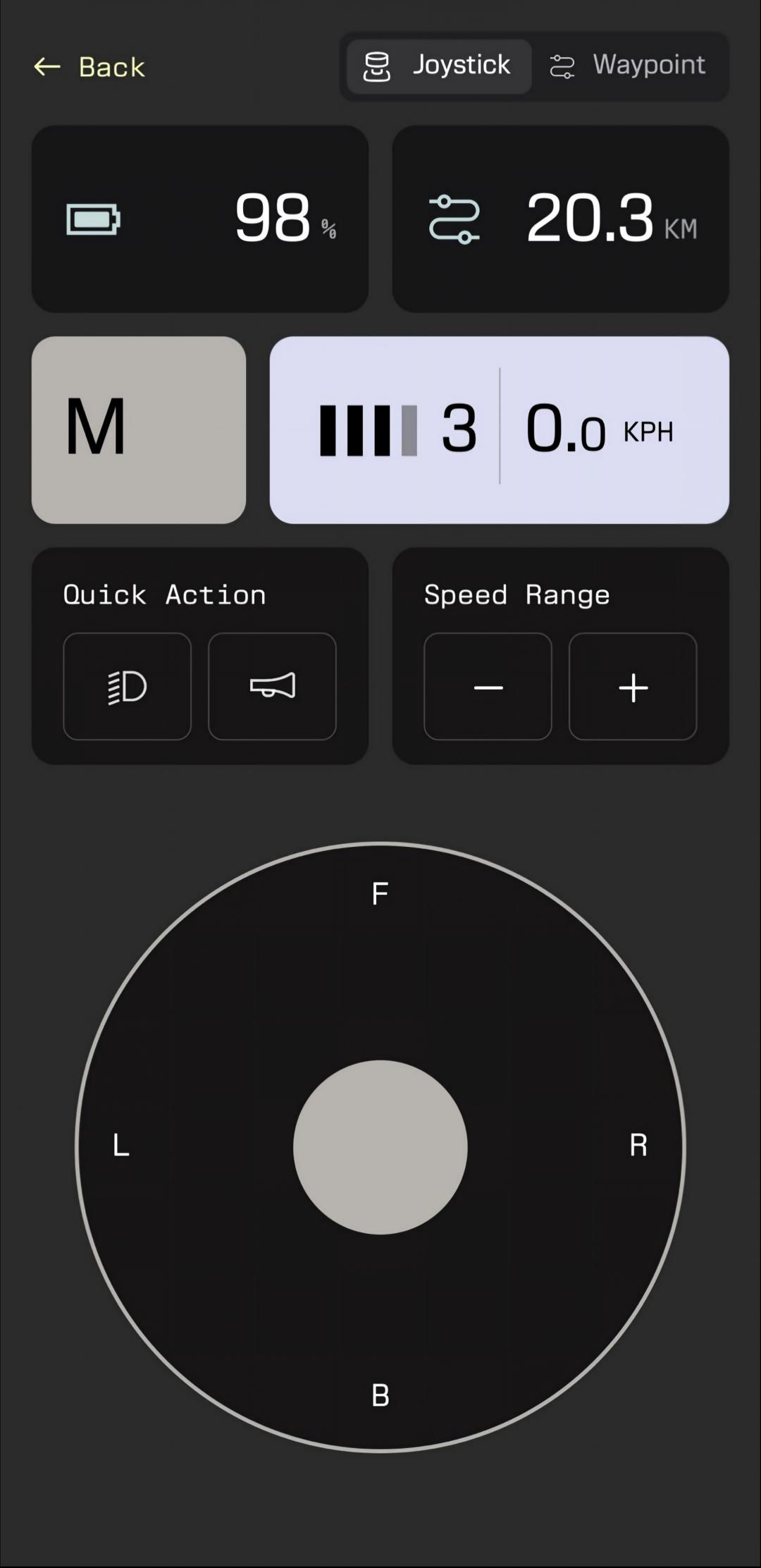 |
¶ Exit Manual Mode
Change the driving mode to either:
Use the linked mode guides for the relevant instructions.
¶ Understand Obstacle Alerts
By default, the joystick provides haptic (vibration) feedback when the vehicle detects nearby obstacles.
To disable this feedback, you must do both of the following:
- Sign the Disable Collision Alert Waiver.
- Turn off Collision Alert on the vehicle by heading to Settings → evSense → General → Collision Alert → Toggle off Collision Alert .
Important Safety Notice:
When collision is alert is disabled, there will be no haptic feedback from the joystick to warn you when an obstacle is detected. Please stay alert and drive carefully.
¶ Set Manual as the Default Drive Mode
By default, the vehicle starts in Manual Mode.
- On the vehicle, open Settings.
- Select Advanced Settings.
- Open Default Drive Mode.
- Select Manual.
- When you next power up the vehicle, check that Manual is shown on the display.
Menu path: Settings → Advanced Settings → Default Drive Mode → Manual
¶ Safety Restrictions
Speed limit
- Default Speed: Levels 1–4
- Level S requires you to sign the waiver first.
- The user needs to stay alert and drive carefully as there is no collision avoidance feature in Manual Mode.
- The user will receive haptic (vibration) feedback on the joystick near obstacles by default. The haptic feedback can be disabled if the user signs the Disable Collision Alert waiver and turns off the Collision Alert.
¶ Frequently asked questions
¶ Does evSense still work in Manual Mode?
Yes. evSense remains active, but its only assistance in Manual Mode is joystick vibration when nearby obstacles are detected. Manual Mode does not provide collision avoidance.
¶ Which speed levels can I use?
Speed levels 1–4 are available by default. Level S requires you to sign the waiver first and follow the Guide: Enable Speed Level S.
¶ Can I turn off joystick vibration near obstacles?
Yes. You must first sign the Disable Collision Alert waiver and then turn off Collision Alert.
¶ How can I tell whether Manual Mode is active?
Look for the grey colour theme and Manual on the vehicle's home page. The Strutt app's remote screen also shows M on its driving mode button.