Co-pilot Mode detects obstacles and automatically slows down or stops the vehicle. It uses LiDAR sensors, time-of-flight (ToF) sensors, ultrasonic sensors, and cameras to detect the surroundings.
This guide explains how to select Co-Pilot Mode, make it your default drive mode, recognise it on the display, and switch to another mode.
¶ Before You Start
- Wait for evSense to be ready. After powering on the vehicle, allow evSense to finish loading before driving in Co-Pilot Mode.
- Check your speed settings. Speed levels 4 and S on Co-pilot mode require Co-Pilot Extended Speed to be enabled through the Strutt app. See the Guide: Co-Pilot Extended Speed.
- Read the drop-off detection information below before using Extended Speed.
¶ Speed Settings and Drop-off Detection
| Speed configuration | Speed Levels | Drop-off detection |
|---|---|---|
| Co-Pilot | 1–3 | Enabled |
| Co-Pilot Extended Speed | 4 and S | Disabled |
Important Safety Notice:
For Co-Pilot Extended Speed at level 4 and S, the drop-off detection is disabled. Please drive carefully when and do not drive near drop-off, cliffs or staircases during this time.
¶ Turn On Co-Pilot Mode
Choose one of the following methods.
¶ Option 1: Use the C Button on the vehicle
- Briefly press the C button on the vehicle to select Co-Pilot Mode.
- Check that the display shows Co-Pilot.
- Wait for evSense to be ready before driving.
¶ Option 2: Use the Strutt Menu in the vehicle
- Press the Strutt button to open the Strutt Menu.
- Scroll down to Drive Mode.
- Select Co-Pilot.
- Wait for evSense to be ready before driving.
¶ Option 3: Use the Strutt App
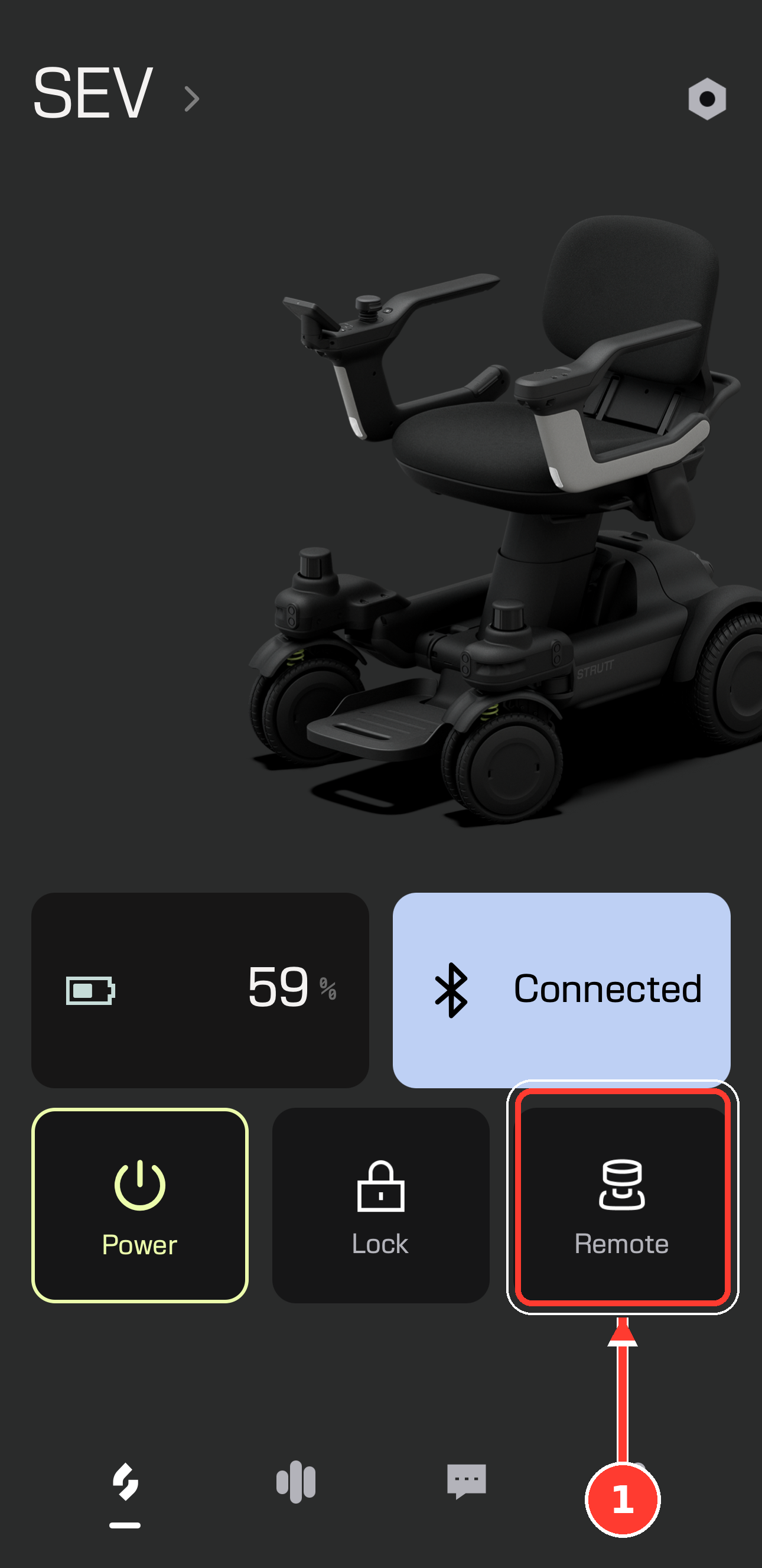
- Open the Strutt app and go to the Home screen.
- Tap Remote.
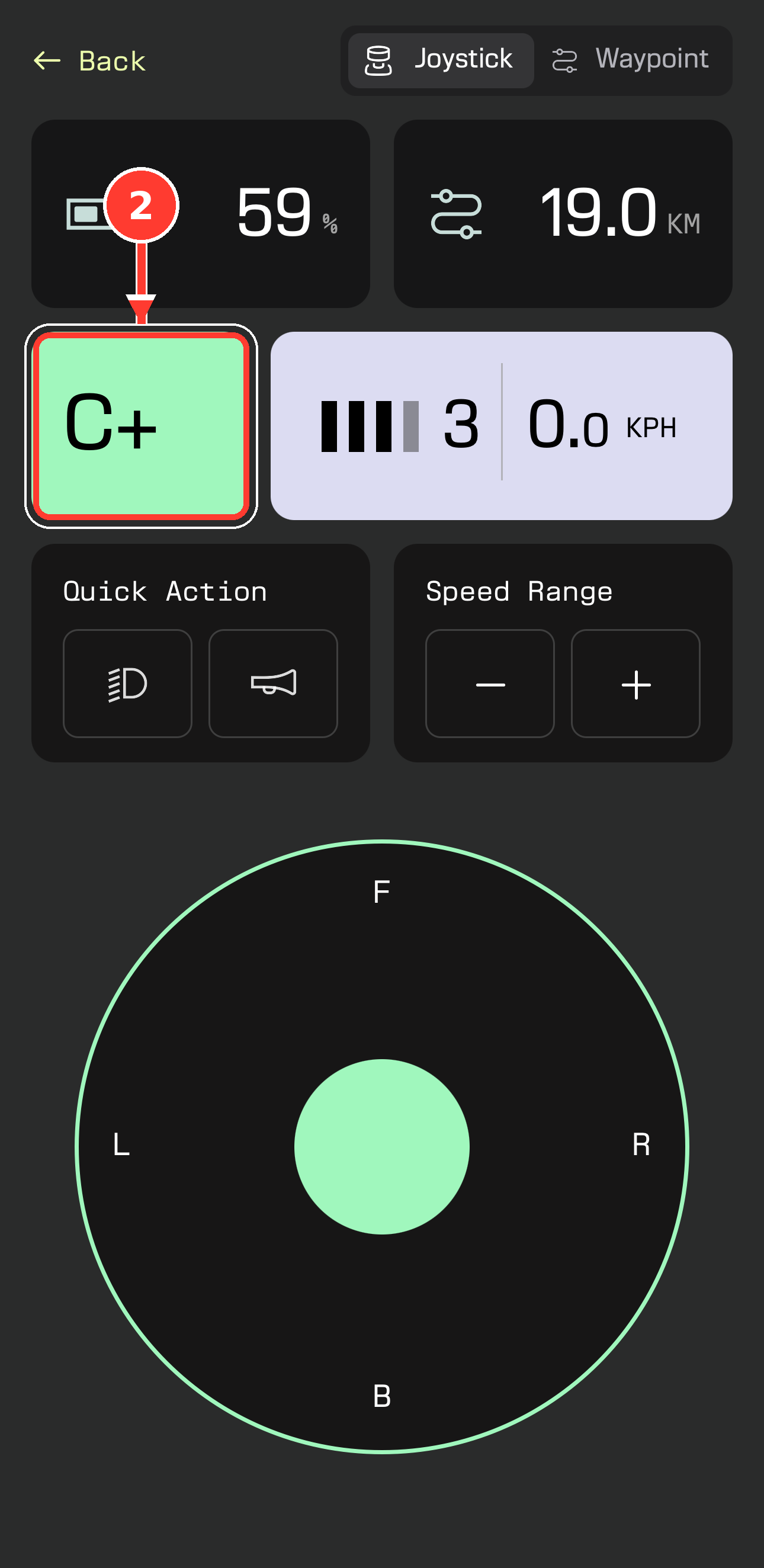
- Tap the Driving Mode icon below the battery indicator.
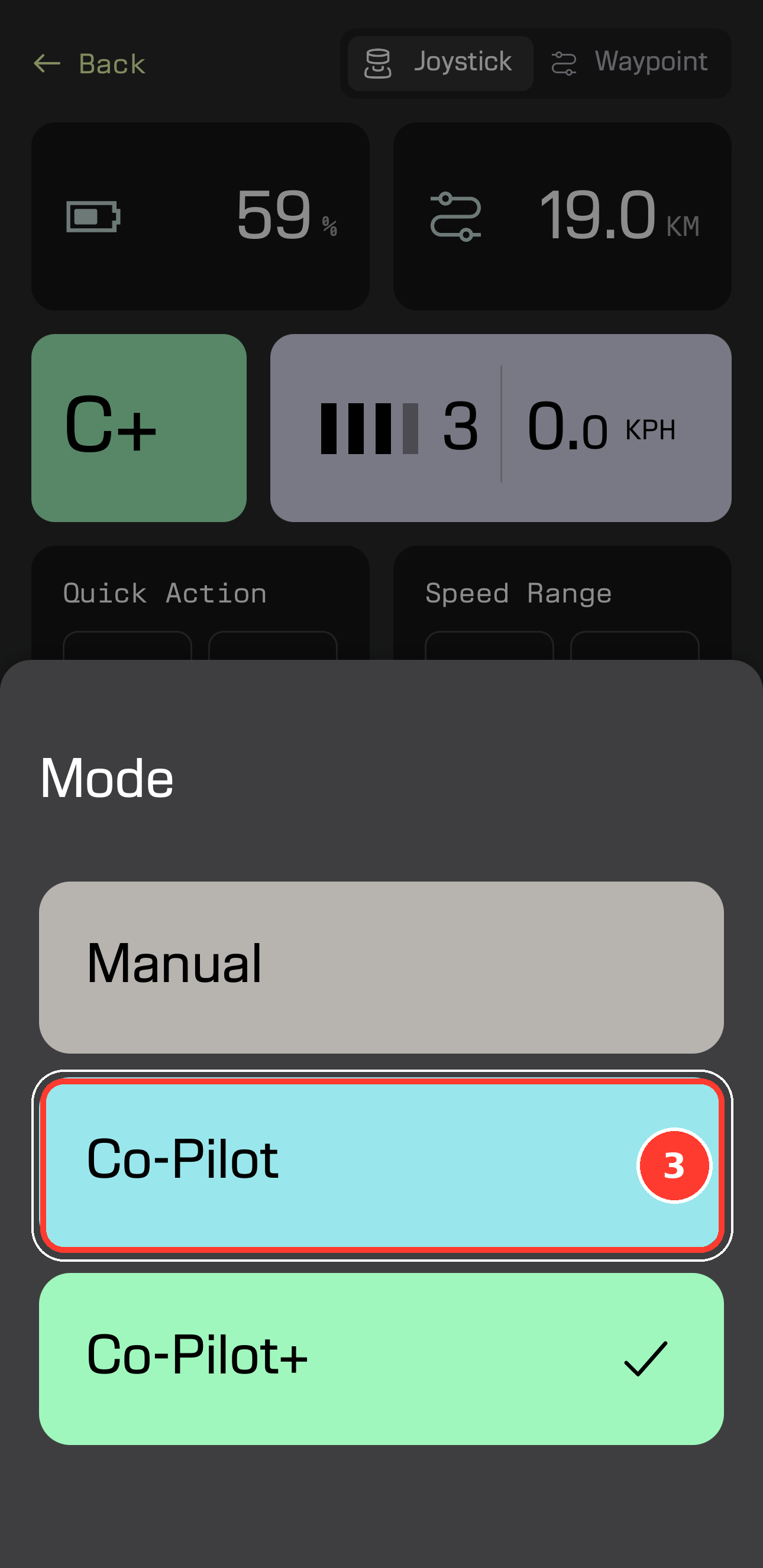
- Select Co-Pilot.
- Wait for evSense to be ready before driving.
¶ Check That Co-pilot Mode Is Active
Co-Pilot Mode uses a blue colour theme.
- On the vehicle: Look for Co-Pilot on the display.
- In the Strutt app: The source screenshot shows a blue C mode button.
| Screen | What to look for | What it looks like |
|---|---|---|
| Vehicle Home Page | Co-pilot is shown with a tick beside it. | 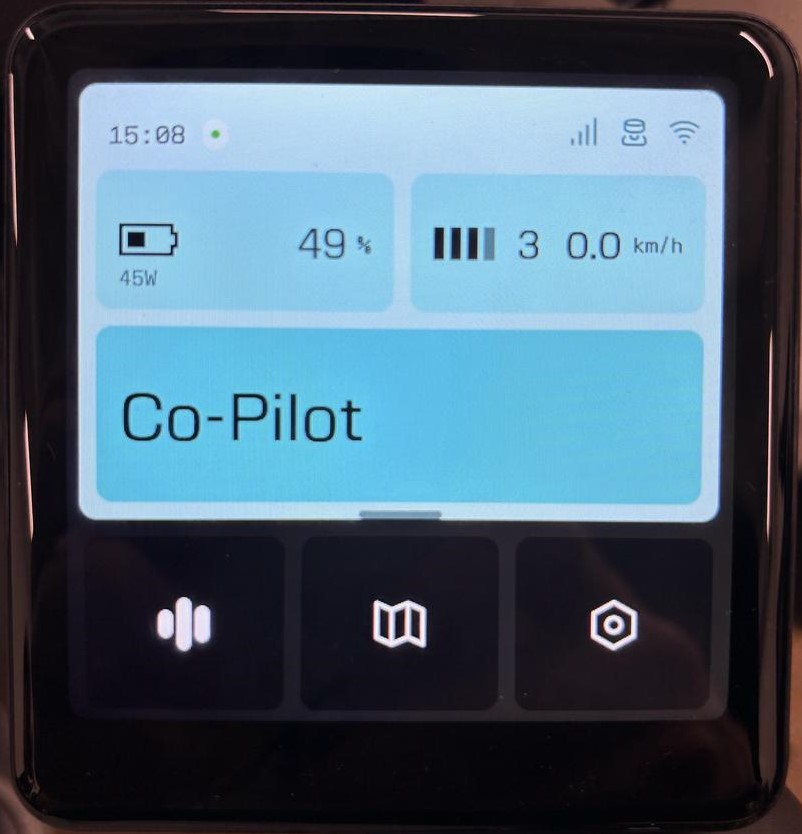 |
| Strutt App Remote screen | The driving mode button shows C. | 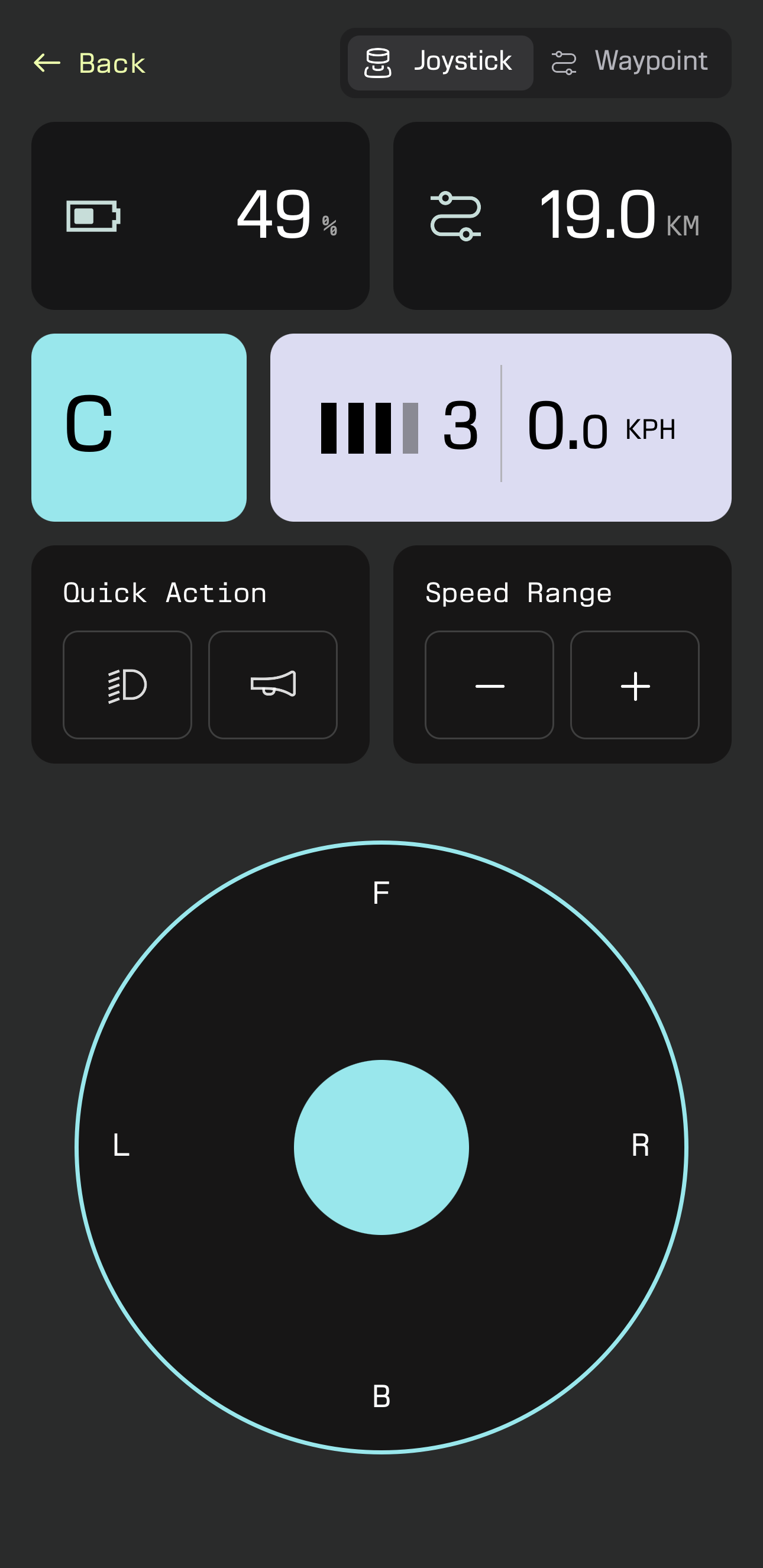 |
¶ Using Co-Pilot Mode
Once Co-Pilot Mode is selected and evSense is ready, the vehicle uses its sensors and cameras to detect the surroundings and automatically slows down or stops when it detects obstacles.
¶ Exit Co-Pilot Mode
Change the vehicle’s drive mode to either:
¶ Set Co-Pilot as the Default Drive Mode
By default, the vehicle starts in Manual Mode. To start in Co-pilot Mode, change the default driving mode in the settings.
When starting in either of these modes, allow evSense to finish loading before driving.
To make Co-Pilot your default drive mode:
- On the vehicle, open Settings.
- Go to Advanced Settings → Default Drive Mode.
- Select Co-Pilot.
When you power on the vehicle:
- Check that Co-Pilot appears on the display.
- Wait for evSense to finish loading before driving.
¶ Safety Information
Speed limit
- In Copilot speed Level 1-3, the drop-off detection will be turned on
- In Copilot extended speed Levels 4 and S, the drop-off detection will be turned off
¶ Frequently Asked Questions
¶ Why can’t I use Co-Pilot Mode immediately after powering on?
evSense needs to finish loading before you can drive in Co-Pilot Mode.
¶ How do I access speed levels 4 and S?
Enable Co-Pilot Extended Speed through the Strutt app. Read the drop-off detection information in this guide first, and refer to the Guide: Co-Pilot Extended Speed guide.
¶ How do I recognise Co-Pilot Mode?
Look for the blue colour theme and Co-Pilot on the vehicle display. The app screenshot shows a blue C mode button.
¶ How do I leave Co-Pilot Mode?
Change the drive mode to Manual or Co-Pilot+.