Waypoints Mode lets you save locations on a map and navigate back to them. It is intended for familiar home and private indoor spaces, such as repeated routes around your home.
The vehicle uses LiDAR sensors, time-of-flight (ToF) sensors, ultrasonic sensors, and cameras to detect its surroundings and help you move around more independently.
This guide explains how to enable Auto-Pilot, create and manage maps, save waypoints, navigate to them, and resolve missing maps or waypoints.
Use Waypoints only in home and private indoor spaces. Do not use it in crowded or obstructed areas, public areas, or near cliffs or drop-offs. Stay alert and be ready to take over at any time.
¶ Before You Start
- Review the required waiver. In the Strutt app, review and sign Enable Auto-Pilot before using Auto-Pilot. See Review and Accept Safety Waivers.
- For hands-free use, review the additional waiver. Review and sign Enable Auto-Pilot Hands-free in the Strutt app before using Auto-Pilot Hands-free.
- Choose a clear area. Do not use these features in crowded or obstructed areas.
- Stay alert. Be ready to take over at any time.
- Check the speed limit. The source guide states a top speed of 2.8 mph (approximately 4.5 km/h).
¶ Enable Auto-Pilot
- On the vehicle, open Settings.
- Go to evSense → Auto-Pilot.
- Turn Auto-Pilot on.
For hands-free use, also go to Settings → evSense → Auto-Pilot Hands-free and turn it on after completing the additional waiver.
¶ Understand Maps and Waypoints
- A map represents the indoor space.
- A waypoint is a saved location on that map.
- Localisation means the vehicle recognises its position within the selected saved map.
Create or select the correct map and make sure it is loaded before adding waypoints.
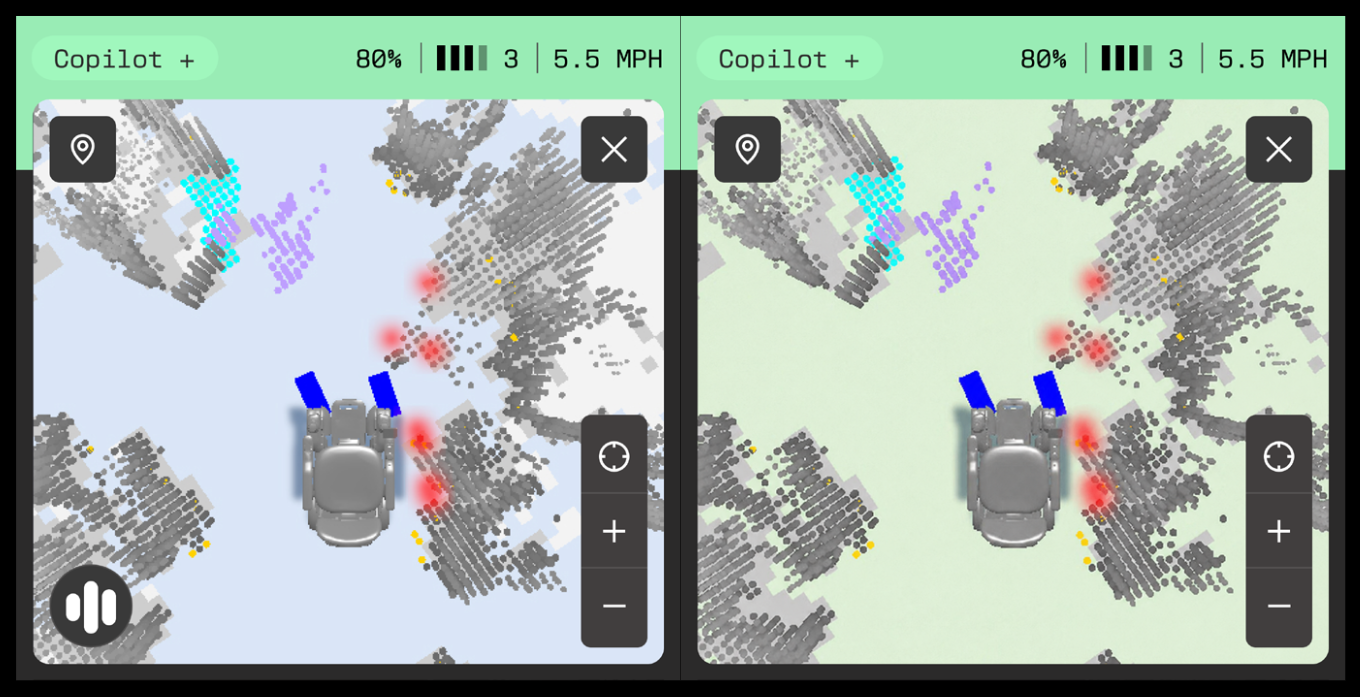
| Live View colour | Meaning described in the source |
|---|---|
| Blue | The vehicle has not yet localised on the saved map. |
| Green | The vehicle has successfully localised. |
¶ Create a Map
¶ Option 1: Use the Vehicle Display
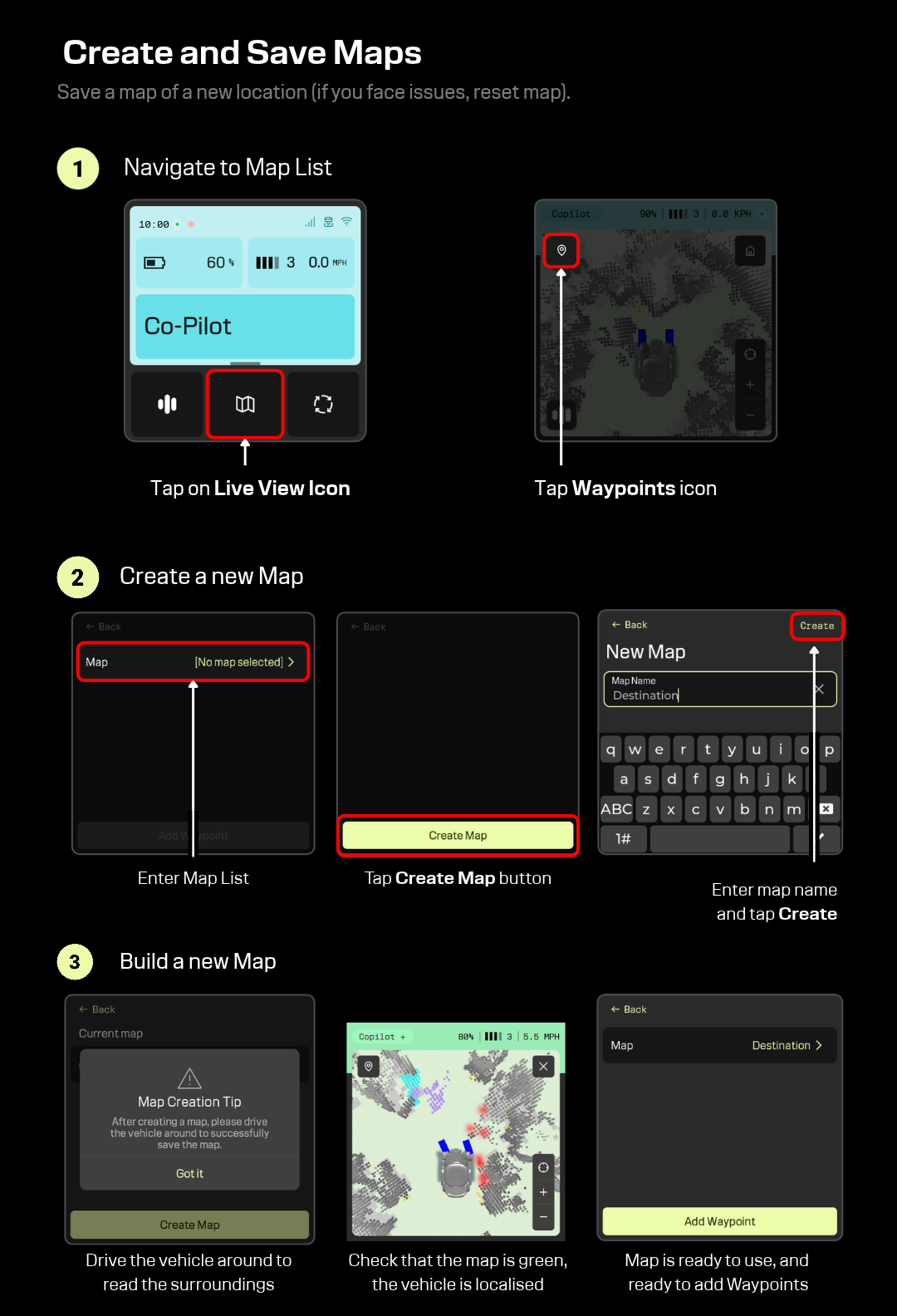
- On the vehicle Home screen, tap Live View.
- Tap the Waypoints icon at the top left.
- Tap Map → Create Map.
- Enter a map name.
- Tap Create, then OK.
- Drive around the indoor space until the vehicle localises and Live View turns green.
¶ Option 2: Use AI Assistant
- Tap the AI Assistant icon or long press the joytsick trigger button.
- Say “Create Map.”
- Wait for AI Assistant to confirm “Map created.”
- Open Waypoints → Map → Rename to rename the map.
¶ Select a Map and Check Localisation
- Open Live View.
- Tap the location/Waypoints icon at the top left.
- Check that the correct map is selected.
- If it is not, tap Map and select the correct map.
- Return to Live View and check that the map is green.
- If it is still blue, drive across the indoor space until it turns green.
¶ Create a Waypoint
Make sure a map is loaded before adding a waypoint.
¶ Option 1: Use the Vehicle Display
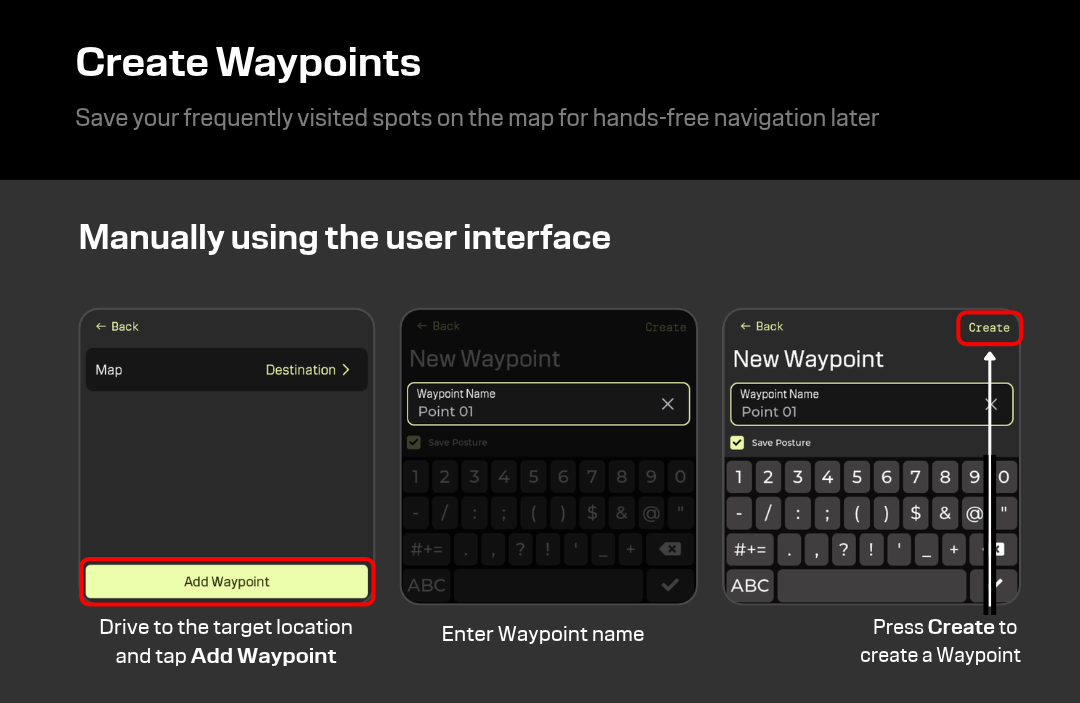
- On the vehicle Home screen, tap Live View.
- Tap the Waypoints icon at the top left.
- Tap Add Waypoints.
- Enter the new waypoint name.
- Tap Create.
¶ Option 2: Use AI Assistant
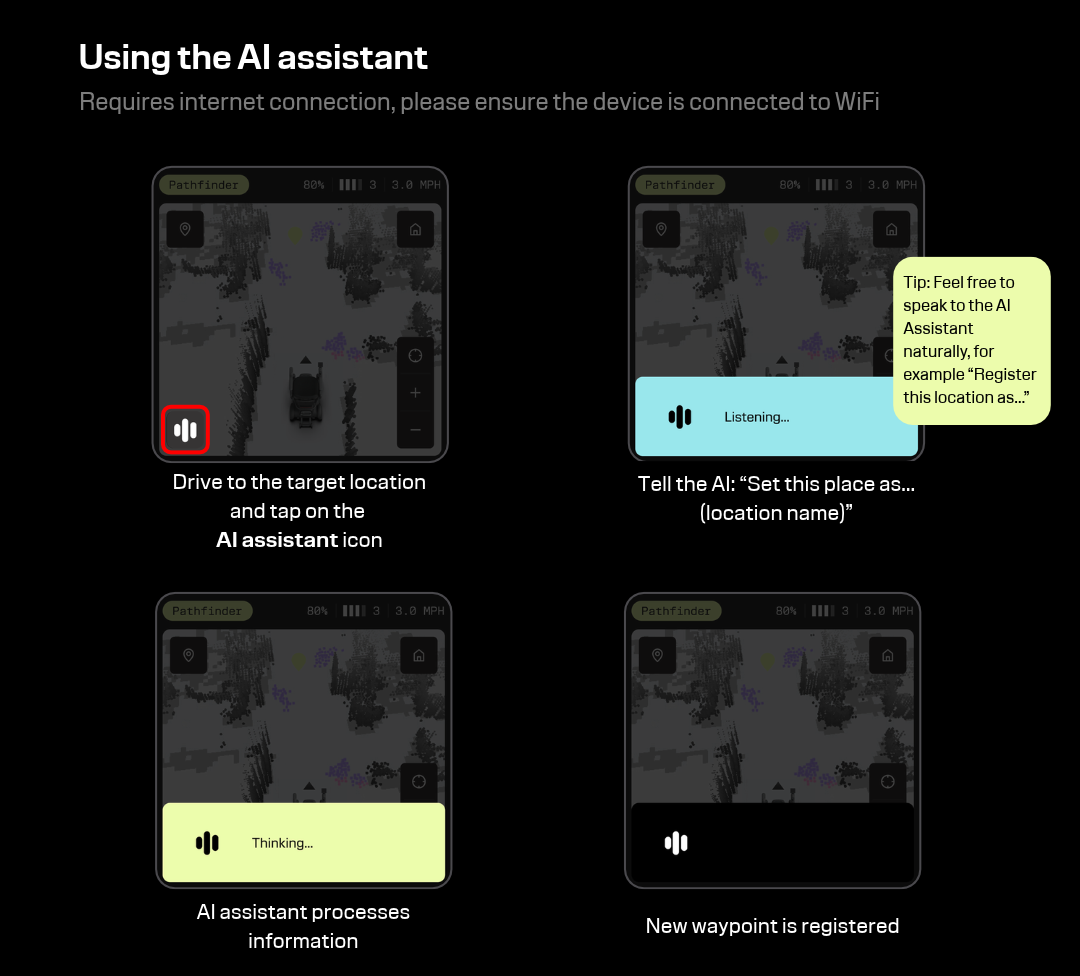
- Make sure a map is loaded.
- Tap the AI Assistant icon.
- Say “Set waypoint as [Name].” Replace [Name] with your chosen waypoint name.
- Wait for confirmation that “Waypoint [Name] has been created.”
¶ Navigate to a Saved Waypoint
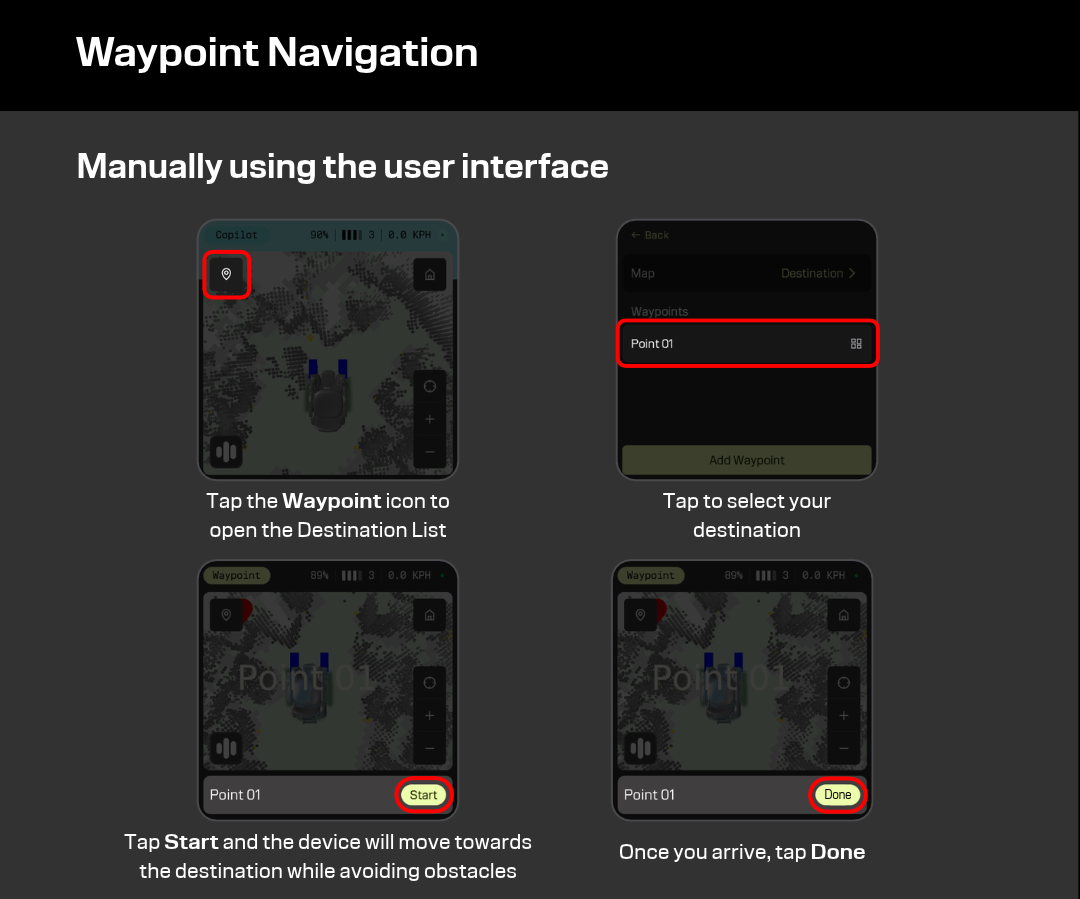
¶ Option 1: Select the Waypoint on the Vehicle
- On the vehicle Home screen, tap Live View.
- Tap the Waypoints icon at the top left.
- Tap the waypoint you want to visit.
- Tap Start.
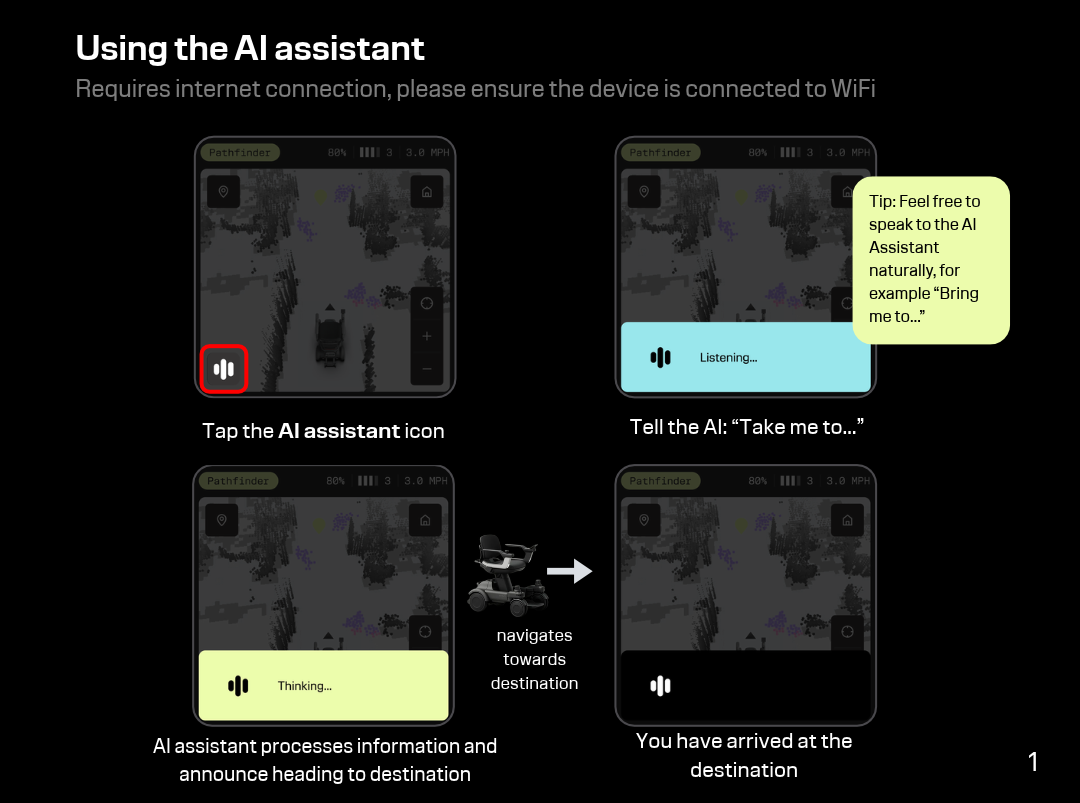
¶ Option 2: Use AI Assistant on the Vehicle
- Tap the AI Assistant icon on the home page or the Live view. Alternatively, you can also press and hold the joystick trigger button while speaking.
- Say “Go to [Name of Waypoint].”
¶ Option 3: Use AI Assistant in the Strutt App
The source demonstrates two app methods:
| Method | Reference | Video Demonstration |
|---|---|---|
| AI Chat Shortcuts | See App AI Assistant Shortcuts. | |
| Voice | The source includes a voice-navigation demonstration. |
¶ If an Obstacle Blocks the Route
The vehicle tries to find the shortest path to the destination. If an obstacle is in the way, it recalculates the route.
If the destination is physically impossible to reach, the vehicle displays “Route is out of reach.”
¶ Exit Auto-Pilot
You can exit Auto-Pilot by:
- Pushing the joystick.
- Pressing the Power button.
- Changing the driving mode.
- Using the Smart Push Handle.
¶ Compatibility with Other Functions
The source guide lists the following compatibility during Auto-Pilot use:
| Function | Compatible |
|---|---|
| Manual Mode | No |
| Co-Pilot Mode | No |
| Co-Pilot+ Mode | No |
| Essential Mode | Yes |
| Range Mode | No |
| Privacy Mode | No |
| Smart Push Handle | No |
| AI Assistant | Yes |
| Cruise Mode | No |
| Follow Mode | No |
¶ Delete a Waypoint
¶ Option 1: Use the Vehicle Display
- Open Home → Live View.
- Tap the Waypoints icon at the top left.
- Open Waypoints.
- Tap the waypoint you want to remove.
- Choose Delete. The source also lists a Delete All option for removing all waypoints.
¶ Option 2: Use AI Assistant
- Tap the AI Assistant icon.
- Say “Delete [Name].”
- When asked “Are you sure you want to delete waypoint [Name]?”, say “Yes.”
- Wait for confirmation that “Waypoint [Name] has been deleted.”
¶ Delete a Map
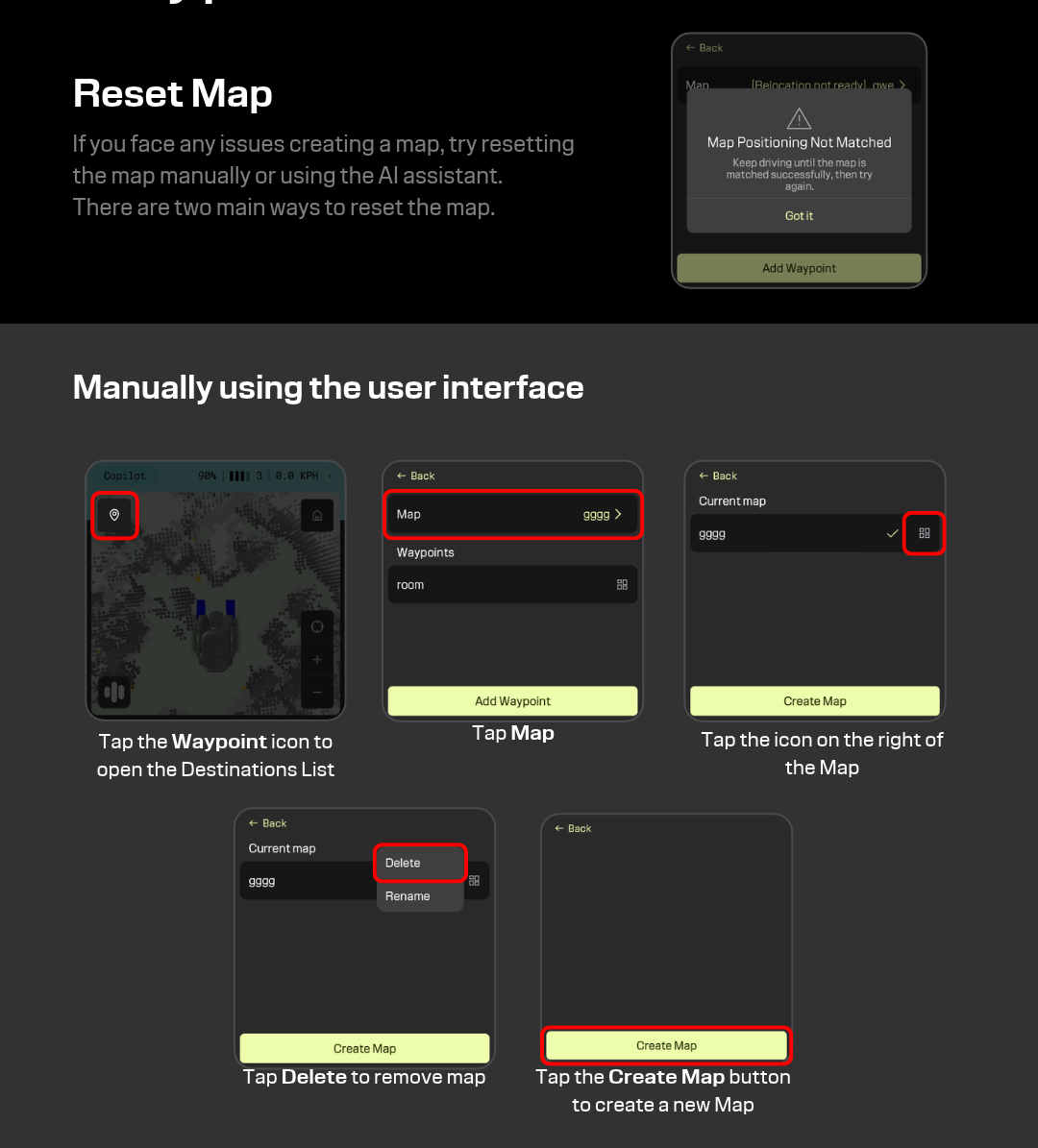
¶ Option 1: Use the Vehicle Display
- Open Home → Live View.
- Tap the Waypoints icon at the top left.
- Tap Map.
- Select the map you want to delete.
- Tap Delete.
- Choose whether to delete or keep its waypoints.
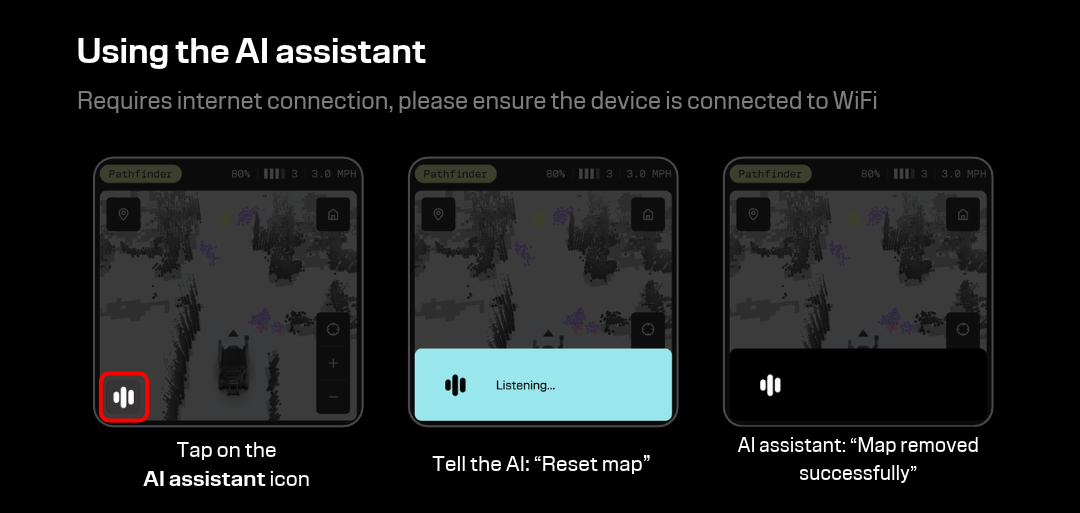
¶ Option 2: Use AI Assistant
- Tap the AI Assistant icon.
- Say “Delete Map.”
- When asked “Are you sure you want to delete this map?”, say “Yes.”
- AI Assistant asks whether you want to keep the map’s waypoints.
- Say “Yes” to keep them, or “No” to delete them.
Kept waypoints may be restored when you create the same map at the same locations. Restoration is not guaranteed by the source wording.
¶ Safety Restrictions
- Use Waypoints only at home and in private indoor spaces.
- Do not use it in crowded or obstructed areas, public areas, or near cliffs or drop-offs.
- Stay alert and be ready to take over at any time.
- The source guide states a maximum speed of 2.8 mph (approximately 4.5 km/h).
¶ Frequently Asked Questions
¶ Why do my map and waypoints not appear?
The vehicle may not have localised, or a different map may be selected. When the vehicle does not recognise its position in the saved map, the saved waypoints cannot be loaded.
- Open Live View and tap the location/Waypoints icon at the top left.
- Check that the correct map is selected.
- If necessary, tap Map and select the correct map.
- Return to Live View.
- If the map is still blue, drive across the indoor space until it turns green.
¶ Do I need a map before creating waypoints?
Yes. Make sure a map is loaded before adding waypoints.
¶ Can I keep my waypoints when deleting a map?
Yes. Choose to keep the waypoints when prompted. They may be restored when you create the same map at the same locations.
¶ How is Waypoints different from Pathfinder?
Waypoints uses saved locations on a map. Pathfinder uses a temporary nearby destination selected in Live View.
¶ Relevant Resources
Waypoint Navigation Stuck on "Calculating Route"
Waypoints Take You to the Wrong Destination